On iPhone, you can convert length, weight, currencies, and more while using the basic or scientific calculator. You just choose which units or currencies you want to convert from and to. Conversions appear as you type, with categories like Speed, Time, and Weight, and you can also convert units and currencies in Math Notes.
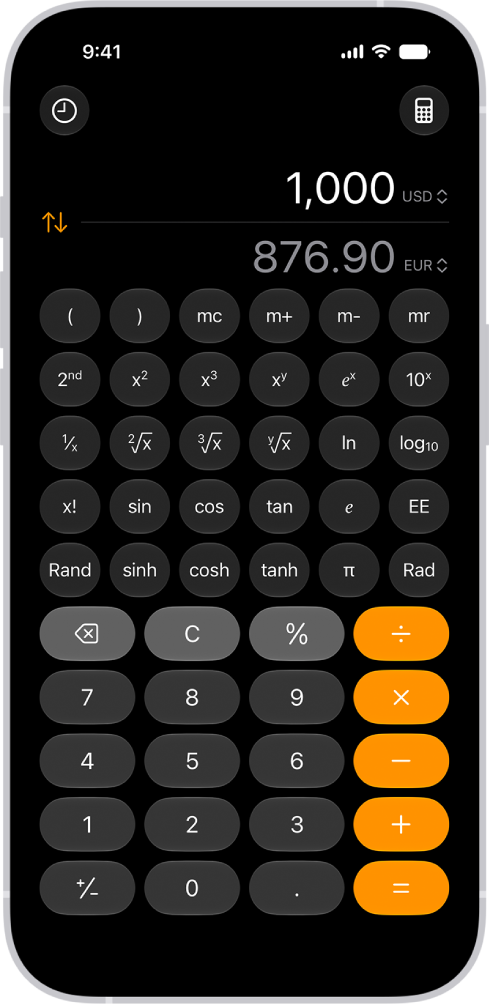
- Open the Calculator app on your iPhone.
- While using the basic or scientific calculator, tap the Change Mode button. Tap Convert.
- Tap the Unit button and choose the units or currencies you want to convert from and to.
Swipe the categories at the top of the list to see others, such as Speed, Time, and Weight.
- Enter a value in either field to see conversions as you type.
- To reverse how the units are converted, tap the Swap Units button.
In Math Notes, you can also convert units and currencies. Type or write “50 m in feet =” in a note, for example.