During Worldwide Developers Conference on June 9, Apple announced all of the new features for its next iPhone operating system — iOS 26 (yes, iOS 26, not iOS 19).
There’s a number of iOS 26 tips and tricks that I think a lot of iPhone users don’t know about, and I’ll be diving into them here.
Whether you are looking for a way to limit the effects of Liquid Glass or add DJ-like song transitions to your music, this post details 10 iOS 26 tips and tricks to help you make the most of your iPhone.
10 Best iOS 26 Tips and Tricks You Should Try on Your iPhone
If you’ve installed iOS 26 beta on your iPhone and are wondering where to go next, we got your back. Here are ten iOS 26 tips to help you get started:
1. Easily Set a Custom Ringtone
This is certainly a “finally” feature – but for the first time in the 18 year history of the iPhone, you can now set a custom ringtone simply within iOS. No need for GarageBand or iTunes.
To set a custom ringtone on iOS 26, open the Files app and tap on an MP3 or M4A audio file that is less than 30 seconds long. Next, tap on the share button in the bottom-right corner of the screen, tap on More, and tap on Use as Ringtone. Then, that audio file will be listed as a ringtone option in the Settings app under Sounds & Haptics → Ringtone.
2. Make Liquid Glass Opaque
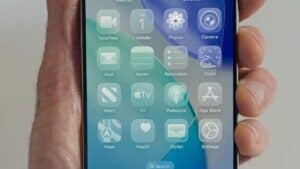
If you installed iOS 26 and are finding it difficult to view the Control Center icons or just prefer a solid background, simply enable the Reduce Transparency setting to make things a little more opaque.
To limit the effects of Liquid Glass on iOS 26, go to Settings > Accessibility > Display & Text Size and turn on the Reduce Transparency option. This will keep the glassy feature of all the icons and folders in iOS 26, but things will be a little more solid.
3. Keep Your Audio in Your Headphones
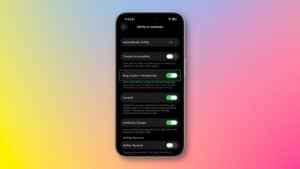
Nothing is worse than new Bluetooth devices switching on and immediately taking over your audio feed — especially when you’re starting your car. This happens all the time when you’re in the middle of a phone call, and get that brief window of awkwardness where the other person’s voice comes blaring out of your speaker and they can’t hear a word you’re saying.
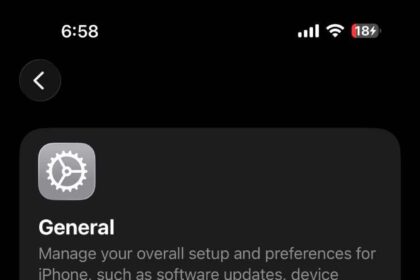
iOS 26 comes with a feature that prevents your iPhone from rerouting audio to a newly connected device when you’re already using headphones or AirPods, so long as you switch it on first. Go to Settings > General > AirPlay & Continuity and tap the Keep Audio in Headphones. That way everything will stop auto connecting to new devices, and will stay exactly where you expect it to.
4. Create Polls in iMessage
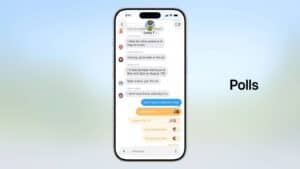
In iOS 26, you can create polls directly inside iMessage group chats. You can propose options, cast votes, and instantly see what everyone prefers.
Polls helps eliminate the chaos of texting back and forth to settle simple group decisions.
To create and share a poll in iMessage on iOS 26:
- On your iPhone, go to Messages app.
- Tap a group chat you’d like to add a Poll.
- Tap the Plus button next to the Message field.
- Select Polls.
- Populate the fields of the chat with choices and press send.
The other members of the group chat tap their choice, with the bars adjusting to indicate the most popular option. As a handy visual cue, the chat avatars of each person appear next to their choice.
5. AutoMix in Apple Music
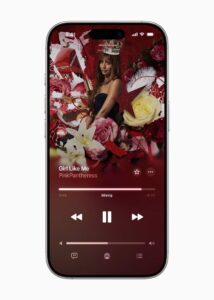
In iOS 26, Apple Music delivers an elevated listening experience with AutoMix, which mixes one song into the next, just like a DJ. Using AI to analyze audio features, it crafts unique transitions between songs with time stretching and beat matching to deliver continuous playback and an even more seamless listening experience.
When a transition between songs kicks in, you’ll see a small “Mixing” animation on the Now Playing screen in the Music app.
AutoMix for Apple Music in iOS 26 is enabled by default. You can check if it’s turned on by going to Settings > Apps > Music > Song Transitions.
Once it’s enabled, just open Apple Music and play your favorite playlist and enjoy smooth, DJ-style transitions.
Also worth pointing out: the new AutoMix feature in Apple Music isn’t an Apple Intelligence feature. This means it’s compatible with all iPhones capable of running iOS 26, which includes the iPhone 11 and newer.
6. Set a Custom Snooze Length For Alarms
If you’re a big fan of snoozing your alarms in the morning, you’ll be very familiar with the 9 minute limit. Pre-iOS 26 your alarm would be snoozed for 9 minutes, no more, no less. But with iOS 26, each alarm you set has a custom snooze duration that gives you more control.
The duration is customizable anywhere from 1 to 15 minutes, and all you seem to need to do is tap the alarm and select the Snooze duration setting. That’s ideal for those of you that either wanted an extended snooze period, or simply want to help wean yourself off the incessant refusal to wake up in the morning. Because it’s hard to fall asleep again if your snooze expires after 60 seconds.
7. Easily Bookmark Web Pages in Safari
iOS 26 has a new feature that makes it a lot easier to bookmark specific pages in the Safari browser. No more fiddling about with multiple screens and menus. Simply double tap the three-dot menu at the bottom of the screen, and the bookmarking options menu will appear.
8. Capture HDR Screenshots
If you want to capture some extra dynamic range in your screenshots and screen recordings, iOS 26 can let this happen. Once done all your screenshots will be saved in the HEIF format while screen recordings will be in the HEVC codec — those are the same as photos and videos captured by the iPhone camera.
To turn this on head into Settings > General > Screen Capture.
9. Screen Incoming Calls
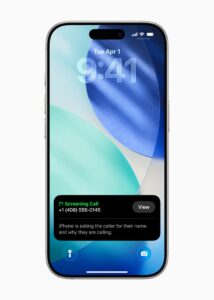
With Call Screening, your phone answers unknown callers on your behalf — no need for you to press a button like you do with Live Voicemail. The caller then shares the name and the reason for their call, and the phone rings presenting you with that information on the screen. You can then decide whether to take the call or not.
10. Make Your App Icons Clear
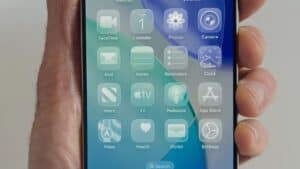
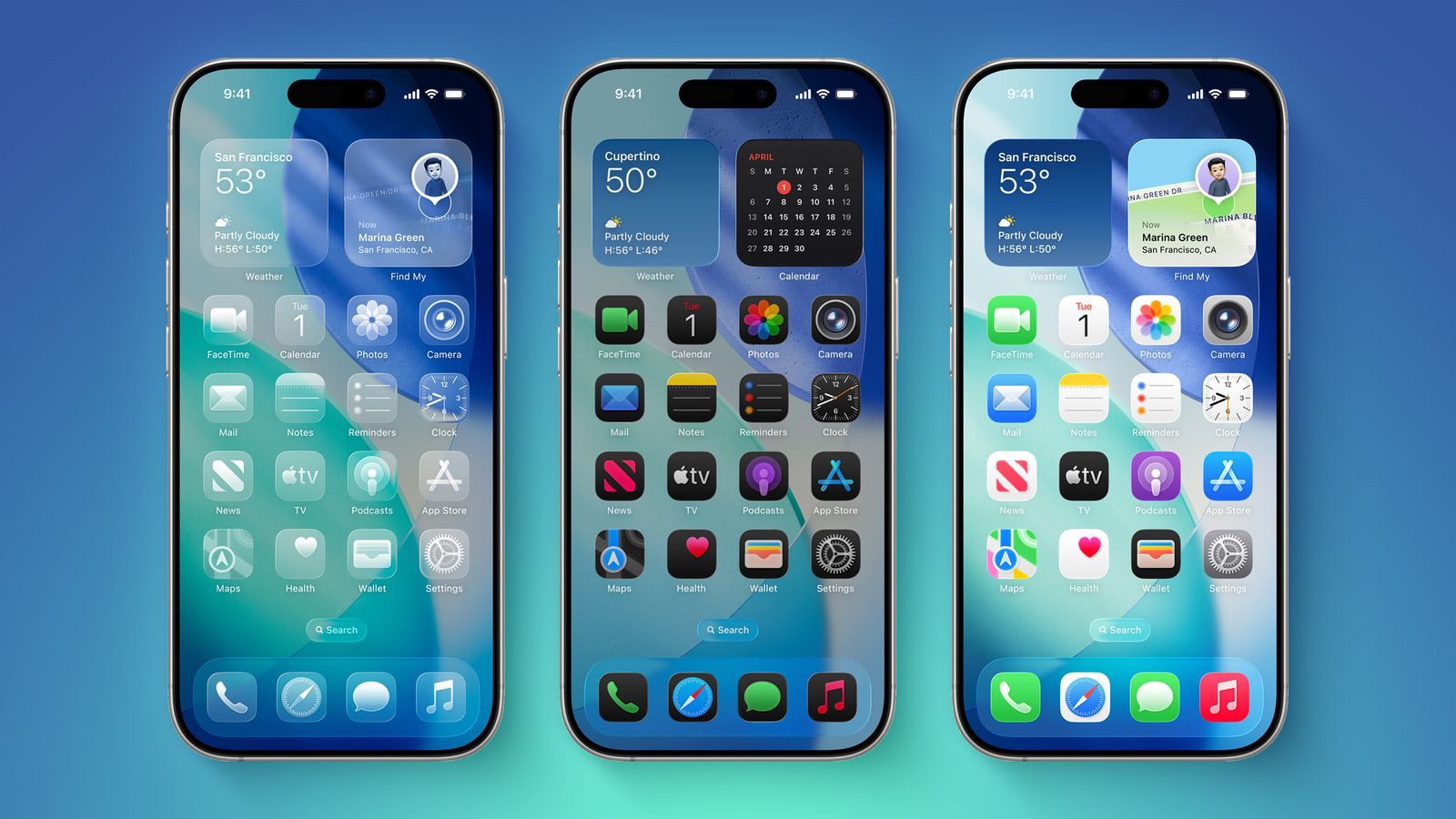
iOS 26 has a new icon mode, called Clear. This takes advantage of Apple’s new Liquid Glass UI theme to create icons that are highly translucent, prioritizing showing your background wallpaper image.
Clear icons are essentially monochrome, with the color from the background shining through. But you can further choose between Clear Light and Clear Dark, to suit your preference. As you might expect, Clear Light opts for brighter look whereas Clear Dark puts a near-black layer between the icon and the wallpaper. You can pick “Auto” to switch between Light and Dark based on the current system Appearance setting.
To get clear app icons:
- Go to the Home Screen.
- Touch and hold the Home Screen background until the icons begin to jiggle.
- Tap Edit at the top of the screen, then choose Customize.
- Tap Clear.
- Choose the preferred variant:
- Light
- Dark
- Auto
Wrap up
Overall, iOS 26 is a pretty big release. The redesigned interface with Liquid Glass is certainly going to grab most peoples attention – but that doesn’t take away from the fact that this year’s release is still packed with great features.
What are your favorite iOS 26 tips and tricks? Let us know in the comments.
See also: 100 new iOS 26 features for iPhone! Do you know them all?