How to use iPhone as a level

You can use the Measure app on iPhone as a level to check whether an object is level or how many degrees it's off.

By Kevin Shaw - Editor
0 Min Read

Use your iPhone to determine whether an object near you is level, parallel to the ground, or how many degrees it varies from level. Measurements are approximate. It’s in the Measure app, and you’ll see green when the object is level.
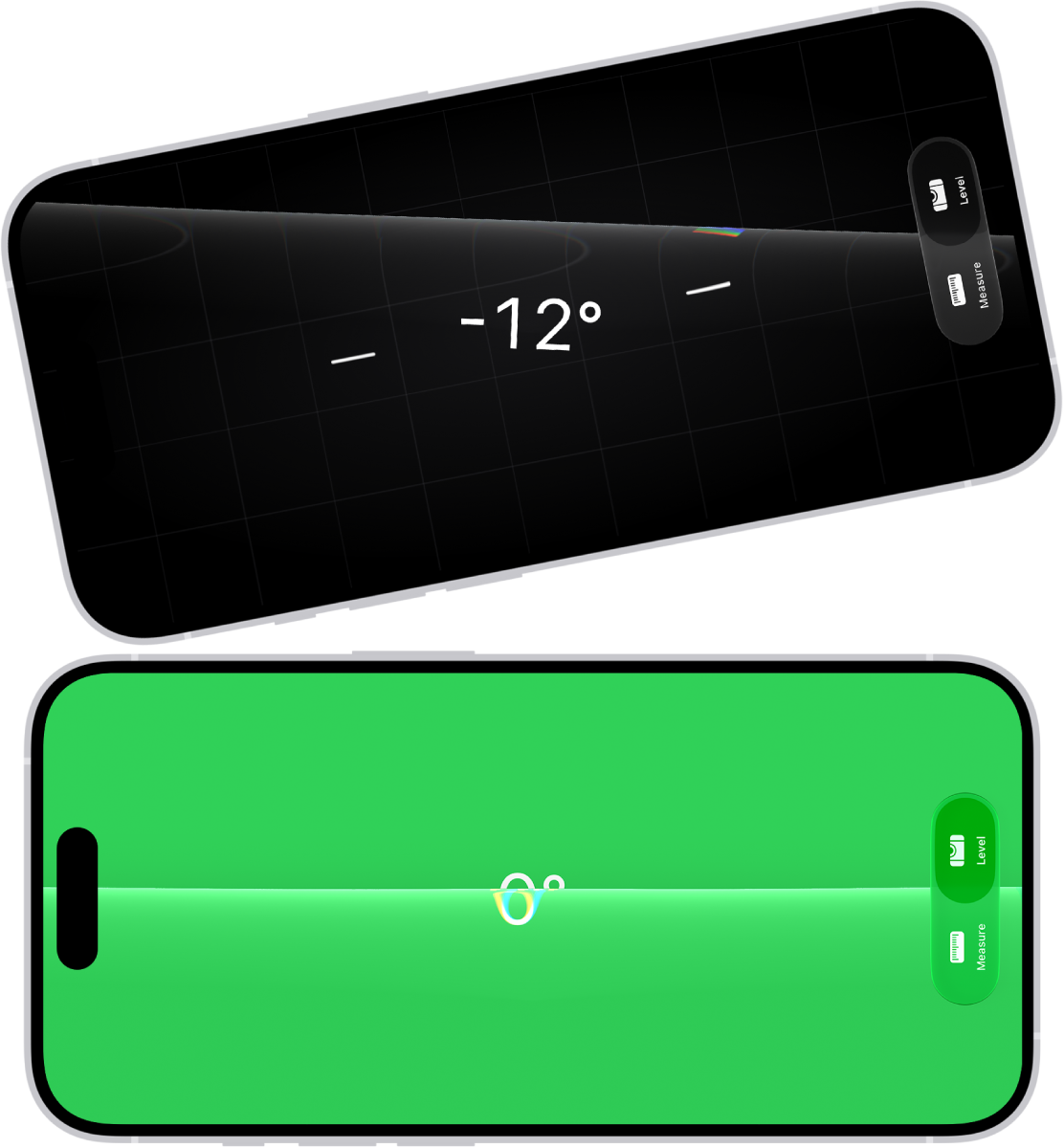
The level screen in the Measure app. On the top, iPhone is tilted at an angle of 10 degrees; on the bottom, iPhone is level.

  1. Open the Measure app (in the Utilities folder) on your iPhone.
  2. Tap Level. Hold iPhone against an object, such as a picture frame.
    • Make an object level: Rotate the object and iPhone until you see green.
    • Match the slope: Tap the screen to capture the slope of the first object. Hold iPhone against another object and rotate both of them until the screen turns green.

To reset the level, tap the screen again.
TAGGED:
Editor
Follow:
Kevin Shaw is a seasoned tech journalist based in Los Angeles with a penchant for all things Apple. He started writing about Apple products in 2007 and it's been a love affair ever since. He has spent over a decade testing and writing about iPhones, iPads, Macs, and other Apple products. In his spare time, he likes nothing more than catching up with the latest news and sports podcasts on the beach.
Leave a Comment