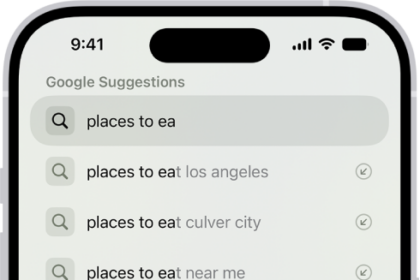
On iPhone, in the Notes app, you can search through all your notes for typed and handwritten text, objects in images, and text in scanned documents. You can also search for text within a note or attachment.
You can search for tags, too, and handwritten text in supported languages. Just know that a locked note shows up in the results by its title only.
Here’s how to search through your notes on iPhone.
Search for text, objects, and more in all your notes
Search covers tags, typed and handwritten text (in supported languages), objects in images, and text in scanned documents. Note: Only a locked note’s title appears in search results.
- Open the Notes app on your iPhone.
- Tap the Search button. Then enter what you’re looking for. You can also choose a suggested search, such as “Notes with Drawings” and then enter additional text to refine your search. If a note is locked, only its title appears in the search results. The search includes handwritten text (in supported languages), photos, and scanned documents.
Search within a note or attachment for typed and handwritten text
- Open the Notes app on your iPhone.
- Open the note you want to search.
- Tap the Note Actions button and then tap Find in Note.
- Tap the Search button and select any of the options. To search PDFs and other attachments, select Include Attachments.
- Enter the text you’re looking for in the search field.