On iPhone, you can make changes to your wake up alarm if you’ve set up a sleep schedule in the Health app.
You can change just your wake up time, or shift your whole sleep schedule, so your bedtime and wake up time move together and your sleep duration stays the same. In Alarm Options, you can also choose a vibration or ringtone, set the alarm volume, and turn on Snooze to see a Snooze button with your alarm.
Here’s how to change your wake up alarm in Clock on iPhone.
Change your wake up alarm
- Start the Clock app on your iPhone.
- Tap Alarms, then tap Change.
- Do any of the following:
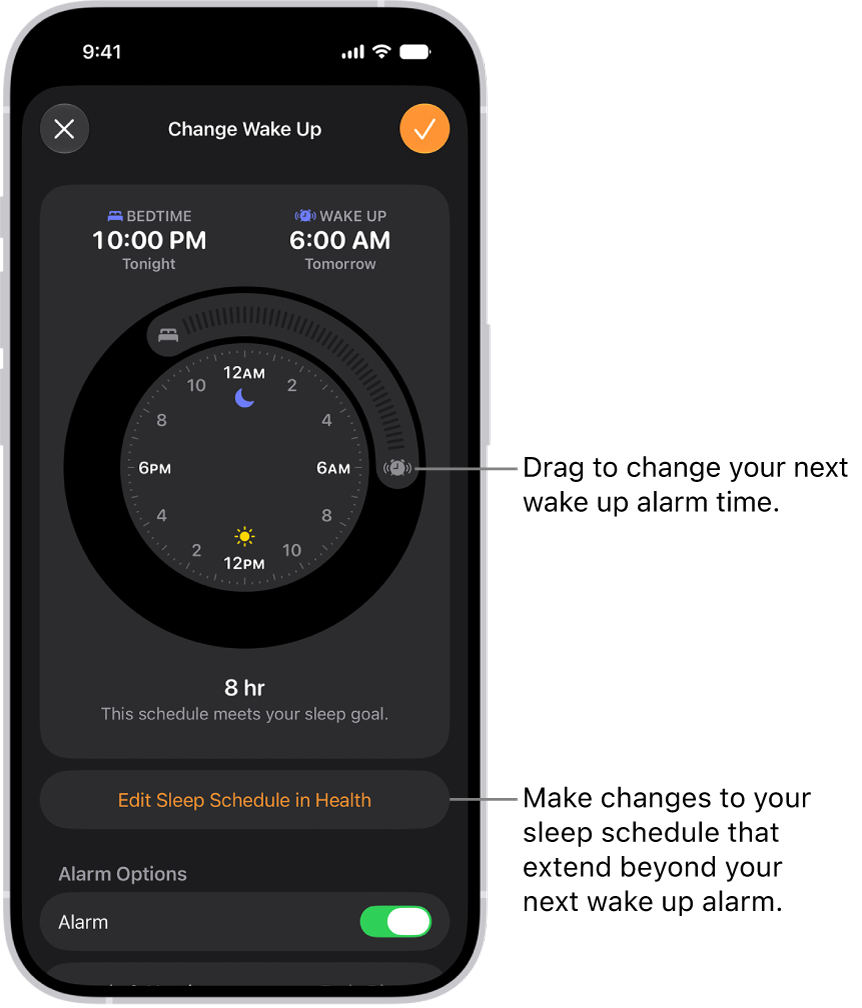
- Change only your wake up time: Drag the Ringing Alarm button.
- Shift your sleep schedule: Drag to rotate the arc between the Bedtime button and the Ringing Alarm button. (Your bedtime and wake up time change simultaneously, and the sleep duration remains unchanged.)
- Scroll down to Alarm Options, turn the alarm on, and then change any of the following options:
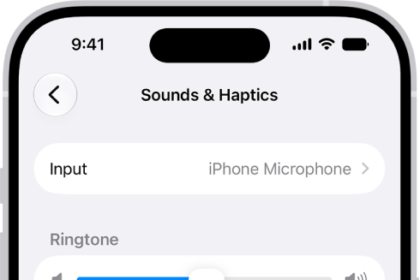
- Sounds & Haptics: Tap to choose a vibration or ringtone.
- Alarm volume: Drag the slider.
- Snooze: Turn on to see a Snooze button with your alarm.
- Snooze Duration: Choose how long to pause the alarm.
- Tap the Done button, then tap Change Next Alarm Only.
Note: Tap Change This Schedule, and it updates your recurring wake up alarm in your sleep schedule too.
To make changes to your sleep schedule that extend beyond your next wake up alarm, tap Edit Sleep Schedule in Health.
Turn off your next wake up alarm
- Start the Clock app on your iPhone.
- Tap Alarms, then tap Change.
- Scroll down to Alarm Options, then turn off Alarm.
- Tap the Done button, then tap Change Next Alarm Only.
Note: Your recurring wake up alarm in your sleep schedule changes too when you tap Change This Schedule.
Remove the wake up alarm
- Start the Clock app on your iPhone.
- Tap Alarms, then tap Change.
- Tap Edit Sleep Schedule in Health and then turn off Sleep Schedule.
You can also delete a sleep schedule or turn off all sleep schedules in the Health app.