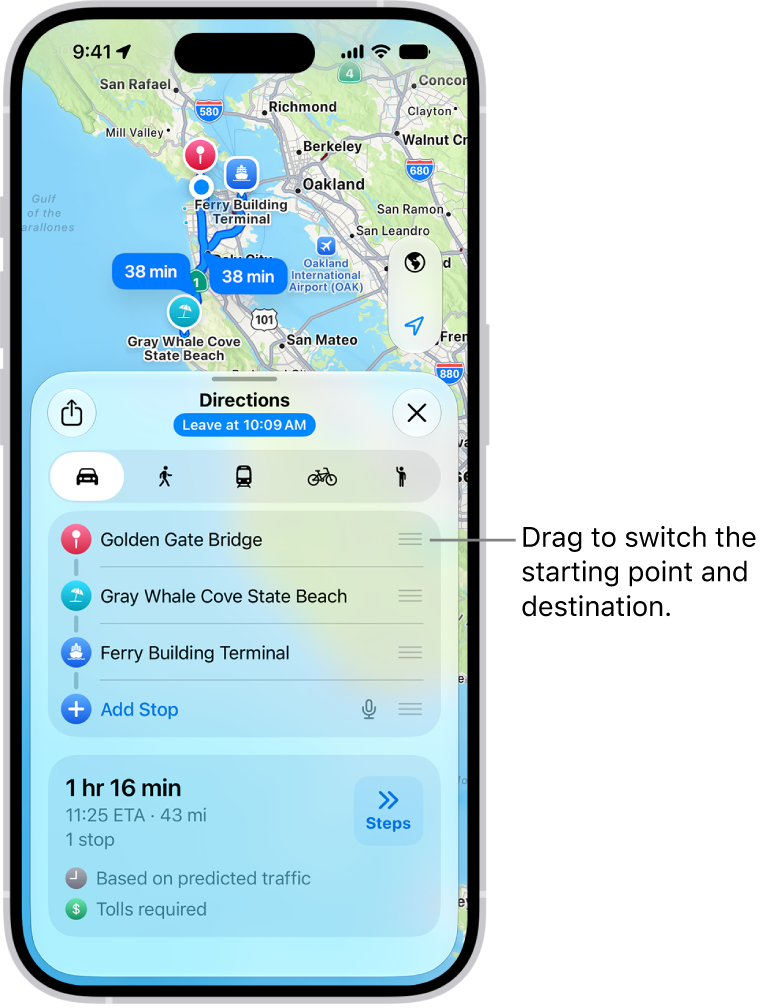
On iPhone, you can display data about the weather and air quality that affects the local area shown on your map. When you zoom in on a map far enough, a weather icon shows the current conditions for that area, and in some regions, the air quality index (AQI) appears, too.
Note: Air quality and weather data aren’t available in all countries or regions.
Find out about weather and air quality in a specific map area
- Start the Maps app on your iPhone.
- Zoom in on a map until the weather icon appears.
The icon shows the current conditions for that area.
In some regions, the air quality index (AQI) also appears.
- To get the hourly forecast, touch and hold the weather icon.
Tap the hourly forecast to open the Weather app, where you can see even more details.
Remove local weather data from your map
- Start the Settings app on your iPhone.
- Tap Apps, then tap Maps.
- Turn off Air Quality Index and Weather Conditions.