How to print PDFs or images in Preview on iPhone

You can print a PDF or image from the Preview app on iPhone to a printer you choose.

By Stacey Butler - Senior Staff Writer
0 Min Read

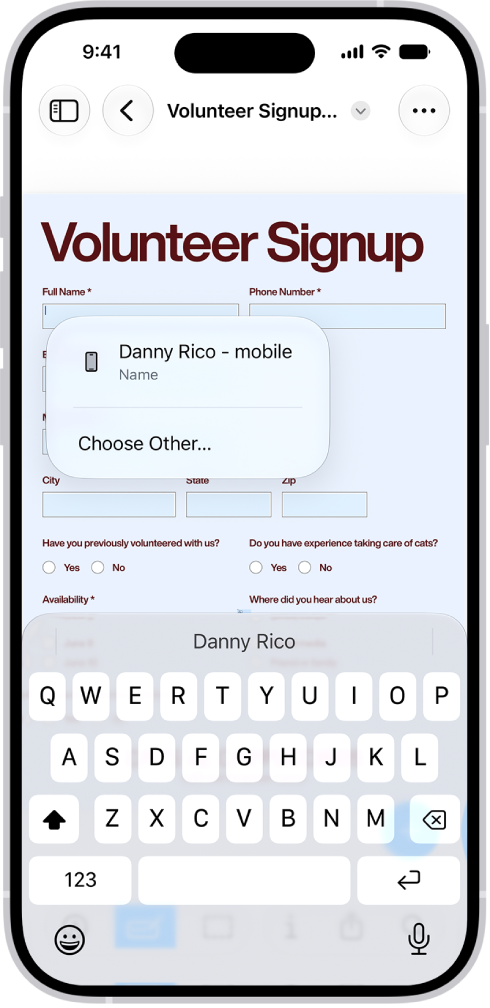
You can print a PDF or image in the Preview app on your iPhone. Print is in the Actions Menu next to the filename, and from there, you can select a printer and send your PDF or image to it.

  1. Start the Preview app on your iPhone.
  2. Open a PDF or image.
  3. Tap the Actions Menu button next to the filename. Then tap Print.
  4. Select a printer, then tap the Print button.
TAGGED:
Senior Staff Writer
Follow:
Stacey is a senior staff writer at GeeksChalk and has been writing about Apple for nearly a decade. She covers all things Apple for GeeksChalk, including iPhones, iPads and Mac. Based in Honolulu, Hawaii, Stacey is often found hiking precarious landscapes or tinkering with a camera.
Leave a Comment