The Camera Control on supported models lets you quickly open your iPhone camera and access common camera settings.
The Camera Control can open Camera, take a photo, or record a video, and you can also select and adjust Camera Control settings like exposure and depth, where depth turns on Portrait mode if it wasn’t already selected, and lock the exposure and focus.
Here’s how to use the Camera Control on iPhone.
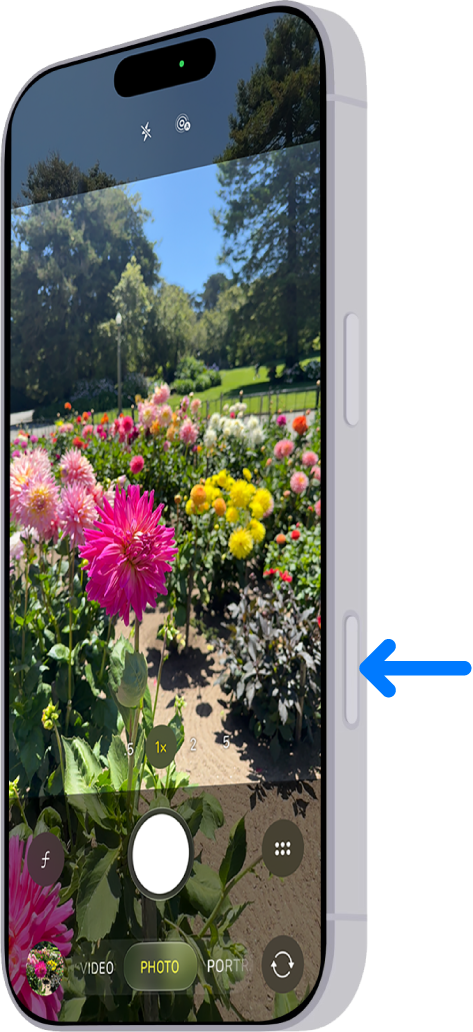
Open Camera with the Camera Control
Click the Camera Control to open Camera .
Take a photo or video with the Camera Control
- Click the Camera Control to open Camera.
- Click again to take a photo, or click and hold to record a video.
Note: When Camera opens in Video mode, click to start recording.
Settings available with the Camera Control
The Camera Control lets you select and adjust any of these settings:
- Exposure: Brighten or darken the scene by increasing or decreasing the exposure.
- Depth: Increase or decrease the background depth-of-field effect (this setting turns on Portrait mode if it wasn’t already selected).
- Zoom: Zoom in or out.
- Cameras: Switch between cameras, including the front-facing camera.
- Styles: Change the Photographic Style.
- Tone: Lighten or deepen the mood by increasing or decreasing the tone.
Note: Not all controls are available in all camera modes.
Select and adjust the Camera Control settings
- Click the Camera Control to open Camera.
- Lightly press the Camera Control twice to open an overlay that shows the available settings for that camera mode.
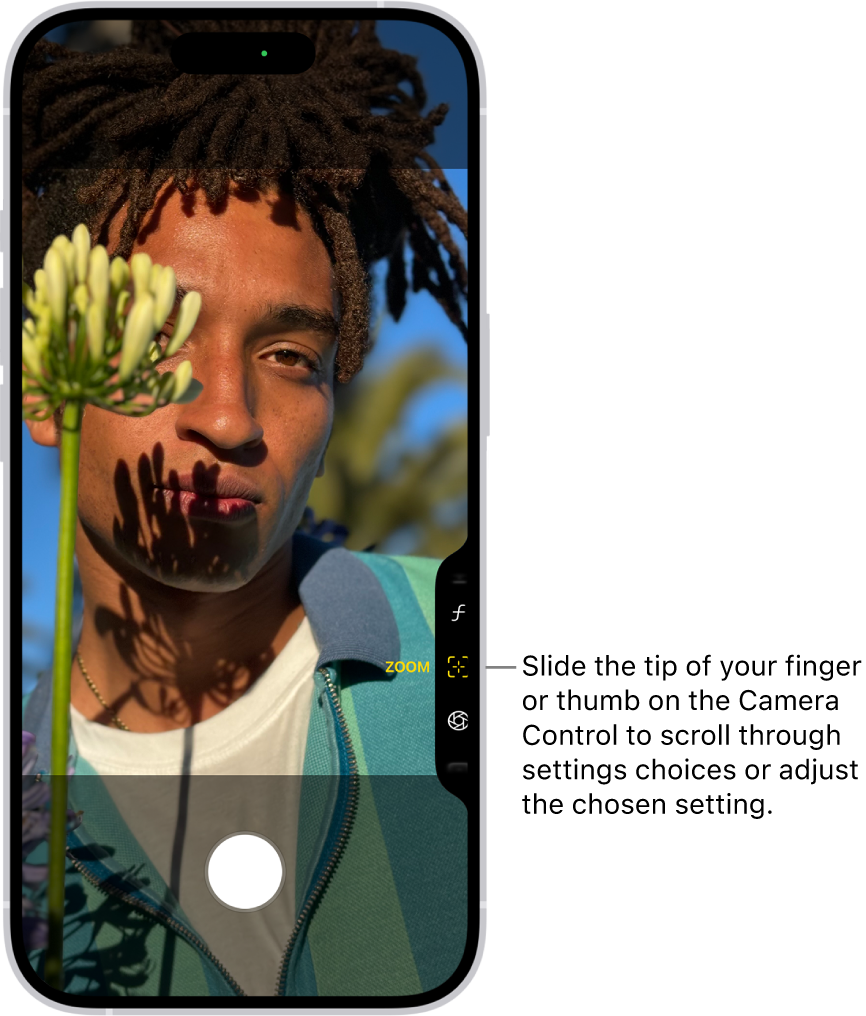
- Slide your finger on the Camera Control to scroll through the settings choices. Then lightly press to select the setting you want.
- Slide your finger on the Camera Control to adjust the setting.
The setting is saved and appears the next time you lightly press the Camera Control.
- Click the Camera Control to take your shot.
Quick tip: You can choose which Camera Control settings appear in the settings overlay and change their order. To do this, go to Settings > Camera > Camera Control > Customize.
Lock the exposure and focus with the Camera Control
As you take photos and record video, the Camera Control can lock the exposure and focus settings on a subject.
- Start the Settings app on your iPhone.
- Tap Camera and tap Camera Control. Turn on Lock Focus and Exposure.
After you complete steps 1 and 2, you don’t need to repeat them.
- Click the Camera Control to open Camera.
- Lightly press and hold the Camera Control until you see AE/AF Lock above the frame.
- Keep your finger touching the Camera Control to maintain the AE/AF Lock.
Note: If you release the Camera Control, the AE/AF Lock turns off.
- Click the Camera Control to take photos or click and hold to record video.
- Release the Camera Control to turn off the AE/AF Lock.
Customize how you open the Camera Control
You can change the number of clicks it takes to open Camera with the Camera Control from one click to two.
- Start the Settings app on your iPhone.
- Tap Camera and tap Camera Control. Then tap Single Click or Double Click.
You can also adjust accessibility options for the Camera Control, such as the pressure required to lightly press or the speed required to lightly double-press.
Use Visual Intelligence with Camera Control
If you have Apple Intelligence, Visual Intelligence with Camera Control helps you quickly learn more about the places and objects around you. You can find out where to buy something you see, translate text or have it read aloud, get details about a restaurant or business, and more.
Apple Intelligence on iOS 27 or later is available on an Apple Intelligence-enabled iPhone 15 Pro, iPhone 15 Pro Max, or iPhone 16 model or later. Apple Intelligence is not available in all languages or regions. Usage limits may apply.*
*Apple Intelligence is available with Siri and device language set to Chinese (Simplified), Chinese (Traditional), Danish, Dutch, English, French, German, Italian, Japanese, Korean, Norwegian, Portuguese, Spanish, Swedish, Turkish, or Vietnamese. Some features may not be available in all regions or languages. Some devices may not be available in all regions.
Siri AI is available in beta in iOS 27, iPadOS 27, macOS 27, watchOS 27, and visionOS 27 and requires an Apple Intelligence–enabled device set to a supported language. Available in English to start. Siri AI will not be initially available in the EU on iOS, iPadOS, and watchOS. Certain Apple Intelligence features that rely on server-side models are subject to daily usage limits, including but not limited to Siri AI, Intelligent Photo Editing Tools, Image Playground, and AFM 3 Cloud models in Shortcuts.
Daily limits may vary by feature, request complexity, system demand, system policies, and other factors. Expanded access to such features will be available for a fee in the future. Use of these features is subject to the Apple Intelligence Terms and Conditions.