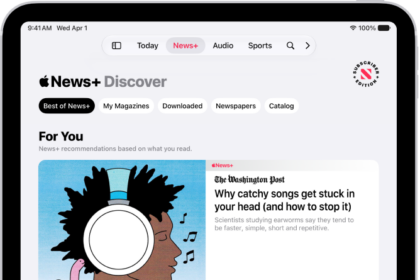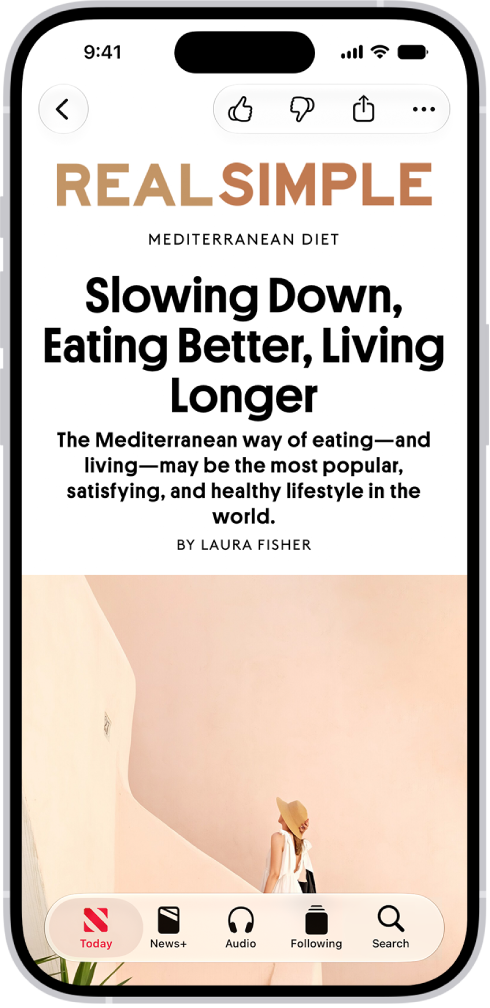
On iPhone, in the News app, you can clear your reading history and adjust how you get reading recommendations. You can remove your reading history, the information used to recommend stories, or both, and the change applies on all devices where you’re signed in to the same Apple Account.
Clear your history
- Open the News app on your iPhone.
- Tap Following, tap History, tap Clear, and then do any of the following:
- Remove your reading history: Tap Clear History.
- Remove information used to recommend stories: Tap Clear Recommendations. Choosing this option can change the types of channels, topics, and stories shown in the Today and other feeds in Apple News on all your Apple devices.
- Remove your history and recommendations: Tap Clear All.
- Your News history and recommendation information are removed from all devices where you’re signed in to the same Apple Account.
When you clear your history, the identifier used by Apple News to report statistics to news publishers is also reset. You can reset the identifier at any time by going to Settings > Apps > News, then turning on Reset Identifier.
Recommend stories based on News app reading only
Turn off Siri & Search for the News app, and recommendations are based only on your reading habits in the News app, not in Safari and other apps.
- Open the Settings app on your iPhone.
- Tap Apps, then tap News.
- Tap Siri and turn off Show in App.