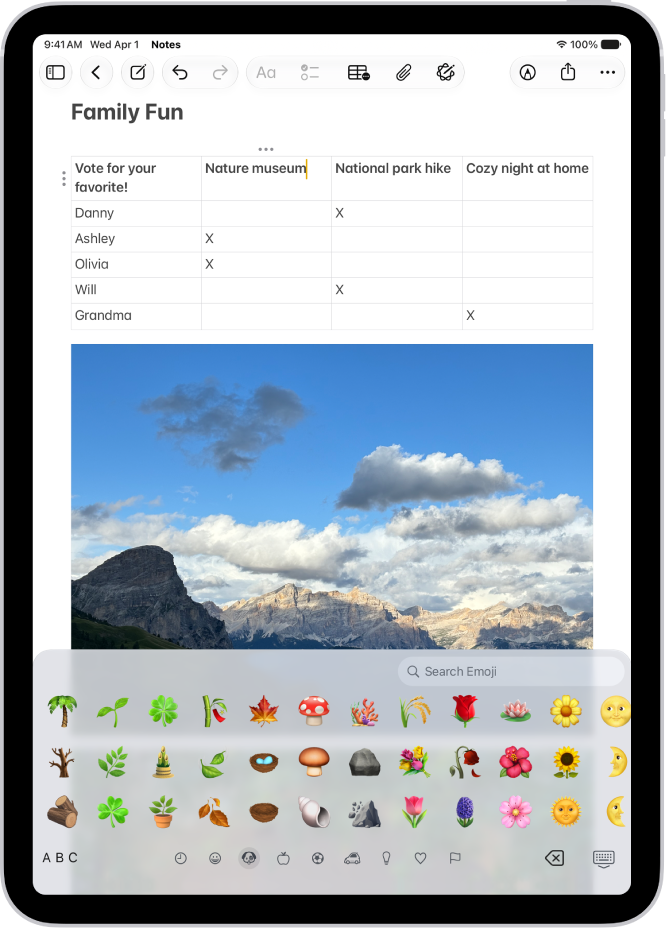
On iPad, with an Apple external keyboard, you can switch between the language keyboard for your region, an emoji keyboard, other language keyboards you add, and the onscreen keyboard. A keyboard shortcut cycles through them. The emoji keyboard even lets you search for an emoji with a common word, like “heart.”
Switch between language keyboards and the onscreen emoji keyboard
- On the external keyboard, press and hold the Control key.
- Press the Space bar to cycle between the language keyboard for your region, the emoji keyboard, and other language keyboards that you add.
When you select the emoji keyboard, you can do the following:
- Search for an emoji: Enter a commonly used word or phrase—such as “heart” or “smiley face”—in the search field above the emoji keyboard.
- Enter an emoji: Tap it; or use the arrow keys on the external keyboard to select it. Then press Return.
Quick tip: To jump to the emoji keyboard quickly, press the Switch Keyboard key-E on Smart Keyboard or the Magic Keyboard for iPad.
With Magic Keyboard for iPad and Smart Keyboard, you can also press the Switch Keyboard key to choose between keyboards. If you want to use the Switch Keyboard key to show only the emoji keyboard instead of switching languages, go to Settings > General > Keyboard > Hardware Keyboard, then turn on Press the Switch Keyboard key for Emoji.
Quick tip: With a Chinese, Korean, Japanese, or Hebrew keyboard added, you can press the Caps Lock key to switch between Latin script and the other keyboard you’re using. If you’d rather the Caps Lock key not switch languages, go to Settings > General > Keyboard > Hardware Keyboard and turn off Switch Languages using Caps Lock.
Switch to the onscreen keyboard
- Do one of the following:
- Tap the Keyboard Shortcut button in the Shortcuts bar (at the bottom of the screen).
- If you installed additional language keyboards, tap the language button next to the predictive text suggestions (opposite of the Dictation button in the Shortcuts bar).
- Tap Show Keyboard.
To hide the onscreen keyboard, tap the Hide Keyboard button.
Note: On Magic Keyboard for iPad and Smart Keyboard, the Switch Keyboard key can show only the emoji keyboard rather than switching languages. To set that up, go to Settings > General > Keyboard > Hardware Keyboard and turn on Press the Switch Keyboard key for Emoji. Then, to switch between other language keyboards, you press and hold the Control key and press the Space bar.
See also