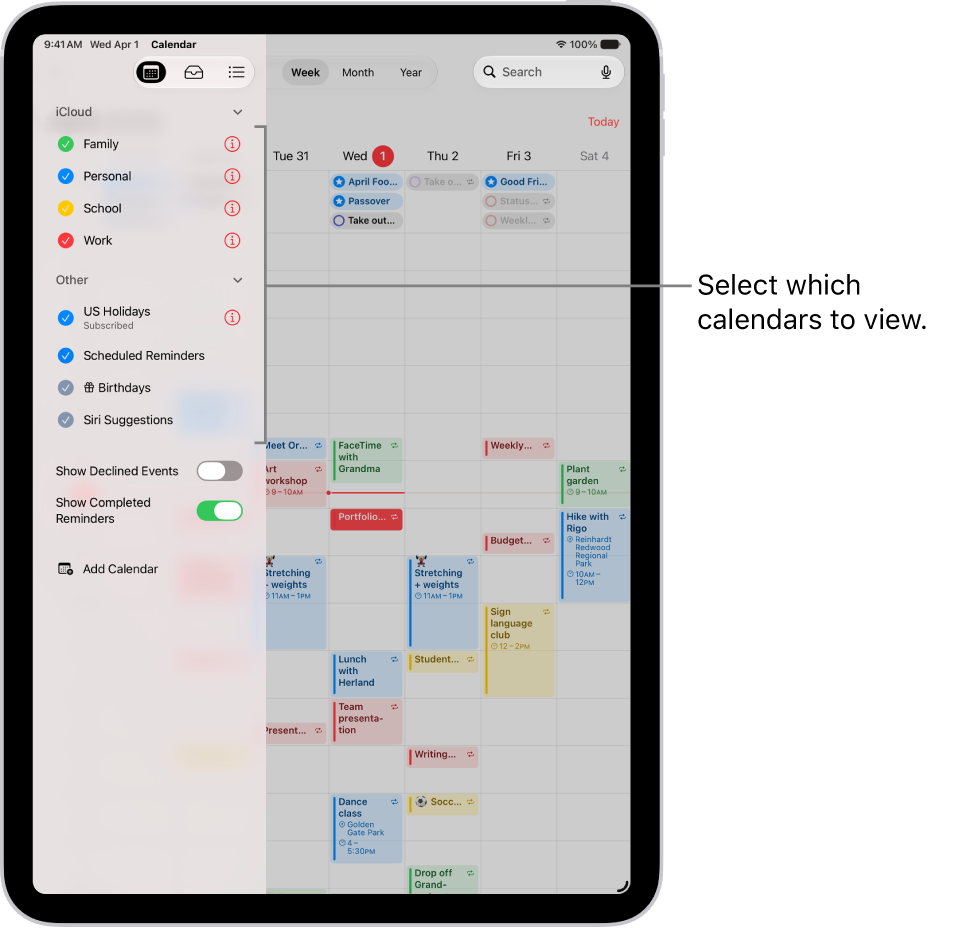
In the Calendar app, the Holidays calendar displays holidays based on the region set on your iPad.
You can show or hide holidays, and add a holiday calendar from a different region. Since the Holidays calendar is a subscription calendar, though, you can’t add or delete holidays, because it can be modified only by the calendar provider. Notification alerts and the color for a holiday calendar can be changed, too.
Note: The Holidays calendar is a subscription calendar, so you can’t add or delete holidays; only the calendar provider can modify it.
Show or hide holidays
- Open the Calendar app on your iPad.
- Tap the Calendars button at the top left.
- Select or deselect US Holidays (or the holiday calendar for your country or region).
Add a holiday calendar from a different region
- Open the Calendar app on your iPad.
- Tap the Calendars button at the top left.
- Tap Add Calendar at the bottom of the screen. Then tap Add Holiday Calendar.
- Tap the holiday calendar you want to subscribe to and then tap the Done button.
For settings like notification alerts or the color of a holiday calendar, read our guide, Set up multiple calendars.
See also