You can search or browse the Music app on Apple TV 4K by selecting items in the sidebar. Home gives you quick access to your favorite music, along with personalized recommendations and custom mixes, and New has the best music and music video recommendations from music experts.
You can also watch the hottest new music videos, listen to Apple Music radio stations, or find a specific song, artist, or album. Full access requires an Apple Music subscription, though.
Note: Full access to songs and features on the Apple Music app requires an Apple Music subscription.
- Search: Find music by entering search terms or by browsing curated categories.
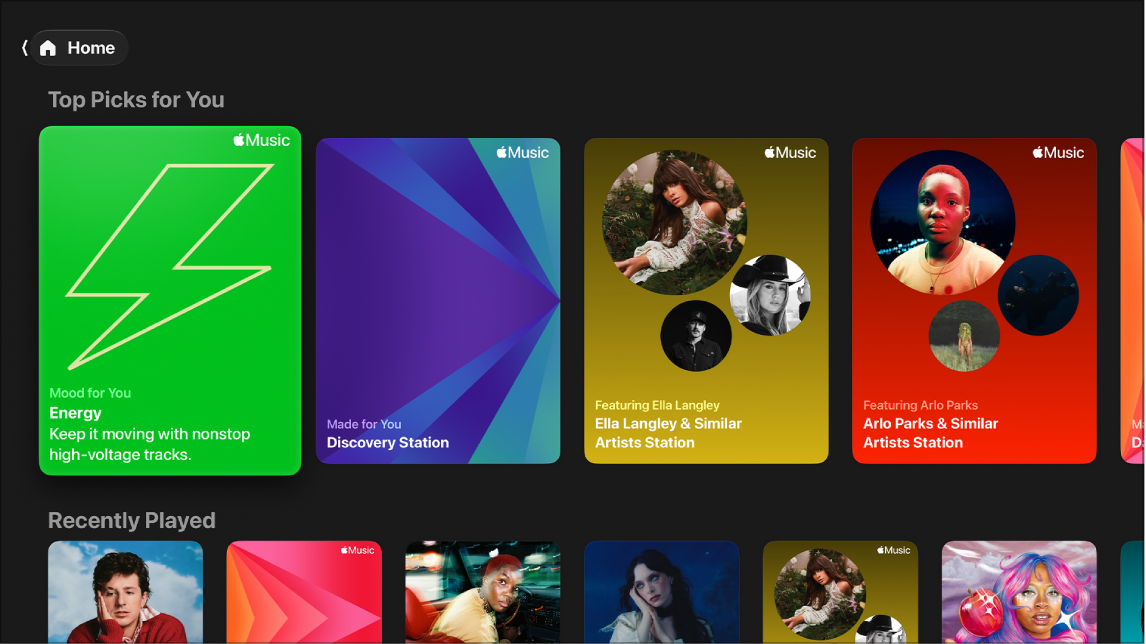
- Home: Get quick access to your favorite music, plus personalized recommendations and custom mixes all in one place.
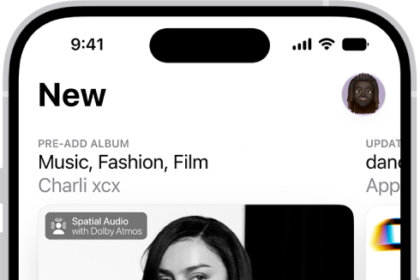
- New: Browse the best music and music video recommendations from music experts.
- Sing*: Sing along to millions of songs with real-time, beat-by-beat lyrics. See Use Apple Music Sing on Apple TV 4K. *Available on Apple TV 4K (3rd generation).
- Music Videos: Watch the hottest new music videos, curated video playlists, and Apple Music TV, a 24-hour livestream of popular music videos.
- Radio: Listen to Apple Music radio stations, as well as a collection of broadcast and other stations based on different genres.
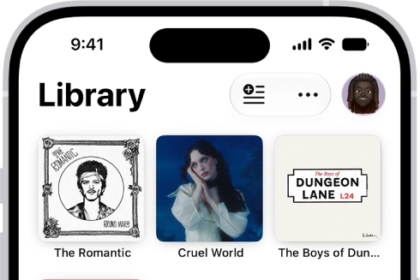
- Library: Access Apple Music content and playlists you added, your iTunes Store purchases and playlists, and music synced from your iPhone, iPad, or other devices if you have an Apple Music subscription. See Browse your Music library on Apple TV 4K.
- Now Playing: Go to the currently playing song to access playback controls and more. See Control music playback on Apple TV 4K.
Search in the Music app
The Search screen in the Apple Music app helps you find a song, artist, or album in Apple Music or your library, or find something new by browsing search categories.
- Go to the Music app on Apple TV 4K.
- Open the sidebar, then select Search.
- Do any of the following:
- Navigate down to browse items that appear in featured categories.
- Enter a search term in the field.
Tip: When you want to search, simply describe what you’re looking for using natural language, such as “hit songs from movies” or “nostalgic songs from the ’90s.”
- Select an item to see ratings, descriptions, and other information.
Siri: Press and hold the Siri/Search button on your remote, then ask Siri to play a specific song, album, artist, or genre.
Browse in the Music app
- Go to the Music app on Apple TV 4K.
- Open the sidebar and then select Home or New.
- Do either of the following:
- On the Home screen, scroll down to see personalized rows of music, such as Top Picks, Recently Played, Made for You (personalized mixes based on your listening history), Stations for You, and Replay (custom mixes of your top music by all time or yearly period).
- On the New screen, scroll down to see featured items and playlists, trending songs, new releases, recently updated Apple Music playlists, global and local charts, and more.
Tip: To filter the types of recommendations you see, scroll down to More to Explore at the bottom of the screen, then select a category like Music Videos or Moods and Activities.
- Navigate left and right in a row to view available options. Then do any of the following:
- Start playing a station or radio episode: Select the station or episode to begin playing it immediately.
- Listen to a mix, playlist, or album: Select a mix, playlist, or album to see the song list.
Choose Play to play from the top, Shuffle to play the songs in a mixed order, or a specific song to play it. You can also select the Add button to add the mix or album to your library, or select the More button to view more options.
- Add an item to your library, a playlist, or the queue: Go to an item, press and hold the clickpad or touch surface to view more options, and then choose an option from the pop-up menu.
- Go to an artist’s profile: Go to an album and press and hold the clickpad or touch surface to view more options. Choose Go to Artist.
Start playing music, and the Now Playing screen opens so you can view lyrics (if available), get more information, and control playback. For the details, check out our article, Control music playback on Apple TV 4K.
Create a custom station based on a song or artist
Creating a custom station is a way to find new music that’s similar to a specific song or artist.
- Go to the Music app on Apple TV 4K.
- Do any of the following:
- Create a station based on a song: Go to a song anywhere in the Music app, press and hold the clickpad or touch surface, and then choose Create Station.
- Create a station based on an artist: Go to the artist’s profile and select the More Options button. Then choose Create Station.
- Create a station based on the song that’s currently playing: Go to Now Playing at the top of the screen, show playback controls, select the More Options button, and then choose Create Station.
Siri: Press and hold the Siri/Search button on your remote, then ask Siri to create a radio station based on the currently playing song.
Note: Newly created stations appear in the Recently Played category of the Radio screen.
Listen to Apple Music radio
Always-on Apple Music radio stations, including Apple Music Hits, Apple Music Country, and Apple Music 1, are on the Radio screen in the Apple Music app, along with a collection of broadcast and other stations based on different genres. On Apple TV 4K, there are thousands of local and international broadcast radio stations to play.
Note: Full access to songs and features on the Music app requires an Apple Music subscription.
- Go to the Music app on Apple TV 4K.
- Open the sidebar, then select Radio.
- Scroll down to see category rows, including:
- Apple Music Radio, which includes Apple Music 1, plus stations for various genres such as Hits, Country, Club, and Chill
Tip: To see schedules for Apple Music Radio, navigate to its thumbnail, press and hold the clickpad or touch surface, then choose View Schedule.
- Local broadcasters based on your location and international broadcasters around the world
- Episodes, shows, playlists, interviews, and more
- Apple Music Radio, which includes Apple Music 1, plus stations for various genres such as Hits, Country, Club, and Chill
- Navigate left and right in a category row to view available shows, episodes, and interviews. Then do any of the following:
- Start playing a station, radio episode, or live broadcast: Select the station or episode to begin playing it immediately.
- View more information about a radio show: Select a show to see episodes, show playlists, similar shows, and more.
Browse and play music videos or Apple Music TV
Note: Videos are available for browsing, but you must be an Apple Music subscriber to play them.
- Go to the Music app on Apple TV 4K.
- Open the sidebar, then select Music Videos.
- Scroll down to see category rows, including:
- Featured music videos, newly released music videos, live performances, music videos by genre, and curated music video playlists by theme, artist, genre, or era
- Apple Music TV, a free 24-hour, curated livestream of popular music videos with exclusive new music videos and premieres, curated music video blocks, live shows and events, chart countdowns, and more
- Navigate left and right in a row to view available videos and then do any of the following:
- Start playing a music video: Select a music video to begin playing it immediately.
- Watch a music video playlist: Select a music video playlist to see the video list.
Choose Play to play it from the top, choose Shuffle to play the videos in a mixed order, or select a specific video to play. You can also select the Add button to add a music video playlist to your library, or select the More button to view more options.
- Add an item to your library or a playlist: Go to an item, press and hold the clickpad or touch surface to view more options, and then choose an option from the pop-up menu.
Not all features and content are available in all countries or regions or on all Apple TV hardware models.
See also