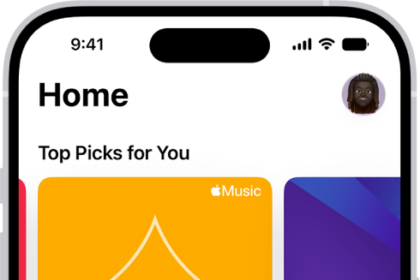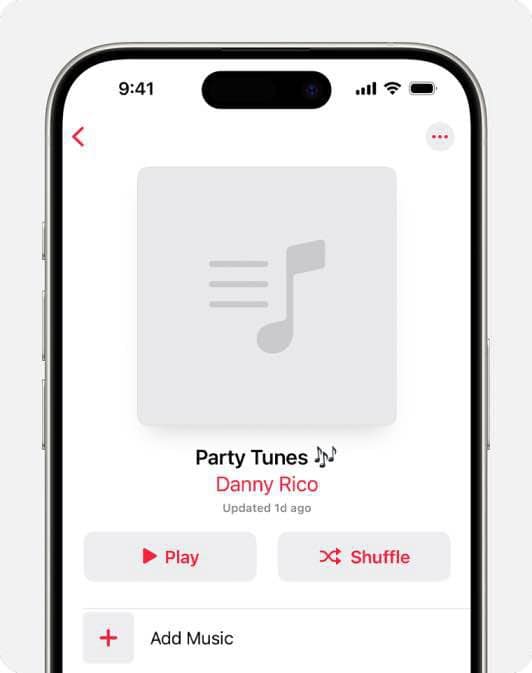
Creating playlists on Apple Music is a great way to compile your favorite songs in one place and a means to share tracks with friends and followers. Not sure how to get started? Below, we detail how you can make an Apple Music playlist on your iPhone, iPad or Mac.
Create a playlist in Apple Music on your iPhone
You can create your own Apple Music playlist in a couple of ways. You can start with a blank playlist and add songs, or if you have found a particular song or album that inspires a playlist, you can start a new playlist with that song or album.
Create a new playlist from scratch
- Start the Apple Music app on your iPhone.
- Select Library at the bottom of the screen.
- Tap on Playlists.
- Tap on New Playlist.
- Tap on Playlist title field and type in a name for your new playlist.
- You can add an image to your playlist. Tap on the Camera image and select Take Photo or Choose Photo.
- Tap on Create in the upper right corner of the screen.
- Tap on Add Music.
- Tap on the music that you want to add.
- When you have finished adding songs, tap Done in the top-right corner. Now you will be able to find your new playlist in your Library under Playlists.
Create a new playlist from a song or album
You can also create a new playlist from a song or an album in Apple Music.
From a song
- Start the Apple Music app.
- Find music that you want to add.
- Tap the More button next to a song.
- Tap on Add to a Playlist.
- Tap on New Playlist, then follow the instructions to finish setting up your new playlist.
From an album
- When you find the album:
- If you are looking at album art, press and hold on the album cover to bring up a menu, then tap on Add to a Playlist.
- If you have an album page open, tap on the three dots button in the top-right corner of the screen, then tap on Add to a Playlist.
- Tap on New Playlist, then follow the instructions to finish setting up your new playlist.
Create a playlist in Apple Music on your iPad
- Start the Apple Music app.
- Scroll to the bottom of the sidebar and tap New Playlist.
- Tap on Playlist title field and type in a name for your new playlist.
- You can add an image to your playlist. Tap on the Camera image and select Take Photo or Choose Photo.
- Tap on Add Music.
- Tap on the music that you want to add to a playlist.
- When you have finished adding songs, tap on Done in the top-right corner of the window. Now you will be able to find your new playlist under Playlists in the left sidebar.
You can also create a new playlist from a chosen song or album in Apple Music on your iPad the same way as on iPhone (see above). Additionally, you can drag and drop songs and albums into playlists on iPad. Just press and hold on the song or album, then drag it to a playlist in the sidebar.
Create a playlist in Apple Music on your Mac
- Start the Apple Music app.
- Navigate to the menu bar and select File > New > Playlist.
- Name your playlist.
- To add songs to your new playlist, find songs and albums then drag and drop them to your new playlist in the sidebar.
Can’t create a playlist on Apple Music?
In some cases, you may not be able to create a playlist on Apple Music?. If you are having this problem, try these troubleshooting tips:
- Restart the Music app:
- On your iPhone or iPad, go to the Home Screen and swipe up from the bottom of the screen and pause in the middle of the screen. Swipe right or left to find the music app. Swipe up on the app’s preview to close the app. Reopen the Music app and try adding songs to a playlist.
- On your Mac, choose Quit from the app’s menu in the menu bar, or press Command-Q.to force the Music app to quit. Reopen the Music app and try adding songs to a playlist.
- Make sure that your iPhone, iPad or Mac is running the latest version of the iOS, iPadOS or macOS software:
- To update your Mac: click Apple menu > System Settings, click General in the sidebar, then click Software Update. If there is an update available, click Upgrade Now.
- To update your iPhone or iPad: Go to Settings > General > Software Update. if there is an update available, tap Update Now, then follow the onscreen instructions to complete the process.
- Reboot your device.