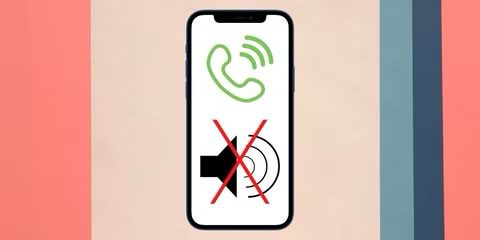
Whether you’re spending time with someone special, in library, trying to focus, or you’re in the middle of an important meeting, you might want to mute your iPhone and completely silence all phone calls & notifications, so that you don’t get distracted easily by the beeps, buzzes, and alerts emanating from your iPhone.
In some cases, muting ringtones and alerts aren’t good enough, since your phone starts vibrating in silent mode. Or, you may want to disable any kind of sound that may come out of your iPhone. These could include sounds when you take photos, screenshots, or just audio when you’re watching content on YouTube. Regardless, completely turning off sound on your iPhone isn’t exactly a one-step process.
Not to worry though, as we’ll be going through the various steps to help you mute and turn off all sound coming from your iPhone, truly silencing the device.
How to Mute & Turn Off All Sound on iPhone
Once upon a time, every iPhone had a Ring/Silent switch on the side that you could easily flick forward to turn off Silent mode. But that changed in 2023 when the iPhone 15 Pro replaced that switch with an Action button, which is now present on the entire iPhone 16 lineup as well.
If you don’t know what model iPhone you have, take a look at the left side of the phone, above the volume buttons. If there’s a small switch that you can move backwards and forwards, that’s the Ring/Silent switch. If instead of a switch you just have another small button, that’s the Action button.
By default, the Action button is set to control Silent mode on your iPhone. So you can just press and hold it to toggle Silent mode on or off.
If that isn’t the case, you might have changed the Action button to do something more exciting. You can change it back by going to Settings > Action Button and swiping to the Silent Mode option. Then press and hold the Action button to use it.
Or you can keep your new Action button function and simply swipe down from the top-right corner to open Control Center instead. From there, you should see a Silent mode toggle beneath the Wi-Fi options. If it isn’t there, you can add it by tapping the plus ( ) icon in the top-left corner to customize the Control Center, choosing "Add a Control," and searching for "Silent."
If none of that works, or you don’t want to fiddle with the Control Center, you can always ask Siri to "Turn Silent mode off" or go to Settings > Sounds & Haptics and toggle the big "Silent Mode" option at the top of the page.
If your iPhone has a Ring/Silent switch instead of an Action button, you should be able to flip it to toggle between Silent and Ring mode. You’ll see a notification appear onscreen to confirm which mode you’re in, but it should be that pulling the switch towards the screen puts it in Ring mode. You should also be able to see an orange indicator when the phone is in Silent mode.
If the Ring/Silent switch isn’t working, you can also use an option in the Accessibility settings to turn off Silent mode on your iPhone. To do so, go to Settings > Accessibility then scroll down to select the "Touch" option. Open the "AssistiveTouch" page and hit the toggle to enable "AssistiveTouch."
You’ll see a white circle appear on your iPhone screen. Tap it to open the AssistiveTouch menu, then go to Device > Unmute to turn off Silent mode. You can then tap outside of the AssistiveTouch menu to close it.
If you want to keep AssistiveTouch enabled all the time, you can drag and drop to move the circle out of the way while you’re reading things. Alternatively, you can set up a shortcut to easily enable or disable AssistiveTouch when you need it.
Putting an iPhone into silent mode is the quickest way to silence all phone calls and sound alerts on your device. However, that doesn’t turn off sound during music or video playback, in all apps anyway.
Next, to turn off sound during music or video playback, hold the volume down button located on the left side of the device. Your iPhone will now display the volume bar to indicate the current volume level.
Now, if the physical volume buttons on your iPhone are broken or not functioning properly, you use the volume slider in the iOS Control Center to adjust the volume level for media.
If the hardware mute switch on your iPhone is damaged or not working properly, you can adjust ringer volume by heading over to Settings -> Sound & Haptics.
To put your device in Silent mode, move the slider for Ringer and Alerts all the way to the left. Here, you can also disable vibrations while you’re in Silent mode. Simply tap Haptics, then select Never Play.
These are pretty much all the necessary steps you need to follow, and you should now have a completely mute iPhone, silent as can be.
Putting your device in silent mode using the mute switch should turn off the sound while you make phone calls silencing the dial sounds, take screenshots, or silently taking pictures using the camera. However, the camera shutter sound might stay on at all times in certain countries like Japan, South Korea, etc. due to government restrictions. In that case, you can try turning on Live Photos within the Camera app to disable shutter sound.
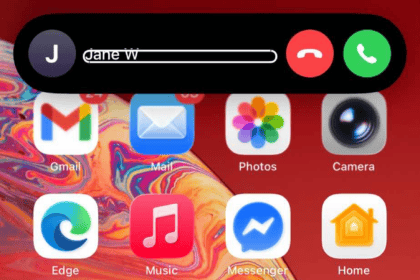
Another neat way to quickly silence an incoming phone call is by hitting either of the volume buttons on your iPhone. You can even do this while your phone is still in your pocket. This method is certainly a lifesaver during meetings.
In addition to this, you can filter out and automatically mute calls from unknown phone numbers, by heading over to Settings -> Apps -> Phone -> Silence Unknown Callers on your iPhone. Or, if you just want to turn off all iPhone sounds, simply turn on Do Not Disturb by launching the Control Center and tapping the Focus icon. Please note, turning on Do Not Disturb will make your iPhone completely silent, so don’t be surprised if your iPhone isn’t making any sounds or ringing particularly if it’s accidentally enabled.
We hope you were able to turn off all sounds on your iPhone using the methods we discussed above, and are now enjoying your truly quiet and silent device. Share your thoughts, tips, and experiences in the comments section down below.