





Summary
- You can access a USB drive with your iPhone or iPad by connecting it to your device using a compatible connector or adapter.
- The only software you’ll need to access the contents of USB drives on your iPhone or iPad is Apple’s Files application.
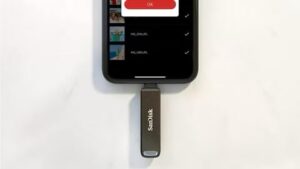
- To connect, attach the USB drive to the charging port on your iPhone or iPad (with the appropriate adapter) and it’ll appear in the Files app.
The world is full of USB drives, from portable thumbdrives to full external SSDs. Happily, you’re not closed off from these just because you use an iPhone or iPad. Connecting to external drives has gotten much easier than it used to be.
And you’ll have full read/write access to everything on the drive. You won’t even need to install any software, as the app you need comes preinstalled on your device.
So much easier
Some of you might be confused because iPhones and USB drives couldn’t really work together for far too many years. You could get around the limitation, but it took effort and money. That all changed with iOS 13/iPadOS 13.
And the most recent iPhone and iPad models adopted USB-C so in some cases connecting is as easy as plugging in the drive. In other cases, an adapter might still be needed.
Beginning in September 2023, Apple switched it’s phones to USB-C. This made connecting to many external drives as easy as any other computer: just plug the accessory in. That extends from thumbdrives all the way to external SSDs.
The iPhone 15 and later models have a USB-C connector, which allows you to plug the drive and you can read the contents of the drive. Similarly, any iPad Pro, iPad mini and iPad Air made in the last several years all use USB-C. Even the latest budget iPad has it, though Apple still sells one low-cost tablet with Lightning.
For the easiest access, the drive needs to support USB-C — the smallest version of the connector. Some thumb drives like the Kingston DataTraveler Max have the connector built in. Larger drives like the Kingston XS1000 usually connect via a cable.
But there are still plenty of legacy drives out there with larger USB-A ports. You’ll need a simple adapter to convert USB-A to USB-C, but this is one every Apple user should own anyway. And there are a plethora for only a few dollars.
Plus, a iPhone or iPad with a USB-C port can use almost any accessory designed for laptops, and that includes multi-port hubs with USB-A ports. Take a simple example, the Apple USB-C Digital AV Multiport Adapter. Plug this into your phone or tablet and then plug the drive and you can read the contents of the drive.
But there are more full-featured options. The Plugable USBC-4IN1 is inexpensive and adds a couple of USB-A ports and more. Or there’s the HyperDrive 6-in-1 USB-C Media Hub, which is designed for iPad but can be used with your iPhone or MacBook.
I’ve tested connecting a USB drive to my iPhone 17 and iPad many times. I’ve never had any problems.
Older iPhone and iPad users need a Lightning-to-USB adapter
Of course, not everyone has the latest and greatest model. If your iPhone or basic iPad has a Lightning port, connecting to a USB drive requires a different type of adapter. Fortunately, Apple makes just the one you need.
Plug the (poorly named) Lightning to USB 3 Camera Adapter ($39) into your device, then plug the USB drive into the USB-A port. It’s not rocket science.
Many drives take more power than your iPhone or iPad alone can provide, but Apple’s adapter also includes a Lighting port. Plug a charging cable into it, and it’ll provide power to the drive. As a bonus, it’ll also charge your handset or tablet.
I’ve tested Apple’s Lightning/USB adapter with plenty of drives. I tested a bunch is thumbdrives from different companies and a range of capacities. And I tried the adapter with a Samsung T7 solid state drive. It worked perfectly with all of them.
The Apple Files app is all you need
Whether you have an iPhone, iPad, iPad mini or iPad Pro, the only software you’ll need to access the contents of USB drives is Apple’s Files application. The Files app comes pre-installed on every iOS and iPadOS device.
How to Connect a USB drive to iPhone or iPad
1. Attach the USB drive to the charging port on your iPhone or iPad using a compatible connector or adapter.
You may need the Lightning to USB Camera Adapter, or Lightning to USB 3 Camera Adapter, (all sold separately).
Note: . In order to read and write, your drive will need to use APFS, macOS Extended (HFS ), exFAT, FAT32, or FAT as a file system and have a single partition. Unsurprisingly, Windows NTFS partitions are not supported.
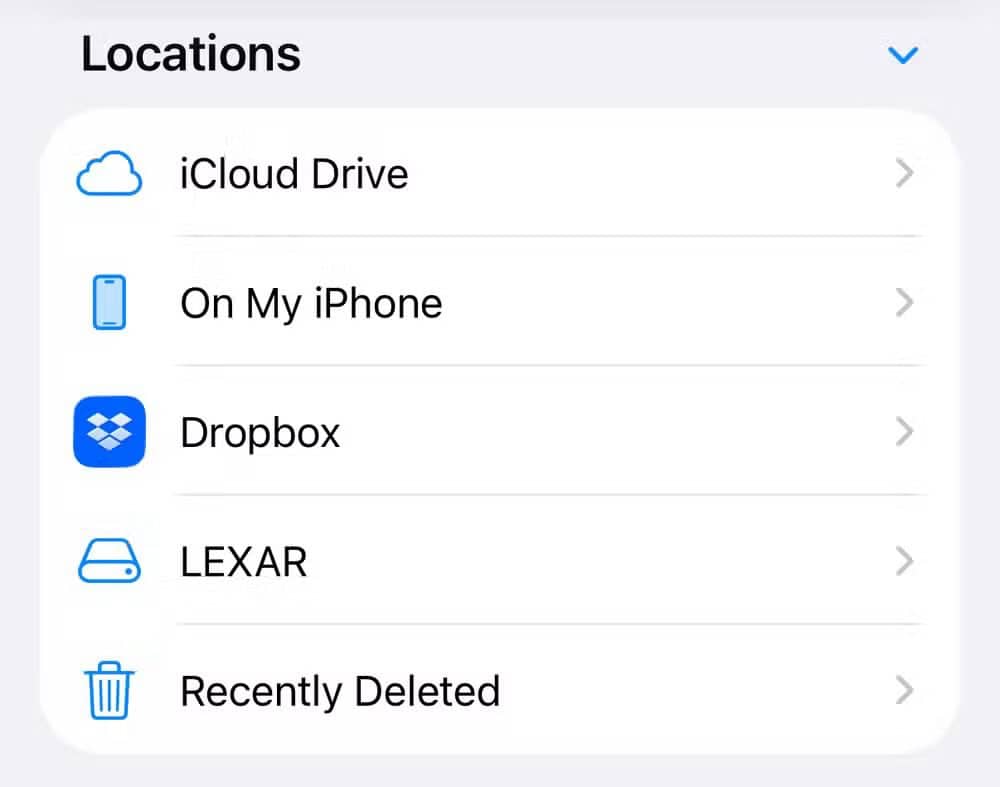
2. To see the contents of the drive, go to the Files app, tap Browse at the bottom of the screen, then tap the name of the device below Locations. If you don’t see Locations, tap Browse again at the bottom of the screen.
3. A window will open with all the files and folders. From there, you can do whatever you want. Open files. Move them around. Put them on your iPhone or iPad. Copy files from your device to the drive. Whatever.
To disconnect the drive, simply remove it from the charging port on iPhone or iPad.
How accessing a USB drive with iPhone or iPad is useful
Even in the world with iCloud, there are still plenty of reasons to use USB drives. If you want to carry around a couple of terabytes of pictures, work files, movies, etc., and be sure you always have access to them, get an external dive and connect it to your iPad, iPhone or both.
With your files stored locally, you don’t have to worry about the vagaries of internet access. Even on a plane, you can always pop in the drive and access your files. Plus, a thumbdrive can hold proprietary files that you don’t want to risk sharing with anyone else.
And consider removable memory cards. Apple won’t build SD or microSD card slots into its devices, but card readers all use the USB format. If you have a drone, it probably has an SD card full of images. You can easily move these pictures over to your iPhone or iPad. All you need to do is insert an SD memory card into a card reader, then attach the SD card reader to the charging port on your iPhone or iPad.









 and it’ll appear in the Files app, which comes preinstalled.)