- You can recover deleted photos from your iPhone’s Recently Deleted folder or an iCloud backup.
- You can also recover deleted photos from cloud storage apps like OneDrive or Dropbox.
- If photos are missing but not deleted, you may find them in the Hidden folder of the Photos app.
There’s something reassuring about digitally stored photos. Unlike the ones we used to stow in shoeboxes and albums, they can remain available, searchable, easily accessible, and un-degraded.
Until you delete them from your iPhone. Then your most-precious memories may be gone for good.
The good news is that even if you accidentally delete some (or all) of your photos from your iPhone, there are a few ways to get them back.
We’ll discuss those methods, and also explain a few safeguards you can take to keep your photos ultra-secure.
How to recover deleted photos from your iPhone
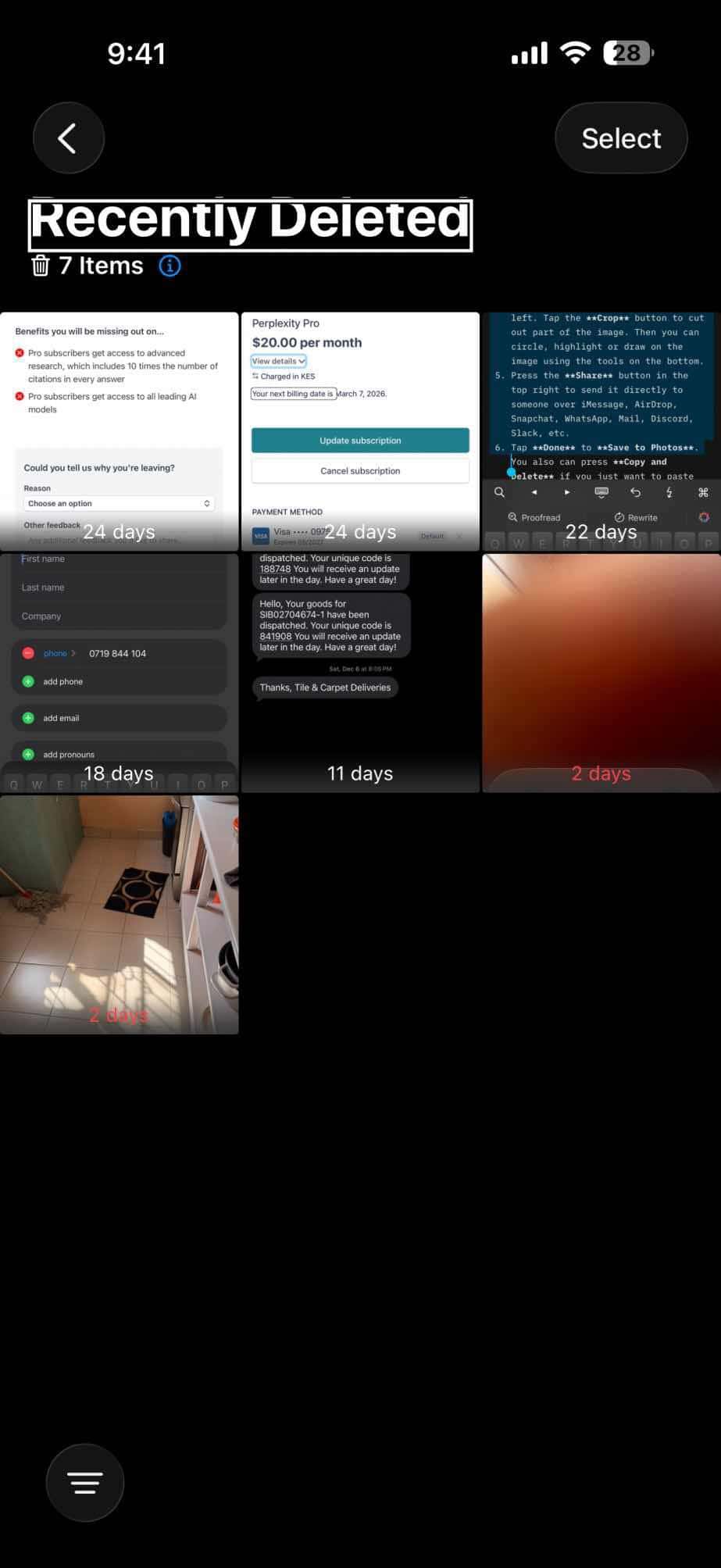
Apple provides a "recently deleted" photo folder in the Photos app, which is essentially the same as the Recycle Bin on your computer. It holds all the photos that have been deleted for 30 days.
On day 31, a recently deleted photo is deleted permanently — but until then it’s easy to recover. Here’s how to do it:
- Open the Photos app on your iPhone, then tap Collections tab.
- Tap Recently Deleted.

- Tap View Album, then use Face ID or Touch ID to unlock your Recently Deleted album.

- Tap a photo or video, then tap Recover. To recover multiple photos, tap Select, select your photos or videos, tap the More button, then tap Recover.

- Confirm that you want to recover the photos or videos.
How to recover deleted photos on iPhone using icloud.com
iCloud Photos synchronizes your images across all devices logged into the same iCloud account (iOS and macOS) and which have iCloud Photos enabled, as well as making them available at iCloud.com. iCloud Photos also uses the Recently Deleted album as a holding place.
To restore images deleted from iPhone on iCloud.com, follow the steps below:
- Go to iCloud.com, then sign in to your Apple Account.
- Tap or click Photos.
- Select Recently Deleted in the sidebar. If you don’t see the sidebar, tap or click the Show Sidebar button in the upper-left corner.
- Select a photo, then tap or click Recover.
How to recover deleted iPhone photos from a backup
If your photos are already gone from the Recently Deleted folder, then you may be able to get your photos back by restoring your phone from a previous backup.
The disadvantage of this approach is that all of your deleted files will be recovered from iCloud Drive — apps, data, text messages, and so on — with an older backup, which you might not want to do. If the backup you want to restore is fairly recent though, it might be worth it.
How to Recover iPhone Photos Using iCloud backup
If you recently uploaded photos to iCloud, you can easily recover them by accessing them from your device or the iCloud website. But if you use iCloud to back up your phone, follow these steps.
- Back up your phone to iCloud so that if something goes awry, or you don’t like the content of the older backup and are willing to give up the photos, you can return to your current configuration.
- After the backup is complete, factory reset your iPhone, and then restore your phone from a backup that’s old enough to include the photos you have lost.
- When the restore is complete, check the Photos app to see if the photos you lost were recovered. If not, you can repeat the process and restore an older backup, or return to your most recent backup.
Quick tip: If the older backup has the photos you’re looking for, but you don’t like the rest of the older version, you can try emailing the photos to yourself or uploading them onto an external cloud service (Google Drive, Dropbox, etc.), and then returning your phone to its later version.
How to Recover iPhone Photos Using iTunes backup
Most people now use iCloud to backup and restore their phone, but if you’re still using iTunes for this, then restoring from a backup is pretty straightforward.
- Connect your iPhone to your Mac with macOS Mojave or earlier, or your PC, and then click the iPhone icon when it appears in the upper-left corner of the iTunes window.
- Click the Summary tab in the pane on the left.
- In the Backups section, click "Restore Backup.
- Choose the backup you want to restore your phone to.
- When the restore is complete, check the Photos app on your iPhone to see if the photos you lost were recovered. If not, you can repeat the process and restore from an older backup, or return to the most recent backup.
How to recover deleted iPhone photos using Finder in macOS Catalina 10.15 or above
- On your Mac with macOS Catalina 10.15 or above, open Finder.
- Connect your iPhone to your Mac computer.
- Click on your device in the left hand menu when it appears.
- Click Restore Backup.
- Select which backup date you’d like to use.
- Click Restore.
When the restore is complete, open the Photos app and see if the photos you were trying to recover appear.
How to recover deleted iPhone photos with a cloud storage service
Finally, if you use a cloud service like Dropbox or OneDrive, you can create a separate backup of all your photos, independent of iCloud and iTunes, which are then synchronized with a folder on your computer.
If you don’t already use one of these, you can install the Dropbox or OneDrive app on your iPhone so they automatically back up your photos.
Here’s how to restore a backup of your photos from Dropbox or OneDrive.
- Open the folder on your computer that includes the backed up photos from your iPhone.
- Also open your iCloud Photos collection in a web browser.
- Drag the photos that you want to restore from the folder to the browser. They’ll automatically be uploaded to iCloud, and soon thereafter synced with your iPhone.
How to find hidden photos on your iPhone
If the photos are missing on your iPhone but you haven’t deleted them, they could just be hidden instead. If that’s the case, you’ll need to unhide them.
Note: Hiding and unhiding photos only works if you’ve updated your iPhone to iOS 14 or later.
- Open the Photos app on your iPhone, then tap Collections.
- Scroll down until you reach the Utilities section and tap Hidden. If there aren’t any photos in the Hidden folder, you’ll see 0 next to it.
- Tap View Album, then use Face ID or Touch ID to unlock your Hidden album.
- Tap and hold the photo or video that you want to unhide, then tap Unhide.