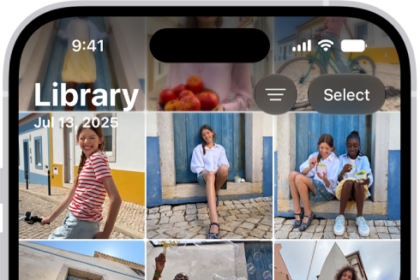
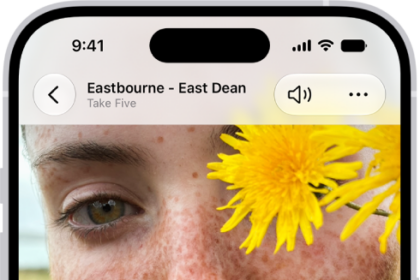
With the Photos app on your Apple Watch, you can view photos from the iPhone album of your choice, featured photos, and Memories.
At first, it shows photos from your Favorites album, but you can change the album it uses. You can also stop photo syncing, or limit photo storage on Apple Watch. It all starts in the Apple Watch app on your iPhone.
Here’s how to choose a photo album and manage storage on Apple Watch.
Choose the album to store on Apple Watch
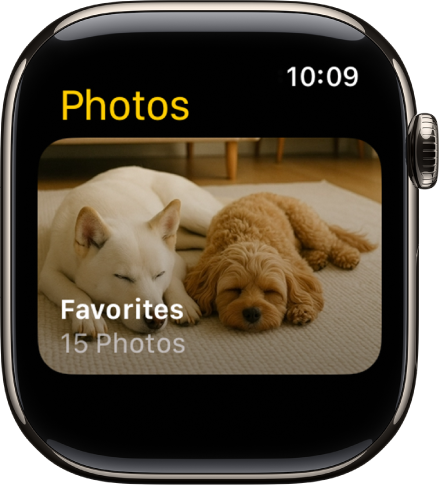
A new Apple Watch displays photos from your Favorites album, meaning the photos you tagged as favorites, though you can change the album it uses.
- Start the Apple Watch app on your iPhone.
- Tap My Watch, go to Photos, tap Sync Album, and then choose the album.
Removing a photo from Apple Watch happens in the Photos app on your iPhone, where you remove the image from the album you’ve synced.
You create a new album for Apple Watch photos in the Photos app on your iPhone.
Show featured photos and Memories on Apple Watch
Featured photos and Memories from the photos library on your iPhone can sync to your Apple Watch automatically.
- Start the Apple Watch app on your iPhone.
- Tap My Watch, tap Photos, and turn on Sync Memories and Sync Featured Photos.
Stop photo syncing
If you don’t want your iPhone to sync Memories, featured photos, or photos from an album you’ve chosen, follow these steps:
- Start the Apple Watch app on your iPhone.
- Tap My Watch and tap Photos. Then turn off Photo Syncing.
Limit photo storage on Apple Watch
Available space decides the number of photos stored on your Apple Watch, so you can limit it to save space for songs or other content.
- Start the Apple Watch app on your iPhone.
- Tap My Watch and then go to Photos and tap Photos Limit.
To see how many photos are on your Apple Watch, do one of the following:
- Go to the Settings app on your Apple Watch, tap General, then tap About.
- Go to the Apple Watch app on your iPhone, tap My Watch, tap General, then tap About.
To see how much space is used for your photos, go to the Settings app on your Apple Watch, tap General, then tap Storage. To do this on your iPhone, open the Apple Watch app, tap My Watch, tap General, then tap Storage.
Take a screenshot of Apple Watch
- Go to the Settings app on your Apple Watch, tap General, and then tap Screenshots, then turn on Enable Screenshots.
- Press the Digital Crown and the side button at the same time to take a picture of the screen.
Screenshots end up in Photos on your iPhone.
See also