On iPad, learn how to use the FaceTime app to visit face-to-face with friends and family—over Wi-Fi or cellular. While on a call, you can watch TV shows and movies, listen to music, and even work out together, and if someone doesn’t answer, you can leave a video message.
While on a call, the FaceTime controls let you turn your camera or mic on or off and share your screen. You can also start a call on one device and move it to your iPad, or move it to another device.
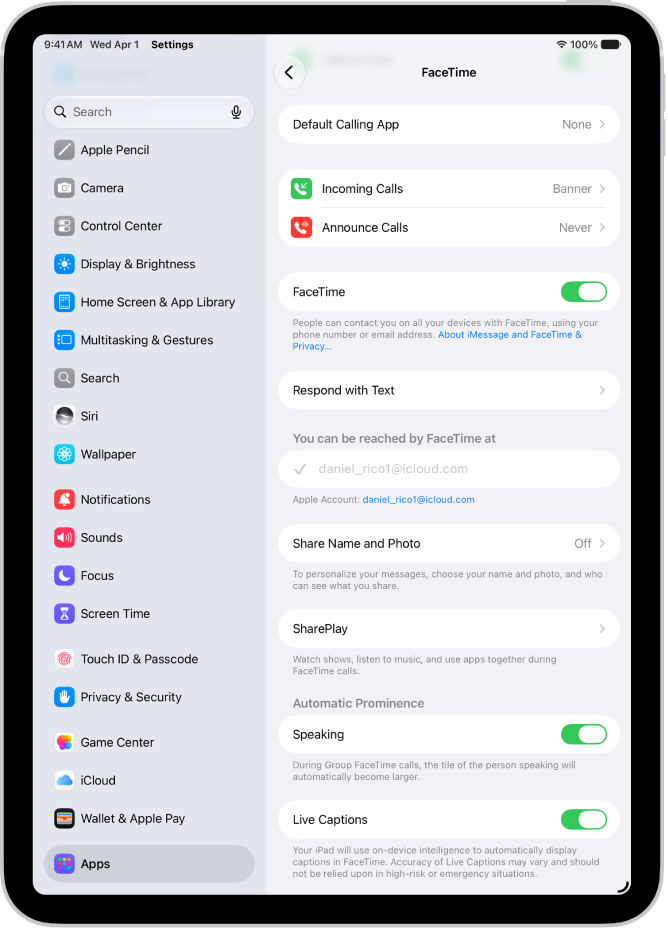
Set up FaceTime
Go to the Settings app, tap Apps, then tap FaceTime. Make sure that you’re signed in to your Apple Account and FaceTime is turned on. You can choose a default calling option for audio calls below Default Calling App. If more than one contact method appears below “You can be reached by FaceTime at,” you can tap to select or deselect it.
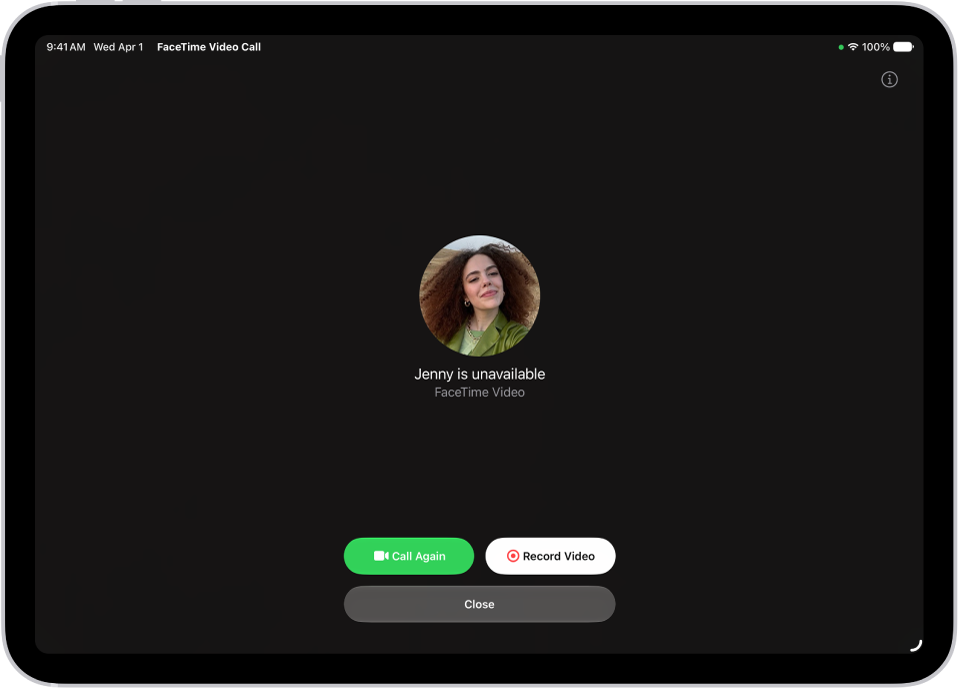
Leave a video message
If someone doesn’t answer your FaceTime video call, you can leave a video message. Tap Record Video, then record your message. When you’re finished recording, tap the Stop button, then tap the Send button.
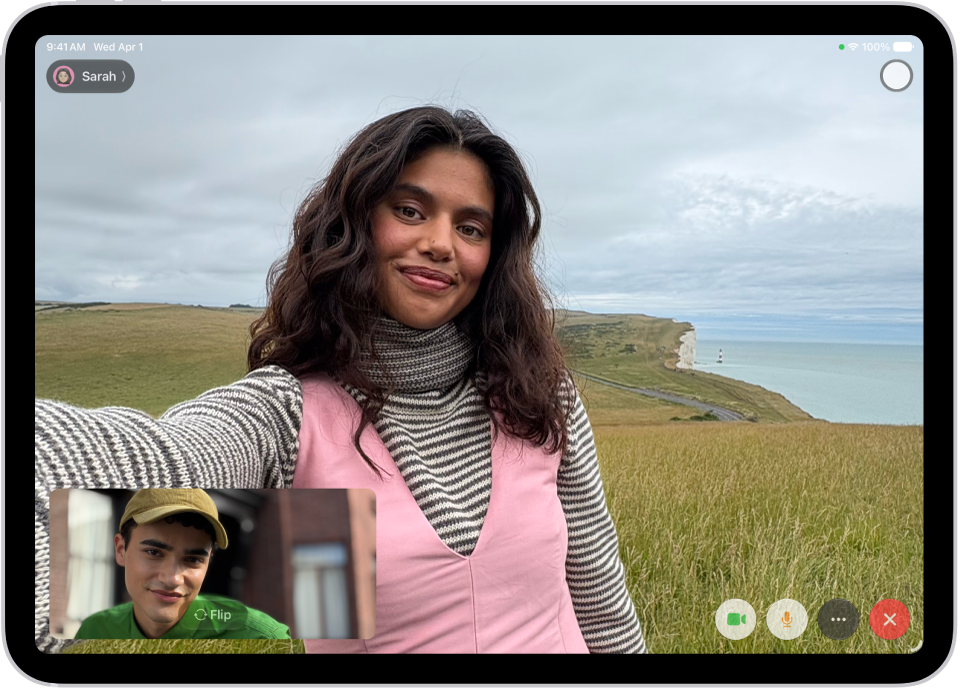
Use the FaceTime controls
While on a FaceTime call, use the FaceTime controls to turn your camera or mic on or off, share your screen, and more. If you don’t see the controls, tap your screen.
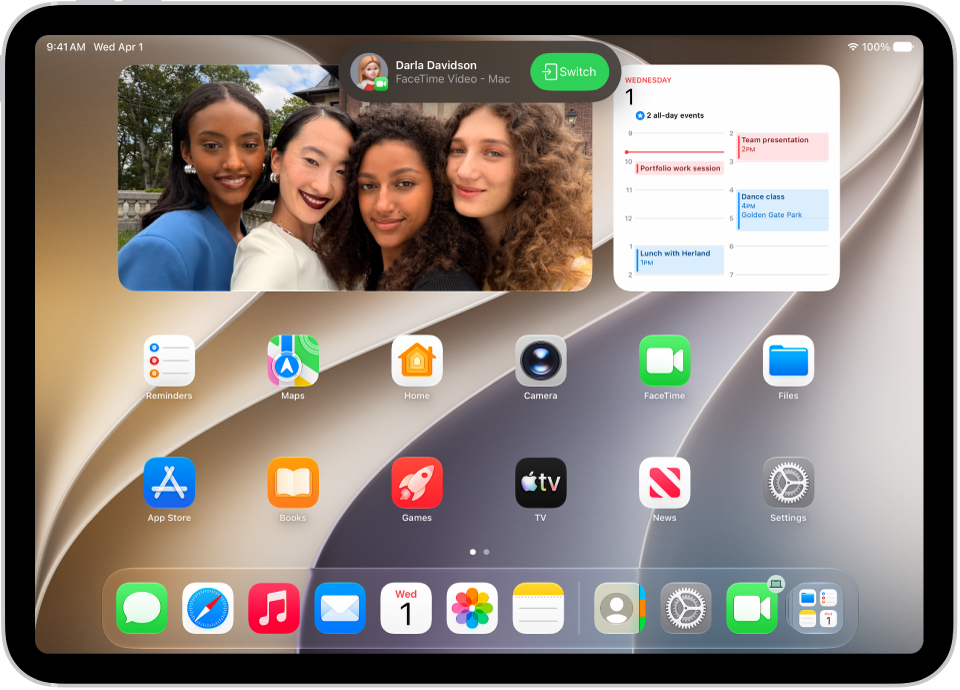
Switch a FaceTime call to another device
When you’re signed in to your Apple Account on multiple devices, you can start a FaceTime call on one of them, then move it to your iPad. You can also move your call from your iPad to another device. On the device you want to switch to, tap the FaceTime Video Call button or the FaceTime Audio Call button at the top of the screen or the suggestion “Move call to this [device],” then tap Switch.
There’s plenty more to FaceTime, and these guides walk you through it:
- Set up FaceTime on iPad
- Make FaceTime calls on iPad
- Use Live Captions and Live Translation in FaceTime on iPad
- Hand off a FaceTime call from your iPad to your other Apple devices
- Use SharePlay to watch, listen, and play together in FaceTime on iPad
- Change FaceTime video settings on iPad
- Change FaceTime audio settings on iPad
Note: Not all features and content are available in all countries or regions.