Did you download a file on your iPhone or iPad and can’t figure out where it is? In this guide, we’ll show you where those downloaded files are stored on your iPhone or iPad.
If you download files, PDFs, and videos to your device from the internet, then you’re used to the routine. You may have even changed your download location to a specific spot.
But if you’ve never downloaded a file on iOS or iPadOS, then you’re probably wondering where those files went!
Access your downloads in the browser
If you use Safari as your browser of choice on iOS or iPadOS, then that’s the easiest spot to grab your downloads.
Next to the search field in Safari, tap the Downloads button, then tap Downloads to see your downloaded files. From there, you can tap a file to open it, or tap the magnifying glass next to it to reveal it in its folder in the Files app.
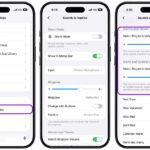
If you don’t see the downloaded files above, Safari may have already removed them from the list. Go to iPhone Settings > Apps > Safari > Downloads > Remove Download List Items to see when your web browser removes the download list items. It can be set to after one day, upon successful download, or manually.
If you use another app, such as Chrome or Firefox, to download the file, go to their settings and look for the Downloads option.
Access your downloads in the Files app
By default, your downloads on iPhone and iPad go in a folder named Downloads inside the Files app. So, if you can’t use Safari to see your downloads, just open the Files app, tap the Browse tab, tap iCloud Drive, and select the Downloads folder.
To pick a different location, see our tutorial on changing where Safari downloads are saved in iOS. And if you’re interested, take a look at how to change the Safari download spot on Mac, too.
See also: How to Unzip Files on iPhone or iPad