Find out how to quickly increase or decrease the alarm volume on your iPhone, iPad, or Mac to adjust it accordingly.
Whether you need the volume on your alarm clock to be super loud in order to actually wake you up or really low so that you don’t wake everyone else in the house, you can easily tweak it.
The alarm clock volume setting isn’t in the iOS or macOS Clock app, as you might think. So, here’s how to adjust it.
iPhone or iPad
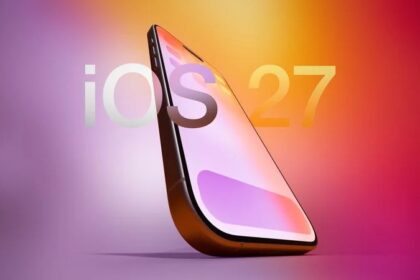
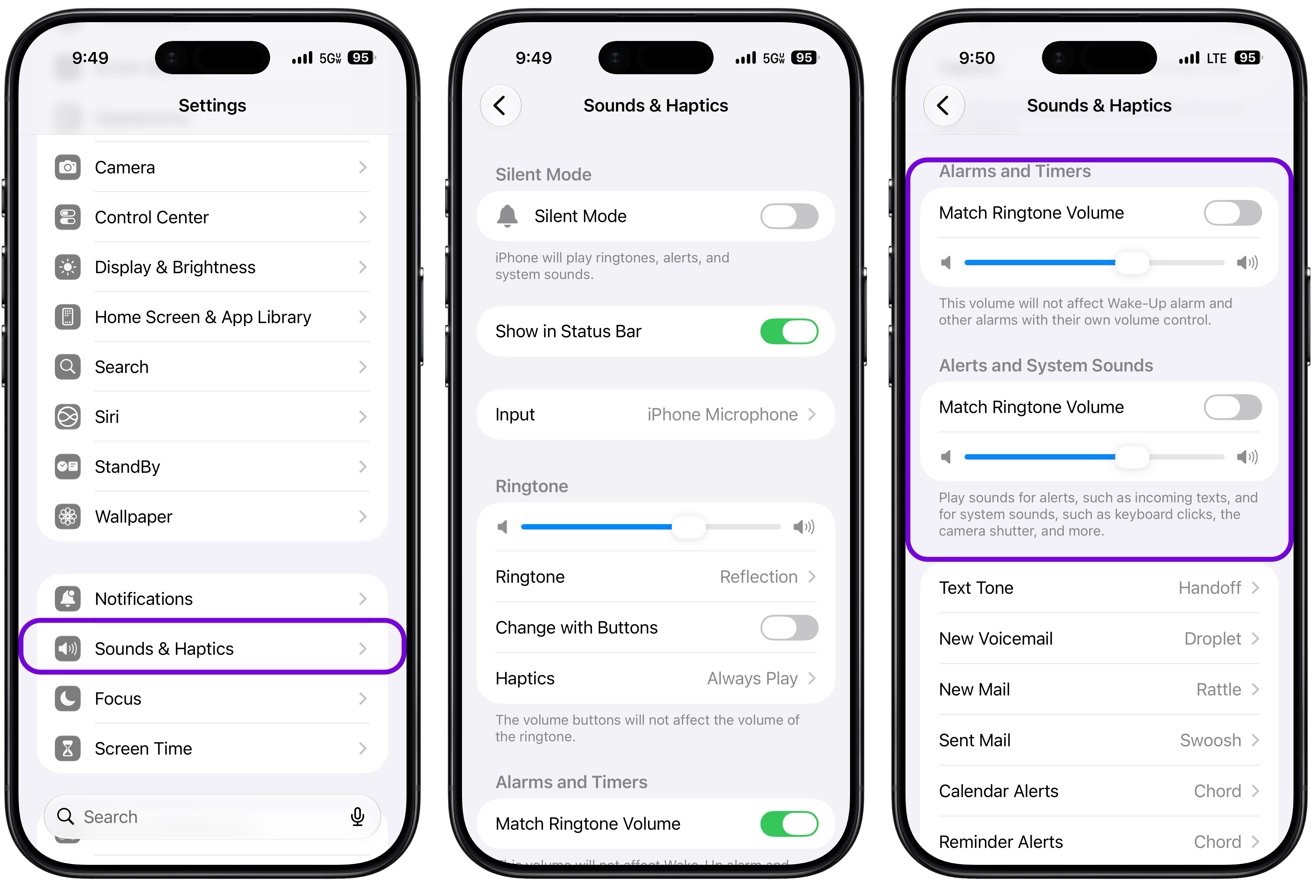
In iOS 27 and iPadOS 27, you can set the alarm volume on its own, separately from your ringtone and other alerts:
- Open the Settings app and tap Sounds & Haptics. On iPad, tap Sounds.
- Tap Alarms and Timers.
- Turn off Match Ringtone Volume, then drag the slider to set the alarm volume. As you drag, an alert plays so you can hear how the volume changes.
If you’d rather keep things simple, leave Match Ringtone Volume turned on and the alarm will follow your ringtone volume instead. That’s how earlier versions worked: on iOS 26 and earlier, a single slider under Ringtone and Alerts in Sounds & Haptics (or Sounds on iPad) sets the alarm, ringtone, and alert volume together. If you use that shared slider, remember that lowering it also lowers your ringtone and notifications, so don’t reduce it too much, or you’ll start missing important calls, texts, and app notifications.
If you want to change the volume with the physical volume buttons on the side of your phone or tablet, turn on Change with Buttons in Settings > Sounds & Haptics.
A couple of things worth knowing: the alarm volume slider doesn’t control a Wake Up alarm set through your Sleep schedule, which has its own separate volume. And the alarm sounds at the level you set even when your iPhone or iPad is in silent mode or a Focus (like Sleep or Do Not Disturb) is active.
Mac
After you set an alarm inside the Apple Clock app on your Mac, just press the volume keys on the keyboard or use the sound slider in macOS Control Center to adjust the system volume, which also affects your alarm.
You can also go to System Settings > Sound and drag the Output volume slider to your liking.
See also: How to set up iPhone alarm that vibrates only without sound