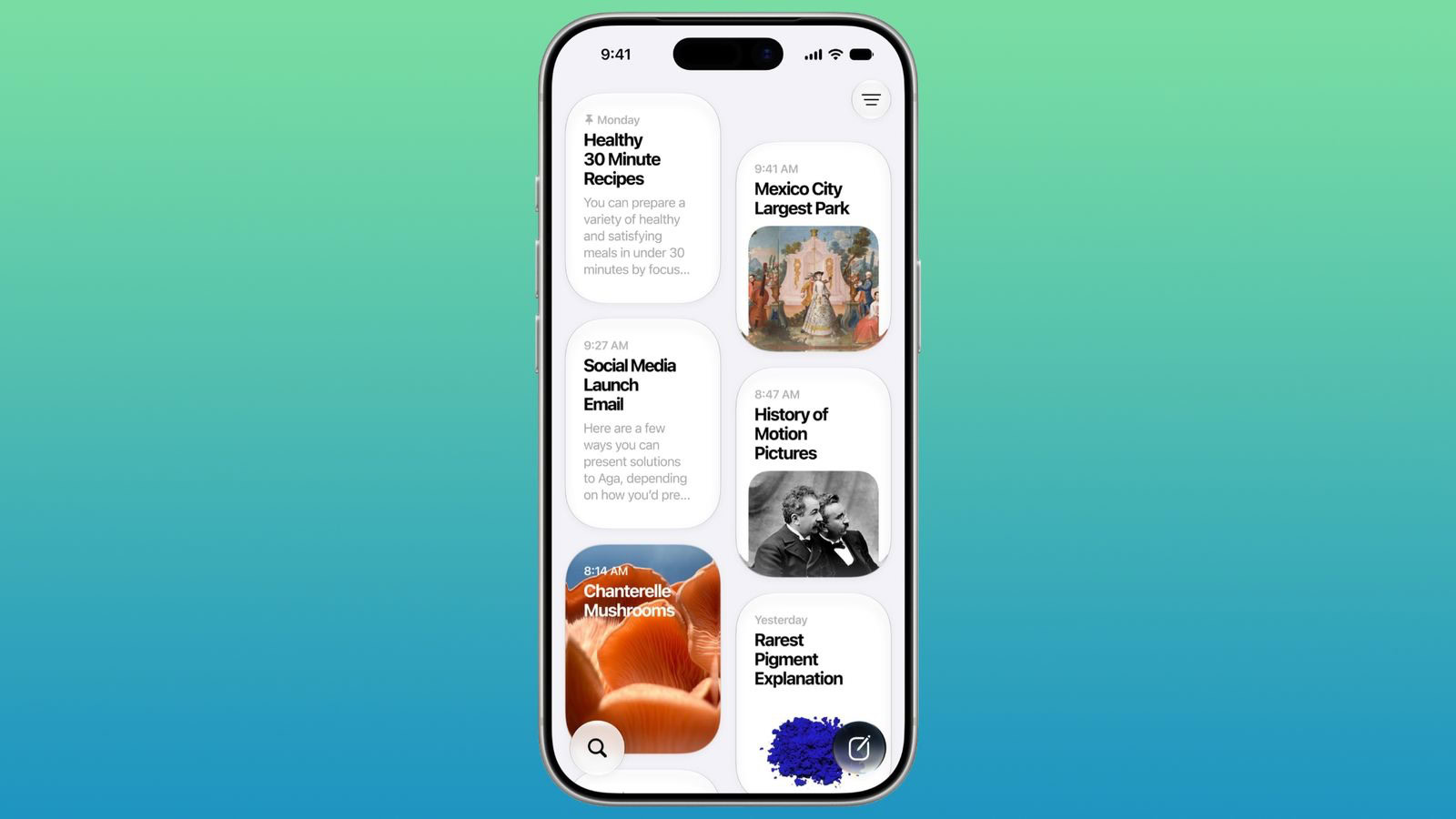
In iOS 27, there’s a full-blown Siri app that behaves like a traditional chatbot app, allowing you to revisit all your conversations with Siri, start new ones, and easily pin specific ones at the top. Here’s how to use the new Siri app.
If you’ve updated to iOS 27, you’ll see the new Siri icon appear on your iPhone’s Home Screen. This app is also available on the Mac with macOS 27, Vision Pro with visionOS 27, iPad with iPadOS 27, and Apple Watch with watchOS 27.
The Siri app in iOS 27 syncs with iCloud, so you can continue conversations across all of your Apple devices. It features a chat-style interface with a stream of your previous conversations. You can also upload photos and files to the Siri app for analysis.
The Siri app ties into the new Siri AI and Apple Intelligence capabilities introduced in iOS 27. This includes access to broad world knowledge, personal context of everything on your iPhone, and much more.
Siri app compatibility in iOS 27
Before you can start using the Siri app, first make sure that the app is available on your iPhone. The Siri app is not available to all iPhone models. It is available on devices that support Apple Intelligence, which covers the iPhone 15 Pro and newer:
- iPhone 15 Pro
- iPhone 15 Pro Max
- iPhone 16
- iPhone 16 Plus
- iPhone 16 Pro
- iPhone 16 Pro Max
- iPhone 16e
- iPhone 17
- iPhone 17 Pro
- iPhone 17 Pro Max
- iPhone Air
- iPhone 17e
Once you make sure that your device is in that list, follow the steps below to learn how to use the Siri app.
How to use the Siri app in iOS 27
Here’s how to use the new Siri AI on your iPhone. I’m using an iPhone in this guide to demonstrate the steps, however, these steps will also work on iPad and Mac.
Start a conversation in Siri app
When you want to revisit a past conversation or start a new one, just fire up the Siri app. You can also use the app to type to Siri instead of speaking.
- Launch the Siri app.
- If you’re already in a conversation when you open the Siri app, tap the back button in the upper left corner. If not, move on to step 3.
- On the main page of the Siri app, you can tap the new conversation icon (it looks like a sheet of paper with a pencil) to start a new conversation with Siri AI.
Change the conversation view style
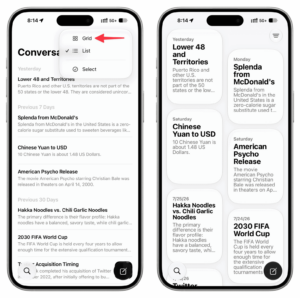
You can choose to see all your past Siri conversations in list or grid view. I prefer the list view as it shows me more on one screen.
- Launch the Siri app, and you should see your conversations. If not, tap the back button in the upper left corner.
- Tap the menu icon in the upper right (it looks like three horizontal lines).
- List view is the default option. You can also switch to Grid view.
- In Grid view, you can tap the icon again to switch back to List view.
Rename conversation title
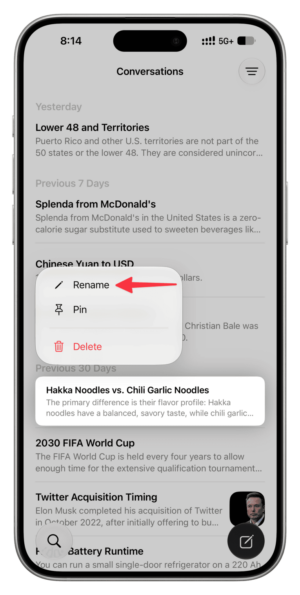
When you use Siri or ask a question in the new Siri app, the service automatically assigns a relevant name to your conversation. While this name is usually correct, you do have the option to change it to something you think is better.
- Launch the Siri app and go to your conversations.
- Touch and hold a conversation, select Rename, and give it a new title.
Pin conversations to the top
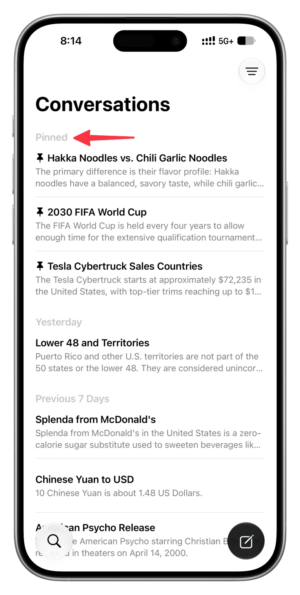
Just like in Messages, Apple has made it easier to keep track of conversation threads in Siri app by allowing users to pin threads in the app so that you can reference important conversations easily.
Pinned conversations live at the top of the main chats list. Unlike the Messages app where you can only pin 9 chats, you can have unlimited pinned threads in the Siri app. I pinned more than 10 conversations, and it continued working.
- Launch the Siri app and go to the all conversations screen.
- Long-press on a chat and select Pin to stick it to the top of the list.
Delete your past conversations with Siri
If you want to delete your conversations with Siri AI, follow these steps:
- Launch the Siri app and go to the conversations screen.
- Tap Select.
- Tap the circle next to a conversation to select it.
- Tap the delete icon (it resembles a trashcan) to delete the conversation. Note: The Siri app does not ask for confirmation when deleting the conversations and there is no recently deleted folder, so be absolutely certain you want to delete the conversation before tapping the delete icon.
In addition to deleting Siri conversation using the Select button on the Siri conversations screen, you can also select multiple conversations and delete them. To do this, you need to use the two-finger gesture, which also works in Messages, Mail, and other iOS apps.
- Launch the Siri app and go to the conversations screen.
- Tap the menu icon and make sure you’re in List style view.
- Drag with two fingers to select multiple conversations in a smooth manner.
- Tap the trash icon to delete selected Siri chats.

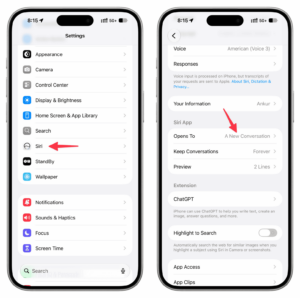
Set Siri app to open to a new conversation
You can have the Siri app open to a new conversation screen (like how ChatGPT, Grok, and Claude open). Or, you can have it show all your past conversations, and then tap the new chat button from there.
I rarely need to go back to my past Siri chats, so I have set it to launch with a new conversation by default so I can start asking my new query right away.
- Open Settings on iPhone or iPad, or System Settings on Mac.
- Select Siri.
- Tap Opens To and select ‘A New Conversation’ or ‘Recent Conversations.’
Auto delete conversations
Just like you can set all old messages to auto-delete, the new Siri app also lets you keep your experience clean and devoid of past baggage.
- Open Settings on iPhone or iPad, or System Settings on Mac.
- Select Siri.
- Tap Keep Conversations.
- Select 30 Days or 1 Year instead of Forever. Remember that this feature applies retroactively, meaning if you select 30 Days, all current chats that are older than this will be permanently deleted now.
Adjust the preview limit for conversations
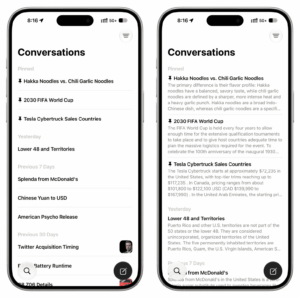
Similar to the Mail app that allows you to see how many lines of email you want to see on the main Inbox screen, you can set the Siri app to display 1 to 5 lines or none at all.
If you select None, the Conversations screen will only show the chat titles. But selecting a number between 1 and 5 displays that many lines of the answer.
- Open Settings on iPhone or iPad, or System Settings on Mac.
- Select Siri.
- Select Preview and pick None, 1, 2, 3, 4, or 5.
- Now, go to the Siri app Conversations screen to see the changes.
Open a chat in a separate window
Unlike iPhone, you can touch and hold or Control-click a conversation on iPad and open it in its own separate window.

Problems you may encounter when using the Siri app
After using the Siri app for a couple of weeks, I’ve found that its performance is subpar: I’ve noticed frequent stutters when scrolling threads, delays when typing (letters wouldn’t appear on-screen and autocorrect wouldn’t work), and broken ‘Sources’ popups displaying no actual sources for a query.
The app lets you rename and pin threads, which is nice, but it doesn’t offer basic controls such as the ability to select text in a Siri response or create folders for chats. Although there’s an option to sort conversations in grid view, I had to disable it immediately because I couldn’t quickly parse my threads and find what I was looking for.
Wrap up
Apple has added several new iPhone apps by default, including Image Playground as part of iOS 18.2 in December 2024. Last year’s iOS 26 update added the new Preview and Games apps for iPhone users.
The new Siri app is a huge addition for people who just don’t want to talk to their phone all the time. Now you can interact with Siri just like you would with any other popular AI chatbot.
That’s how to use the new Siri app on iPhone! Have you found a use for the Siri app yet, or is it sitting untouched on your Home Screen? Tell us in the comments.