The Notes app is one of the most convenient tools on the iPhone 18 Pro for jotting down important information, creating to-do lists, or simply capturing random thoughts. It’s one of the go-to apps for staying organized and keeping track of things. But what happens when those notes suddenly vanish? That’s exactly what happened to me.
Recently, after not opening the Notes app for about a month, I decided to check a folder where I had stored some critical information. To my surprise—and frustration—every single note had disappeared. I felt a mix of confusion and panic, wondering if they were gone for good. If you’ve found yourself in a similar situation, you’re not alone. Many iPhone users have encountered this issue, and while it’s unsettling, there are several possible reasons behind it and, fortunately, multiple ways to fix it.
Before diving into solutions, ensure your iPhone 18 Pro is updated to the latest version of iOS. Apple frequently addresses bugs in their updates, and upgrading may resolve the problem without additional troubleshooting. Once you’re on the latest iOS version, follow these steps to recover your missing notes.
Solution 1: Upgrade to the latest version of iOS
Many users have reported that upgrading has resolved issues with disappearing notes. To check for updates:
- Open the Settings app.
- Go to General > Software Update.
- If an update is available, tap Update Now.
Once your iPhone 18 Pro is updated, check the Notes app. If the issue persists, proceed with the following solutions.
Solution 2: Enable or Reset iCloud Sync for Notes
If your notes are stored in iCloud, syncing may have been disabled or interrupted. Here’s how to check and reset it:
- Open the Settings app.
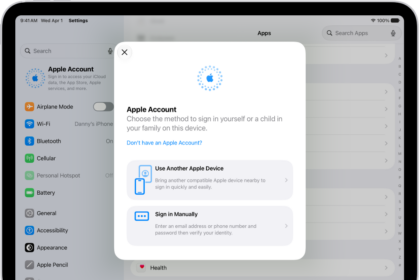
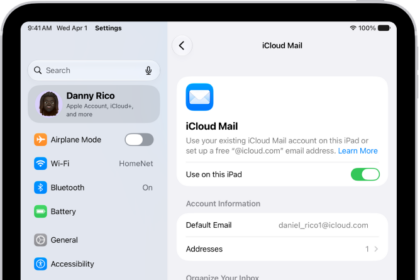
- Tap on your name at the top to access your Apple Account settings.
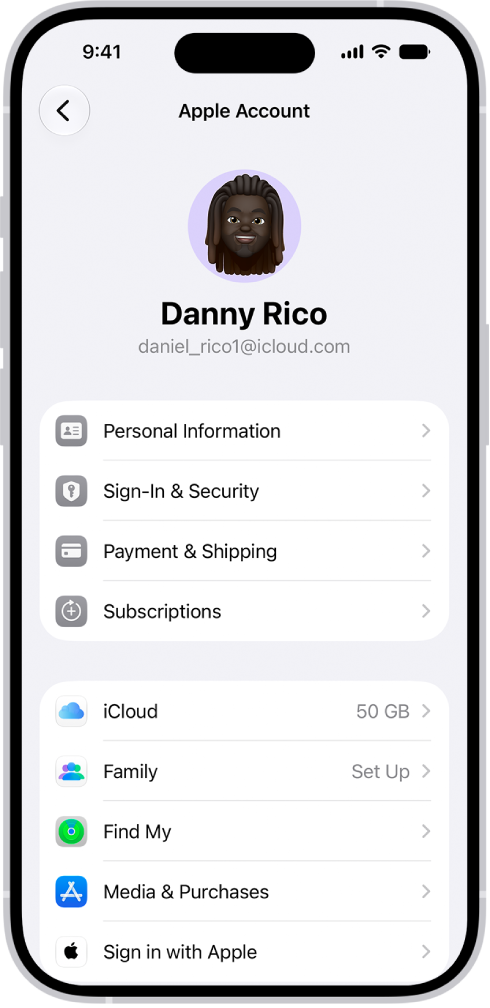
- Select iCloud.
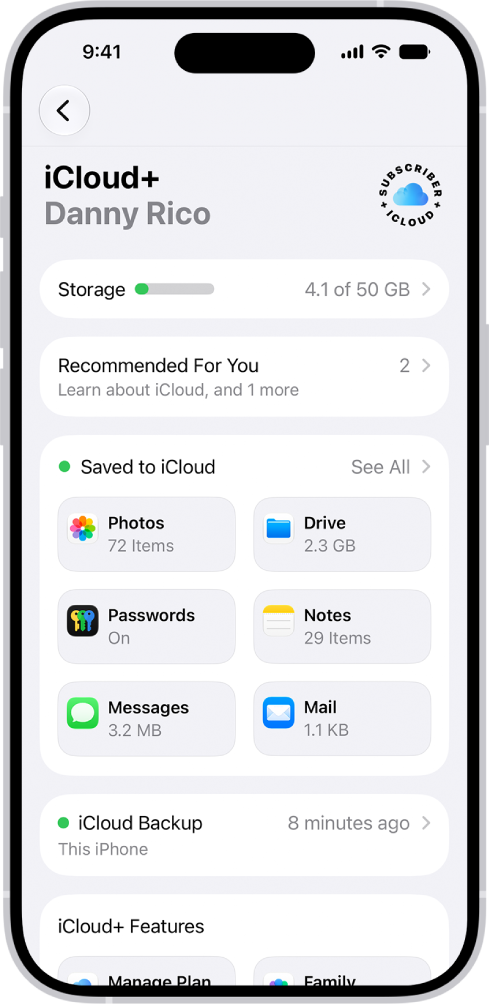
- Tap See All (next to Saved to iCloud), then turn on Notes (green).
- If it’s already on, turn it off and then back on.
- Open the Notes app and wait a few minutes for your notes to sync from iCloud.
Solution 3: Check and Adjust iCloud Sync Settings
If Solution 2 didn’t work, you can try these additional steps:
Note: This one is almost identical to the previous one, but still try.
- Open Settings and use the search bar to find iCloud.
- Tap on your name at the top to access your Apple Account settings.
- Tap See All (next to Saved to iCloud).
- Turn off Notes and wait for a few seconds.
- Turn Notes back on.
- Check the Notes app after a few minutes to see if your notes have been restored.
Solution 4: Restart iCloud Sync
If the previous methods haven’t resolved the issue, try restarting the iCloud sync entirely:
- Go to Settings > [your name] > iCloud.
- Tap See All (next to Saved to iCloud), then toggle Notes off.
- Restart your iPhone 18 Pro.
- Go back to Settings > [your name] > iCloud, and turn Notes back on.
- Wait a few minutes for your notes to sync back to your device from iCloud.
Additional Tips
- Check Recently Deleted: Open the Notes app and check the Recently Deleted folder to see if your notes were accidentally deleted.
- Switch Accounts: If you’ve linked multiple accounts to your iPhone 18 Pro (e.g., Gmail or Outlook), ensure the Notes app is set to display notes from all accounts. Go to Settings > Apps > Notes > Default Account and select the appropriate one.
- iCloud Storage: Make sure you have enough iCloud storage for syncing. Low storage can cause syncing issues.