This article explains the solutions when your iPhone 18 Pro iCloud backup failed. Backups are important and you should be backing up your device regularly. If iCloud won’t let you do so, then this article is for you. iCloud provides storage for your photos, videos, files, and more.
Not enough storage?
Are you getting an alert message saying ” iPhone backup failed. You do not have enough space in iCloud to back up this device”?
If this is the case, there are basically two things you can do, we will cover them:
- Upgrade your iCloud plan.
- Reduce the size of your backup.
Before continuing, you should know two things and check:
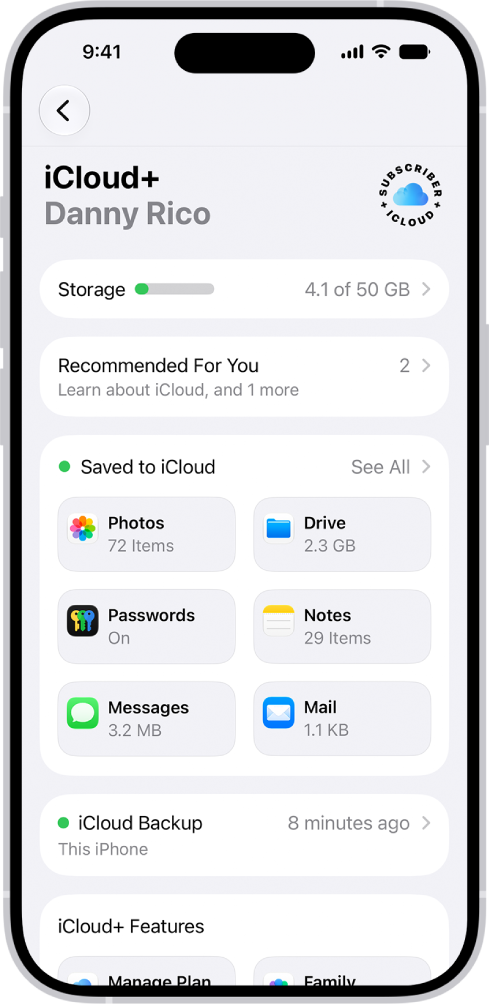
- Your next iCloud backup size: You can know this by going to Settings > [your name] > iCloud > iCloud Backup > your iPhone (This iPhone). Wait until your iCloud info loads.
- Current available iCloud storage size. You can do so by going to Settings > [your name] > iCloud. The amount of iCloud storage used and the amount of iCloud storage available appear at the top of the screen.
Upgrade your iCloud plan
Apple gives you 5GB of free iCloud storage. If 5GB is not enough, you can easily upgrade (you can downgrade later if you want). You can choose from a total of 50GB ($0.99), 200GB ($2.99), 2TB ($9.99), 6TB ($29.99), or 12TB ($59.99). To upgrade your plan, on your iPhone 18 Pro, go to Settings > [your name] > iCloud > Storage > Manage Plan. Choose a plan and follow the onscreen instructions. This will be billed to the Apple Account that you use.
Adjust the size of your iCloud backup
Is your iCloud almost full? If you do not want to upgrade, here are a few alternative options you may want to try. There are a few ways to do so:
- You can do so by choosing which apps to back up. You do not have to back up all of your apps. Go to Settings > [your name] > iCloud > iCloud Backup > your iPhone (This iPhone). You will see a list of your apps. Choose which ones you think you do not need to back up and toggle them off. When you toggle, you will be asked to confirm. Tap Turn Off and Delete. Now, this app will not be backed up.
- Another option is that you may want to try to reduce the size of your iCloud photos. You can delete the movies, photos that you do not want. On your iPhone 18 Pro, open Photos, tap Library, and then tap Select and tap the Trash icon and Delete Photo. You may also want to save these photos on your computer etc.
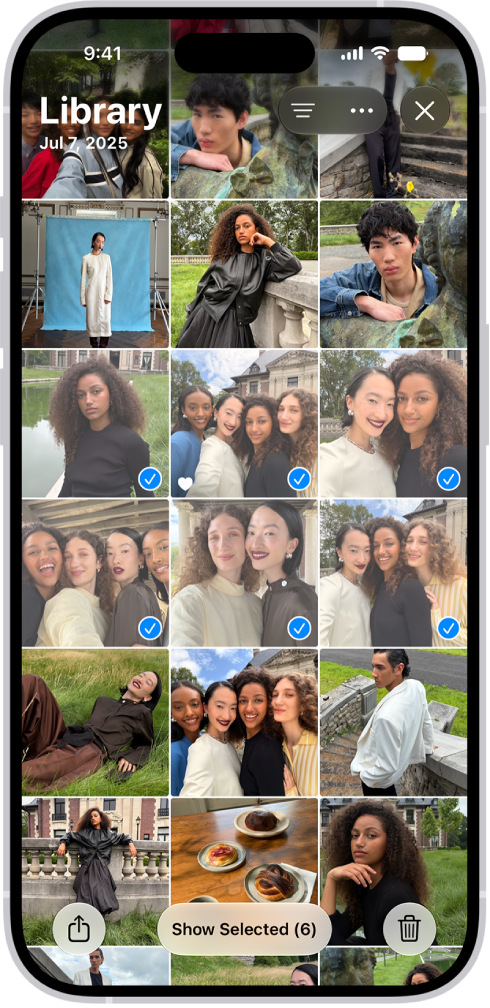
- You can turn off iCloud Photos. You can do so by going to Settings > [your name] > iCloud > Storage > iCloud Photos > and tap Turn Off and Delete Photos. If you choose this option, you will have 30 days to download your photos and videos. Then go to the Recently Deleted collection and tap Delete.
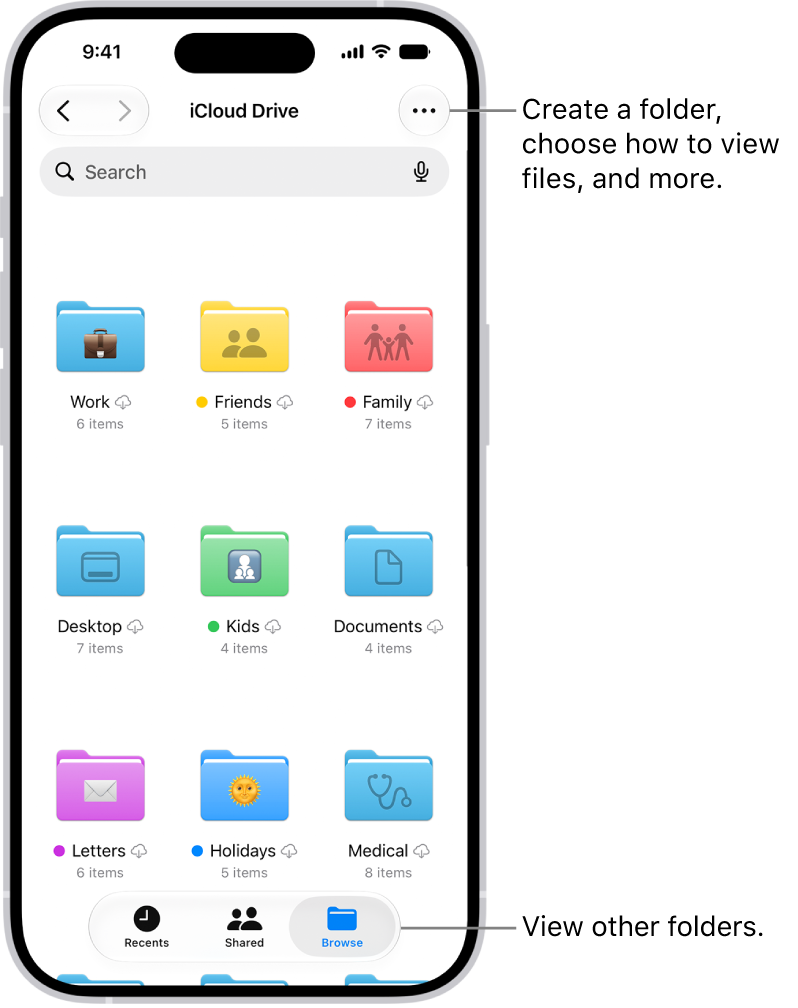
- You can remove files in iCloud Drive. To do this, open the Files app on your device. Then go to Browse > iCloud Drive > More button > Select and select the files that you want to remove and then tap the trash icon. Note that deleted files will remain for 30 days so if you want to remove them now, go to Locations > Recently Deleted > More button > Select and tap Delete.
- You can free up iCloud space by removing email messages from your iCloud email account. Open Mail and delete your messages that you do not want to. And then open the Trash folder and delete them. You can also access iCloud on your computer by signing in to iCloud.com.
The last backup could not be completed
If you see this message, you can fix this problem as well. iCloud backups are automatic. But sometimes you may see this ‘the last backup could not be completed’ error. Please try the steps below to resolve this problem:
- Restart your iPhone 18 Pro. Simply restart your device and then retry again.
- Update your iPhone 18 Pro. You can update your device easily by going to Settings > General > Software Update. This will check for updates and if there is an update available, tap Update Now to install the update.
- Make sure that you have a strong Wi-Fi connection. You can try the following to troubleshoot:
- Enable Airplane Mode and wait for about a minute and then turn it off by going to Settings > Airplane Mode.
- Restart your modem and router. You can do so by unplugging the router and modem’s power cords from the power outlet for 15 seconds.
- Make sure that your iPhone 18 Pro is not too far away from your modem/router.
- Contact your Internet service provider. It is possible that you may have a problem with your account with them. Or they may be having an outage problem.
- Try a different Wi-Fi network. You may be having a connection problem.
- Reset network settings. Please note that if you do this, your current network settings will be erased, such as your Wi-Fi passwords, etc. You can do so by going to Settings > General > Transfer or Reset iPhone > Reset and tap Reset Network Settings.
If you could not get iCloud backup to work, contact Apple Support. Also, another note is that you can use your computer to backup. Simply connect your device to your computer. Here is how:
- After connecting your device to your computer, open Finder (or iTunes, if your computer is a PC or if your Mac is running macOS Mojave or earlier).
- Click your device and then click Back Up Now.
- Wait until the backup is done.