Several users have reported that they are unable to see their routes in the Fitness app on the iPhone. This article explains how you can fix if you do not see the workout maps on your iPhone 18 Pro or iPhone 18 Pro Max. You should be able to see your route. Simply open the Fitness app, tap Summary, then tap Sessions > select a workout > and scroll down and tap the map thumbnail. When you tap the thumbnail, you will see a larger version of your route map. You will not see the map thumbnail if a map has not been recorded.
Your Apple Watch can help you maintain a healthy lifestyle. Apple Watch users can take advantage of mapping their routes for running, hiking, or walking, biking, or outdoor swimming. This means that your workout route captures a map summary of your workouts. For example, if you ran, hiked, or biked while wearing your Apple Watch, the Fitness app on your iPhone 18 Pro will have a map of that route for you to review.
If a route map is not being recorded as expected, then the following steps may help.
You might have issues seeing the route and using the Fitness app for one of these reasons:
- This feature is not available on all Apple Watch models. You need to have an Apple Watch SE 3, Apple Watch Series 9, Apple Watch Ultra 2, or later running watchOS 27 or later.
- Is your iPhone with you during your workout? When you run, walk, bike, or hike; your iPhone needs to be with you. Make sure that you keep your Apple Watch and paired iPhone close together.
- Are Location Services enabled? Also, make sure that route tracking is enabled. You can check this by going to Settings > Privacy & Security > Location Services. Make sure that “Location Services” is enabled. Then go to Settings > Privacy & Security > Location Services > Apple Watch Workout and ensure that it is set to While Using the App. And go to Settings > Privacy & Security > Location Services > Maps > and tap While Using the App. And lastly, go to Settings > Privacy & Security > Location Services > System Services > and ensure that Motion Calibration & Distance is turned on.
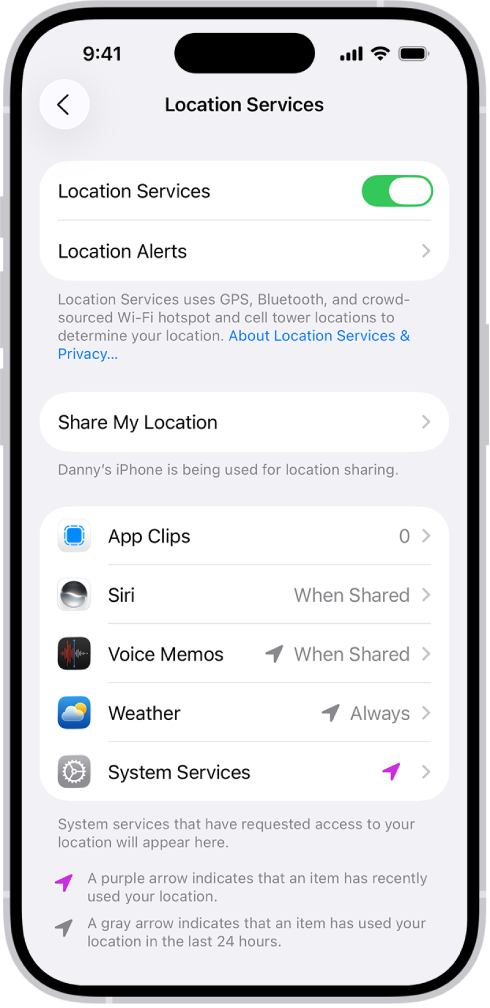
- On your iPhone, make sure that Bluetooth is turned on and Airplane Mode is not turned on.
If you meet all of the conditions listed above and still experience this problem, follow these steps:
After trying each step below, test the Fitness app again to see if your map problem is resolved.
- Disable Location Services and wait 10 seconds and then enable by going to Settings > Privacy & Security > Location Services.
- On your iPhone 18 Pro, go to Settings > Privacy & Security > Location Services > Apple Watch Workout and select Never. Then exit Settings. And then go back to Settings > Privacy & Security > Location Services > Apple Watch Workout and select While Using the App.
- Restart your Apple Watch and iPhone:
- First, restart your iPhone 18 Pro. Press and hold the side and volume up (or down) buttons together until the power off slider appears. Then move the slider from left-to-right. Wait a few seconds for your iPhone to turn off. Then press and hold the side button until you see the Apple logo.

- Apple Watch: Press and hold the side button until the sliders appear. Tap the Power button, then drag the Power Off slider. Wait for your watch to fully turn off. Then press and hold the side button until the Apple logo appears.
- First, restart your iPhone 18 Pro. Press and hold the side and volume up (or down) buttons together until the power off slider appears. Then move the slider from left-to-right. Wait a few seconds for your iPhone to turn off. Then press and hold the side button until you see the Apple logo.
- Update your Apple Watch and iPhone:
- First, update your iPhone 18 Pro to the latest version of iOS: Go to Settings > General > Software Update.
- Then, update your watch: You can update your watch using your iPhone (Apple Watch app > General > Software Update), or you can directly update your watch by going to Settings > General > Software Update on your Apple Watch.
- Un-pair and then re-pair. You will not lose your data. Follow the steps below:
- On your Apple Watch, go to Settings > General > Reset > Erase All Content and Settings.
- On your iPhone, open the Apple Watch app and go to My Watch > All Watches > tap the (i) icon > tap Unpair Apple Watch.
- Now, to pair again, turn on your Apple Watch and wear it. Keep your iPhone and Watch close together. On your iPhone, a message will appear saying “Use your iPhone to set up this Apple Watch”. Click continue and then follow the onscreen instructions. Make sure that you enable route tracking during the process.
If you still need help, you may want to contact Apple Support. You can also make a Genius Bar reservation. You can also get answers with Apple’s online chat service.