The Up Next and the Favorites widgets were popular widgets that were available in previous versions of iOS. The Up Next widget would show you the next alarm, calendar event or reminder you had scheduled. The Favorites widget would show you a selection of your favorite contacts.
These popular widgets are noticeably absent and some users are pretty upset about it. Although we can’t bring them back for you, we provide a guide here for setting up widgets that will give you back most of the features you miss from the Up Next and the Favorites widgets.
The Up Next Widget
We can still create widgets for both the Calendar and the Reminders apps. We can create a widget for Calendar and a widget for Reminders. You can have these two widgets side-by-side if you would like to see both at the same time or you can then stack the two if you would like to save space. Unfortunately, this would not allow you to simply look at the widget to see what is “Up Next” from among all calendar events and reminders, but simply scrolling through the widget stack (a small gesture to perform) to get to the other widget will show you the information.
You can follow these steps to create widgets that will give you a quick view of your upcoming events and tasks.
Create Calendar and Reminders Widgets
- To create a Calendar widget, touch and hold the background until the apps begin to jiggle, tap Edit, then tap Add Widget.
- Scroll down until you see Calendar, then select it.
- Click Add Widget.
- Your Calendar widget will appear on your Home Screen.
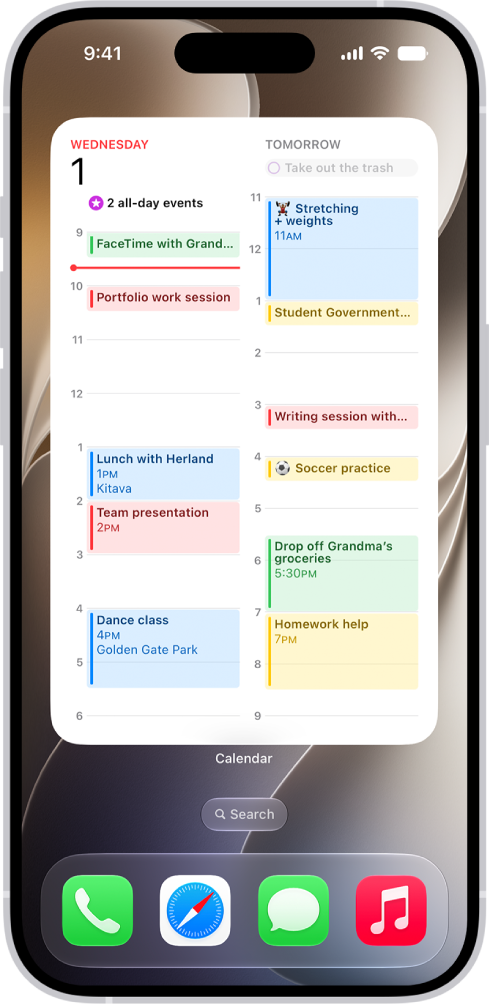
- Now to add the Reminders widget, again touch and hold the background until the apps begin to jiggle, tap Edit, then tap Add Widget.
- Scroll down and select Reminders.
- Choose Add Widget.
- Now you can either:
- Click Done to leave the widgets separate, or …
- Drag the Calendar widget on top of the Reminders widget to create a widget stack.
- To scroll through the widgets in your stack, just touch the stack and slide your finger up or down to bring another widget to the top of the stack.
The Favorites Widget
Many users miss the Favorites widget that was previously available for your Today Page. It was a quick way to call those people you called most often. With the Favorites widget, you didn’t have to open your Phone or Contacts app and search or scroll through the list to find the person you were looking for. What we present here is a workaround using Shortcuts. It will allow you to create a Favorites widget for either your Home Screen or your Today Page that contains shortcuts to your favorite contacts.
Create Shortcuts for your Favorites
- Open the shortcuts app: Swipe left-to-right to get to the Today Screen.
- Type Shortcuts in the Search field. Tap the Shortcuts app icon.
- Tap Shortcuts in the upper-left part of the screen.
- Tap the add folder icon in the upper-right part of the screen.
- Type a name for your folder, like Favorites. Then tap Add in the upper-right corner of your screen.
- Select your newly created Favorites folder.
- Tap the plus (+) in the upper-right corner of the screen.
- Tap Add Action.
- Scroll down to Call and select from one of the suggested contacts listed under Call, or tap the plus [+] to choose a contact.
- If you chose to add a contact, now tap Contact, then choose the person you would like set up the quick call shortcut for from your contacts list.
- Tap Next.
- Enter a name for your shortcut, then tap Done.
- You are now back to the screen for your Favorites folder in the Shortcuts app. You can see your new shortcut listed under Favorites.
- Continue to add more Favorites by repeating steps 7-12. When you are done adding all of your Favorites, then exit the Shortcuts app.
Add Favorites to Home Screen or Today Page
- To add your favorites to your Home Screen, touch and hold the background until the apps begin to jiggle, tap Edit, then tap Add Widget.
- Scroll down until you see Shortcuts and select it.
- Swipe right and left to choose the size for your widget, then tap Add Widget. Don’t worry if your Favorites widgets aren’t showing. We can select them later.
- Now you can press and hold your new Favorites widget to move it around on your Home Screen, move it to another screen, or move it to your Today Page. Once you have your widget in place, press and hold on the widget to open its menu.
- Click on All Shortcuts to change the Folder selection.
- Choose your Favorites folder. Then tap anywhere outside of the Shortcuts Folder pop-up window to exit.
Now you have your Favorites on either your Home Screen or Today Page, whichever you chose. When you want to call one of your favorites, just tap their shortcut icon in your Favorites widget.