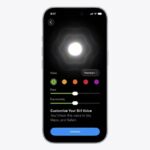
Lately, I’ve been running into a frustrating issue with my iPhone’s Continuity Camera. When I try to use it in FaceTime on my Mac, my iPhone screen just goes black, showing only two options—Pause and Disconnect—neither of which actually do anything. Then, after about ten seconds, the connection drops, and my iPhone kicks me back to the Home Screen. If you’re dealing with the same problem, you’re probably wondering what’s causing it—and more importantly, how to fix it.
There are several reasons why Continuity Camera might not work as expected. One common cause is software bugs or compatibility issues, especially if your iPhone or Mac is running an outdated version of iOS or macOS. Connectivity problems can also interfere, as the feature relies on Wi-Fi and Bluetooth for a seamless connection—weak signals or incorrect settings can cause it to fail.
Additionally, VPNs or certain network configurations, such as an active Personal Hotspot, mismatched Wi-Fi networks, or Thunderbolt Bridge enabled on Mac, can block the connection. Another potential issue is trust permissions—if your iPhone hasn’t been set to trust your Mac, the feature may not work, particularly when using a USB connection. Apple Account mismatches can also be problematic; both devices must be signed into the same Apple Account with two-factor authentication enabled.
Make Sure Your Setup Meets the Minimum Requirements
Before troubleshooting Continuity Camera, double-check that your iPhone and Mac meet Apple’s requirements for the feature to work properly.
Device & Software Requirements
- Mac: Any Mac that supports macOS Ventura or later
- Operating System: macOS Ventura or later on Mac
- Both your iPhone and Mac are signed in to the same Apple Account with two-factor authentication enabled.
- Continuity Camera is turned on on your iPhone. You can check this in Settings > General > AirPlay & Continuity. It should be on by default.
- Your iPhone and Mac are near each other with Bluetooth and Wi-Fi enabled on both devices.
- Neither your iPhone nor Mac is sharing its internet connection (i.e., no Personal Hotspot or internet sharing is active).
- If using Continuity Camera wirelessly, ensure your Mac is not using AirPlay or Sidecar.
- If connecting over USB, your iPhone must be set to trust your Mac when prompted.
Once you’ve confirmed these requirements, try using Continuity Camera again. If it still doesn’t work, continue with these troubleshooting steps.
How to Fix iPhone Continuity Camera Not Working
If your iPhone’s Continuity Camera still isn’t working, try the following fixes:
1. Connect Your iPhone 18 Pro via USB and Trust Your Mac
One simple fix that worked for me was connecting my iPhone to my Mac using a USB-C cable. When I did this, my iPhone prompted me to trust this Mac—I tapped Trust, and suddenly, Continuity Camera started working. Surprisingly, even after unplugging the cable, the feature continued to function wirelessly.
If you haven’t done this yet, try connecting your iPhone to your Mac via USB and making sure it’s set to trust the device. This might be all you need to fix the issue.
2. Reset Network Settings
If Continuity Camera still isn’t working, resetting your iPhone’s network settings might help. This clears out any connectivity issues that could be interfering with the feature.
To reset your network settings:
- Open Settings on your iPhone.
- Go to General > Transfer or Reset iPhone > Reset.
- Tap Reset Network Settings and confirm.
Keep in mind that this will erase all saved Wi-Fi networks and passwords, mobile data settings, and any previously used VPN or APN configurations. After the reset, reconnect your Wi-Fi and try using Continuity Camera again.
3. Disable VPN
If you have a VPN enabled on your iPhone or Mac, it could be interfering with Continuity Camera. Some VPNs can disrupt local network connections, preventing your devices from communicating properly.
To turn off VPN on your iPhone:
- Open Settings.
- Go to General > VPN & Device Management.
- Toggle VPN off.
On your Mac:
- Open System Settings.
- Select Network, then click VPN.
- Toggle it off or disconnect from the active VPN.
Once VPN is disabled, try using Continuity Camera again and see if the issue is resolved.
4. Update Your iPhone and Mac to the Latest Version
Running outdated software can cause compatibility issues with Continuity Camera. Make sure both your iPhone and Mac are updated to the latest version of iOS and macOS to ensure everything works as expected.
To update your iPhone 18 Pro:
- Open Settings.
- Go to General > Software Update.
- If an update is available, tap Update Now.
To update your Mac:
- Click the Apple menu and select System Settings.
- Go to General > Software Update.
- If an update is available, click Update Now and follow the prompts.
After updating, restart both devices and check if Continuity Camera starts working again.
5. Delete VPN Profiles on Your iPhone
Even if your VPN is turned off, its configuration profile might still interfere with Continuity Camera. Removing the VPN profile completely can help resolve lingering connectivity issues.
To delete a VPN profile on your iPhone 18 Pro:
- Open Settings.
- Go to General > VPN & Device Management.
- Select the VPN profile you want to remove.
- Tap Remove Profile.
- Enter your passcode if prompted, then tap Remove to confirm.
- Restart your iPhone.
Once your device restarts, try using Continuity Camera again to see if the issue is fixed.
6. Disable Thunderbolt Bridge on Your Mac
Some users have found that disabling the Thunderbolt Bridge network interface on Mac can help fix Continuity Camera issues.
To disable Thunderbolt Bridge:
- Open System Settings on your Mac.
- Go to Network.
- Find Thunderbolt Bridge in the list of network connections.
- Click on it and set it to Inactive.
Once disabled, try using Continuity Camera again to see if the problem is resolved.