Several users have reported that the Mail app on iPhone 18 Pro will not open. More specifically, when some users attempt to open the Mail app to check their email messages, immediately after it launches, it quits. Some users say they see a blank screen before it crashes.
Are you having this problem too? Are you unable to check your email because of this issue? Here is what you can do to fix. Please try the steps below if you are having problems with the iOS Mail app if it keeps crashing, hangs and stops working, or if it won’t open at all:
Repair Mail if it crashes or won’t open
1-It is possible that your iPhone 18 Pro may have run out of memory, and can’t start the Mail app. You may want to free up some space. First check the storage on your iPhone by going to Settings > General > iPhone Storage. You may also want to delete some of your apps, videos, photos etc that you no longer use or need to free up some storage, if space gets tight on your iPhone.
What else you may want to do is to manually offload and reinstall the Mail app without losing the app’s data. Tap Settings, and General > iPhone Storage then scroll down and find the Mail app and tap Mail and then tap “Offload App”. Note that offloading the Mail app will delete it but it will keep its data. Then tap again to confirm “Offload App”.
Once the mail app has been deleted, simply reinstall the app. To reinstall you may go again to Settings > General > iPhone Storage > Mail now you will see: Reinstall App:
Also since the Mail is a built in app, deleting it will not remove from the home screen. You will still see its icon. And tapping the icon will also reinstall the app.
2-Restart the Mail app. Close the mail app (force quit) and reopen again.
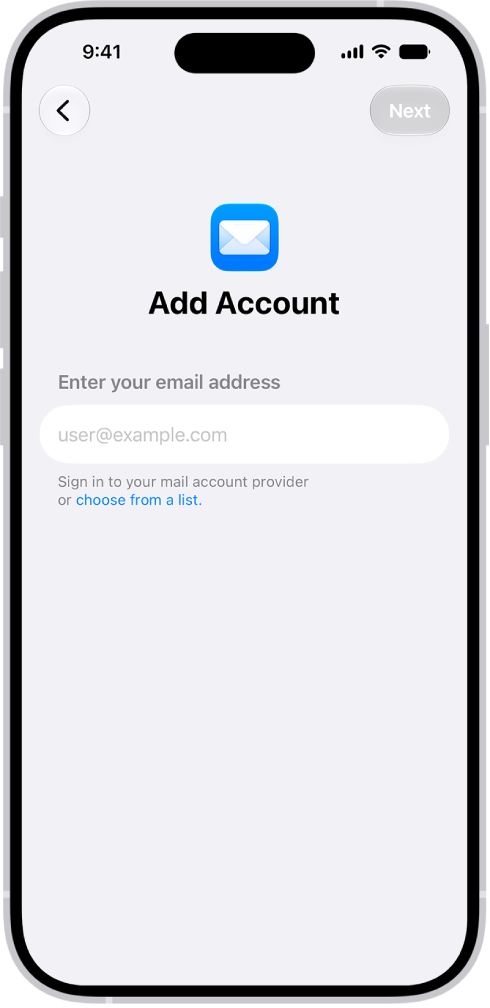
3-Remove (sign out) your email account or accounts then re-add them. To do that, go to Settings > Apps > Mail > Mail Accounts and then select your account, scroll down and tap Delete Account. Then go to Settings > Apps > Mail > Mail Accounts and tap Add Account.
4-Restart your iPhone 18 Pro to see if it fixes the problem.
5-Make sure that your iPhone 18 Pro is running the latest version of iOS software. Go to Settings > General and then Software Update.
6-If Fetch New Data is on, turn off to see if it is working as expected. Go to Settings > Apps > Mail > Mail Accounts and Fetch New Data.
Trying the steps above should fix your problem if you are unable to open the Mail app. If not, contact Apple support.