Do you get this iOS Calendar error popup constantly? The error message says: “Calendar Invitation. Your response to the invitation cannot be sent”. You tap OK but a few minutes later this pops up again? It is highly likely that you are getting this error because you responded (accept or reject) to a calendar invitation, and your response, for some reasons, could not be sent and thus you keep getting this notification.
This article explains how you can troubleshoot this error. If you are having this issue as well, this article will help you fix it:
Calendar Invitation Error
Please try each fix until you resolve your problem:
- On your iPhone 18 Pro, tap Settings > Your Name > iCloud
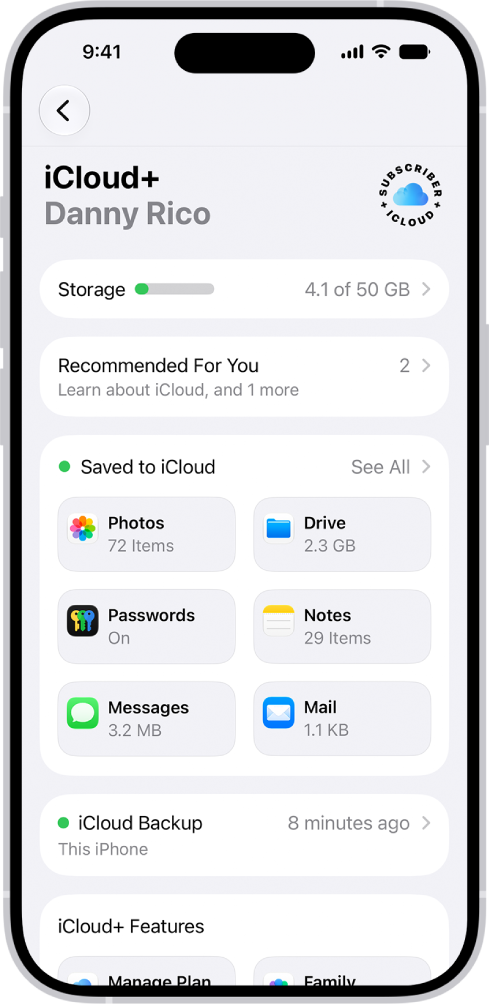
- Tap See All next to Saved to iCloud. Tap iCloud Calendar and turn off Use on this iPhone.
- Wait a few minutes
- and then turn Use on this iPhone back on.
- Update your iPhone 18 Pro to the latest version of iOS software. Here is how:
- Tap Settings > General > Software Update and if there is an update available, follow the directions to update your phone.
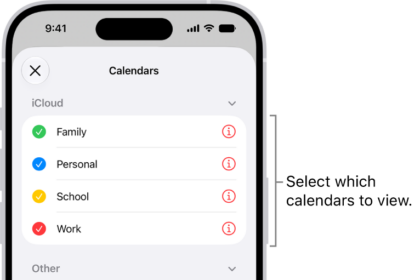
- On your iPhone 18 Pro, tap Settings > Apps > Calendar > Calendar Accounts
- Then select the account (under the accounts section) Note: Select the account that is linked with Calendar (iCloud, Exchange, Gmail etc)
- Slide to turn off “Calendars”. You will be asked to confirm, it will read “Are you sure you want to continue? All calendars will be removed from your iPhone” Tap the red Delete from My iPhone icon to confirm your selection. Do not worry, we will turn this on later and your calendar will sync again.
- Now turn off your iPhone 18 Pro (you can do so by going to Settings > General > Shut Down)
- Turn your device on
- And turn Calendars back on.
- You may want to repeat this process for the other accounts also that you have on your device.
- Force close the Calendar app and reopen again. Here is how:
- Swipe up from the bottom of screen and then find the Calendar app and swipe up to force close it. Then reopen it.

- Swipe up from the bottom of screen and then find the Calendar app and swipe up to force close it. Then reopen it.
Please after each step, check to see if your issue persists.
If you performed all of the troubleshooting steps above, and if you are still experiencing this problem, you may want to contact Apple support. Apple Support offers live chat or Genius bar appointments.