After the recent iOS update, many users have reported that the Calendar app’s search feature suddenly stops working on iPhone 18 Pro or iPhone 18 Pro Max. When you type a keyword—such as a contact’s name, “meeting,” or “dinner”, “doctor” —Calendar shows no results, even though the events clearly exist.
This problem has been widely discussed in Apple Support Communities. In certain cases, Calendar search only works for past events, or only within a small date window.
The good news is that if you are experiencing this, you are not alone.
In this article, I explain what you can do to fix this issue. Below is an updated troubleshooting guide based specifically on user experiences.
Basic steps to fix iPhone Calendar problems
- Close the Calendar app, then reopen it again:
- Go to the Home screen and swipe up and find the Calendar app (swipe left or right) and then swipe up on the app. Then reopen Calendar.

- Go to the Home screen and swipe up and find the Calendar app (swipe left or right) and then swipe up on the app. Then reopen Calendar.
- Restart your iPhone 18 Pro.
- Ensure that your iPhone has the latest version of iOS. You can check for updates and update if needed by going to Settings > General > Software Update.
1) Toggle Calendar’s Search settings
This is the most commonly reported fix.
- Go to Settings > Search
- Scroll down and tap Calendar
- Turn off:
- Show App in Search
- Show Content in Search
- Then go to Settings > Apps > Calendar > Siri and turn off Learn from this App.
- Restart your iPhone 18 Pro
- Turn all three settings back on that we just turned off.
2) Perform a forced restart
Several users only saw success after doing a full forced restart.
- Press Volume Up, release
- Press Volume Down, release
- Hold the Side button until the Apple logo appears

This clears more system caches and may trigger Calendar to rebuild its search database.
3) Give Calendar time to reindex in the background
Reindexing may take time, vary from: About 30 minutes, up to several hours, to half a day in some cases. For best results:
- Connect your device to power
- Keep it on Wi-Fi
- Lock the device and leave it idle
Once indexing completes, Calendar search often starts working again automatically.
4) Check Calendar search on other Apple devices
Some users found:
- Search worked fine on macOS
- But not on their iPhone 18 Pro after the recent iOS update.
- If you use multiple devices, test the same event keywords on your Mac.
- This can be a temporary workaround until Apple issues a fix.
5) Verify iCloud Calendar settings (to rule out sync issues)
Even though the bug is clearly systemic, you should confirm:
- Open Settings > Apps > Calendar > Calendar Accounts.
- Check each account you use (for example iCloud, Gmail, Exchange, etc.).
- Tap each account and make sure Calendars is turned on.
- Return to the Calendar app and visually confirm that your events appear on the correct days when you browse by day/week/month.
- Furthermore, check Settings > [your name] > iCloud > See All > iCloud Calendar and ensure it is on.
If events visibly appear but are not searchable, this confirms it’s an indexing bug.
Turn iCloud off and on
From our experiences, we know that sometimes an iCloud glitch may cause this issue. You may be experiencing this. This is an easy fix. The steps below describe turning iCloud off and on for Calendars. You will not lose any data. Here is how:
- On your iPhone 18 Pro, open Settings.
- Tap on your name at the top, then select iCloud.
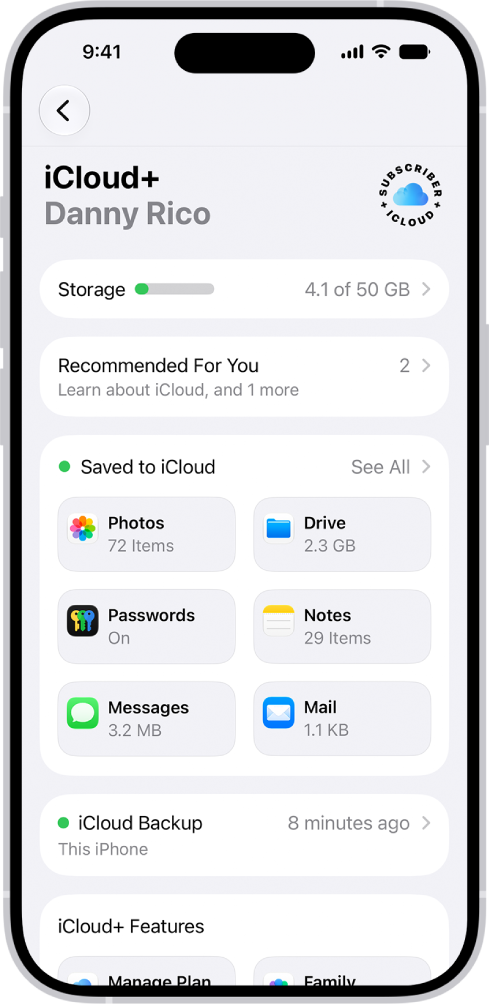
- Tap See All (next to Saved to iCloud).
- Find Calendars.
- Toggle the iCloud switch for Calendars.
- When you turn it off, you will be asked what you want to do with the iCloud data, and a popup will appear with two options: Keep on My iPhone or Delete from My iPhone.
- Select the Keep option. Do not select the Delete option (of course, unless you want to delete). The Keep option will save the data on your iPhone.
- Wait for the process to complete. It may take up to a minute.
- Then toggle on the switch again. Since we chose the Keep option, you will be asked what you want to do with the saved iCloud data. A popup saying “Existing Local Calendars” will ask if you want to Merge. Select Merge to avoid losing Calendar data.
- Now close Settings, open Calendar, and try to do a search.