Yesterday I decided to check for updates on my iPhone 18 Pro. There were a lot of app updates. I decided to update all. I went to App Store > App Updates and Update All. There were 38 app updates. All of them successfully updated except one. That one did not complete the process. That one got stuck loading when installing. I waited a few hours and nothing changed. In this short article I explain how I fixed this problem.
Please note that you may experience this problem not only when you try to update your apps but also when you want to download apps and games using the App Store.
After you try each tip below, please check to see if your problem is fixed.
1-Restart your iPhone 18 Pro. You can turn off your iPhone by going to Settings > General > Shut Down. And then restart your device.
2-Tap the loading app. This will pause the process. The app will say “paused”. Wait a few seconds and tap again to resume.
3-Make sure that your iPhone 18 Pro is running the latest version of iOS software. You can wirelessly update your device by going to Settings > General > Software Update. You may want to turn on Automatic Updates.
4-Sign out of App Store and then sign back in. Here is how:
- On your iPhone tap Settings
- Tap your name, then tap Media & Purchases
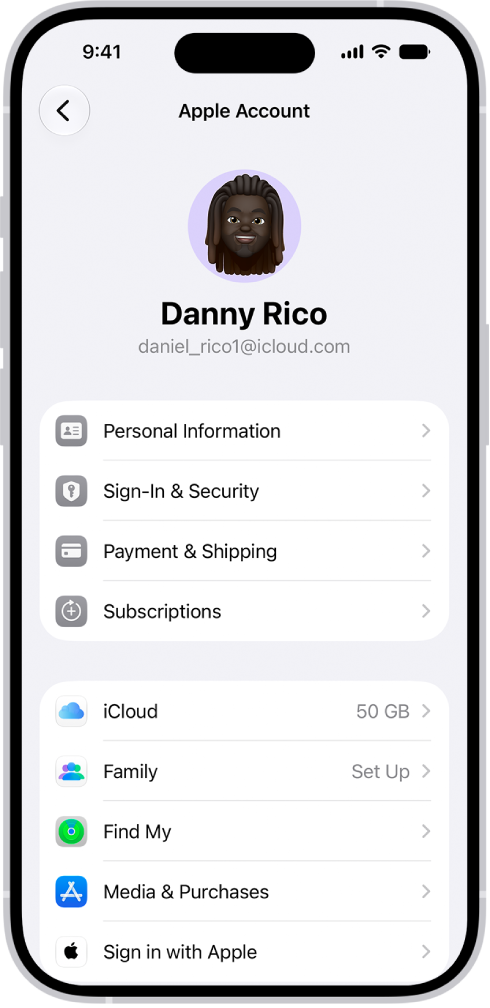
- Tap Sign Out
- Then tap Media & Purchases again and sign in with your Apple Account and password.
5-Delete the app and then redownload it from the App Store and reinstall. Here is how:
- Touch and hold the app.
- Tap Remove App, tap Delete App, then tap Delete to confirm.
- Now open the App Store app on your device
- Tap your picture in the upper-right corner
- Tap Apps & Purchase History, then tap Your Apps
- Find the app you just deleted
- And then tap the cloud icon to download and install.
6-You may need a Wi-Fi connection to download and update apps. You may try the following basic troubleshooting tips to resolve your connection problems:
- Restart your router and modem.
- Turn on Airplane Mode and wait a few seconds and turn it off.
- On your iPhone 18 Pro, go to Settings > Wi-Fi and turn off Wi-Fi and wait a few seconds and turn it on.
- You may want to reset your network settings by going to Settings > General > Transfer or Reset iPhone > Reset > Reset Network Settings. Please note that this will reset your network settings like your Wi-Fi passwords etc.
- Try using a different Wi-Fi network to see if this resolves your problem.
7-The app may be stuck loading because of “insufficient space”. Is your device running out of space? You can check the storage on your device by going to Settings > General > iPhone Storage. Do you think there is enough room? If not, you may want to remove videos, apps, photos and other content you do not want or need.