Do Not Disturb on your iPhone 18 Pro or iPhone 18 Pro Max silences calls, alerts and notifications. Do Not Disturb expanded to become Focus, with Do Not Disturb becoming one of the Focus mode options.
In this article, we will tell you:
- How to turn off Do Not Disturb (or any other Focus mode).
- How to change the Do Not Disturb settings to allow for calls from certain people.
- How to set up or change a Do Not Disturb schedule.
- What you can do if you can’t turn off Do Not Disturb.
Why your iPhone 18 Pro is on Do Not Disturb
You’ll know your iPhone 18 Pro is on Do Not Disturb when you see the crescent moon icon in the status bar at the top of your screen. If your phone is using another Focus mode, you may see a different icon, such as a person, bed, ID card, etc.
The following will cause your iPhone to enter Do Not Disturb mode:
- You turned on Do Not Disturb manually.
- Do Not Disturb was scheduled to turn on.
- You are driving (depending on your settings).
How to turn off Do Not Disturb
You can turn off Do Not Disturb using Control Center.
- Swipe down from the top-right corner of your iPhone 18 Pro to open Control Center.
- Tap Focus, then tap the button with the crescent moon to turn off Do Not Disturb.
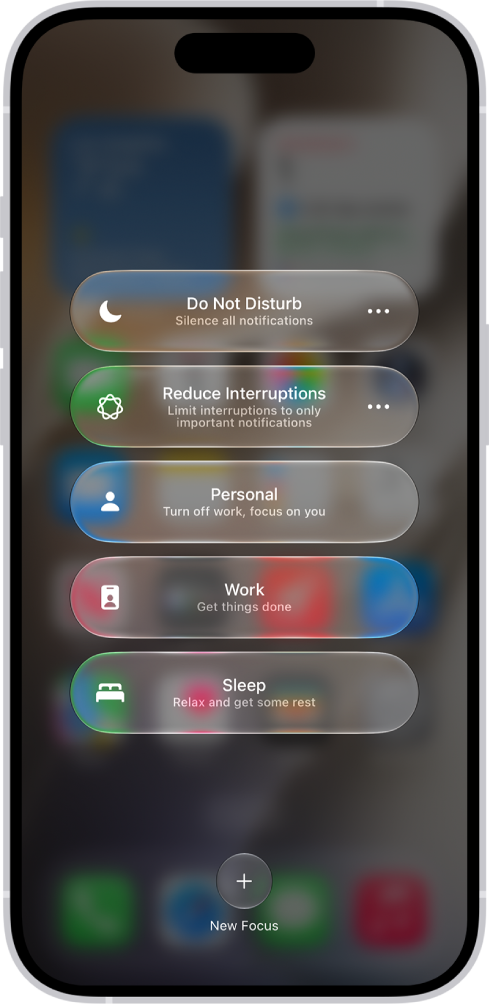
If this doesn’t work, see the section below for when you can’t turn off Do Not Disturb.
Change Do Not Disturb schedule and settings
If you have previously scheduled Do Not Disturb to come on during specified hours, you may want to change these times. You may also want to allow certain people to contact you while your phone is on Do Not Disturb.
Open the Do Not Disturb settings
To open the Do Not Disturb settings:
- Open Settings on your iPhone 18 Pro, then tap on Focus.
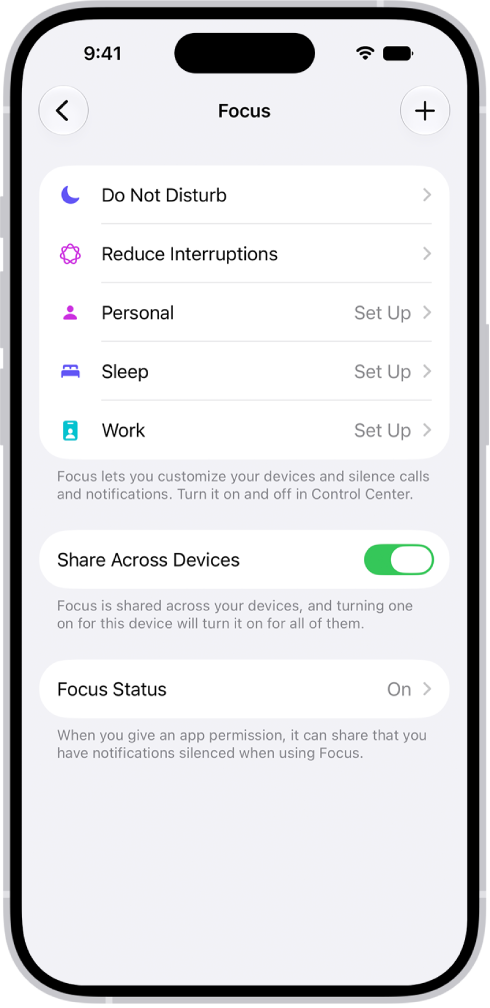
- Select Do Not Disturb.
Change who can contact you
- From the Do Not Disturb settings, tap on People.
- If you want to disallow someone, tap on Silence Notifications From. If you want to allow someone, tap on Allow Notifications From.
- Tap Add People to add people from your Contacts.
- Under Silence Notifications From, you can choose whether you want to Allow Calls from Silenced People. If not, deselect this.
- Under Allow Notifications From, you can choose to Allow Calls From Everybody, Allowed People Only, Favorites or Contacts Only.
Change the Do Not Disturb schedule
- From the Do Not Disturb settings, scroll down to the Set a Schedule section.
- Tap on a schedule to make changes or tap Add Schedule to set one up.
- If you want to turn off a schedule, tap on it, then toggle the switch next to Schedule to turn it off.
What if you can’t turn off Do Not Disturb?
Check schedules and Smart Activation in Settings
First, see if you can change the Do Not Disturb (or other Focus mode) from the Settings app:
- Open Settings and tap on Focus.
- Tap on the Focus mode that won’t turn off.
- Scroll down to the Set a Schedule section.
- If you see a schedule, tap on it to make changes.
- You can toggle the switch next to Schedule to turn off the schedule.
- You could also delete the schedule by tapping Delete Schedule.
- Tap Add Schedule. If you see that Smart Activation is On, tap on it. Toggle the switch next to Smart Activation to turn it off.
Check Screen Time restrictions
- Open Settings and tap on Screen Time.
- Tap on Content & Privacy Restrictions.
- Under the Allow Changes To section, look at Driving Focus. Make sure this is set to Allow.