On iPhone, you can find the password of the Wi-Fi network you’re currently using and see all the Wi-Fi networks and passwords you’ve previously saved. You can share the password of the Wi-Fi network you’re currently using with a nearby friend or family member.
All of them are in the Wi-Fi section of the Passwords app, where you can also copy a password to use elsewhere.
Here’s how to find and share your Wi-Fi password on iPhone.
Find a Wi-Fi password
- Open the Passwords app on your iPhone.
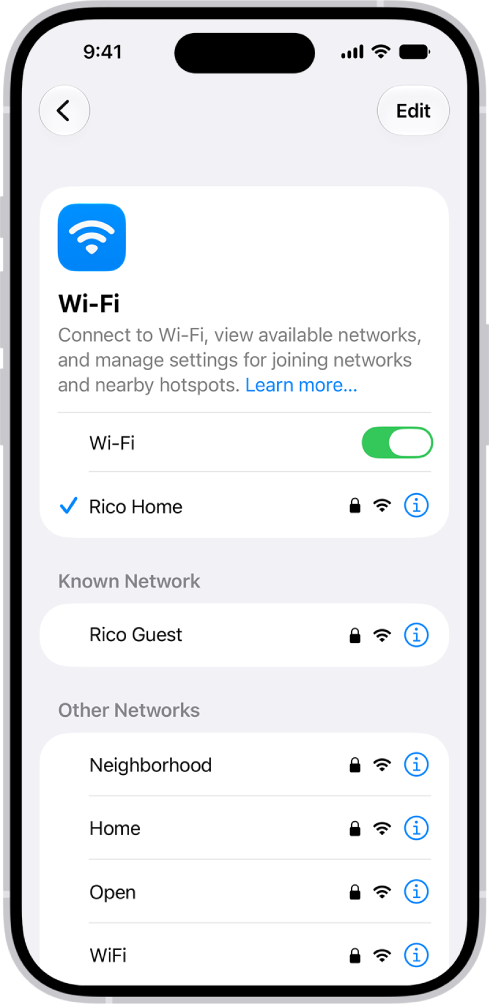
- Tap Wi-Fi. If you’re connected to a Wi-Fi network, its name appears at the top of the screen. You can also see all the Wi-Fi networks you’ve previously saved.
- Tap a Wi-Fi network.
- Tap the Password field.
To copy the password to use elsewhere, tap Copy Password.
Share your Wi-Fi network password with a nearby friend or family member
- Make sure your iPhone (the one sharing the password) is unlocked and connected to the Wi-Fi network.
- Have your friend of family member go to Wi-Fi settings on their iPhone, iPad, or Mac and then choose the network.
- When a message asks if you want to share your Wi-Fi password, tap Share Password.
Note: To share your Wi-Fi network password, devices need to be within Bluetooth and Wi-Fi range, can’t be using Personal Hotspot, and have to be added to each other’s contacts. Another option: Go to the Wi-Fi network, tap Show Network QR Code, and let friends and family scan it to join the network.