Use CarPlay to send, hear, and reply to text messages from your iPhone. You can hear unread messages, respond to a thread, or react with Tapbacks, and your vehicle’s built-in controls can help. Pinned conversations from Messages on iPhone show up in CarPlay, too.
Send and receive text messages
Your vehicle’s built-in controls can help you send and receive messages, too. Open Messages in CarPlay and do one of the following:
- Hear unread messages or respond to a thread: Select a conversation.
- Start a new conversation: Select the Compose button.
- Automatically send messages: Skip the confirmation step when sending messages with Siri to send messages automatically, unless you ask to change or cancel it.
In CarPlay, go to Settings > Siri, then select Automatically Send Messages.
React with Tapbacks
A Tapback, such as a heart or thumbs-up, gives you a quick and easy way to respond to a message.
When a message arrives in CarPlay, respond with “like that message” to give it a thumbs-up.
Or select the Tapback button and choose a different emoji.
Pin important conversations
Your pinned conversations from Messages on iPhone are now in the Messages app in CarPlay.
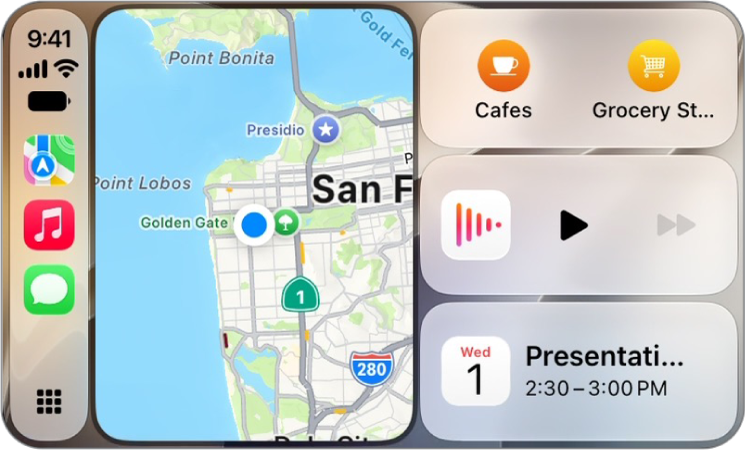
Note: If Messages doesn’t show up in the recent apps list on the left of CarPlay Dashboard, tap the Home button. Its pages show all of your CarPlay apps, along with incoming text messages with CarPlay.