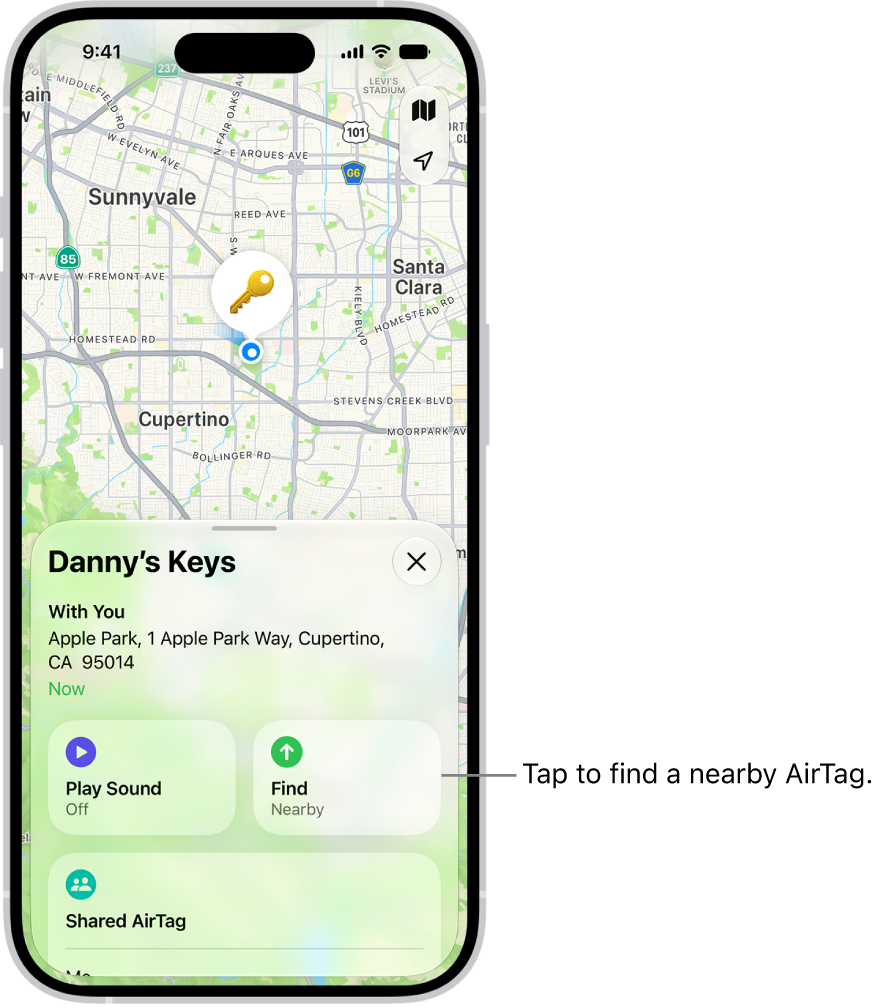
On iPhone, in the Find My app, you can turn on separation alerts for an AirTag or other item so you don’t accidentally leave it behind. You receive an alert every time the device sharing your location separates from the item, unless you’re in a Trusted Location.
For separation alerts to work, notifications for the Find My app need to be allowed, and you can choose a suggested Trusted Location or add a new one on the map.
Important: In order to receive separation alerts, make sure you allow notifications for the Find My app.
- Start the Find My app on your iPhone.
- Tap Items and tap the name of the item you want to set an alert for. Then tap the More button.
- Tap When Left Behind and then turn on Notify When Left Behind.
- If you want to add a Trusted Location, you can choose a suggested location, or tap New Location, select a location on the map.
- Tap the Done button.