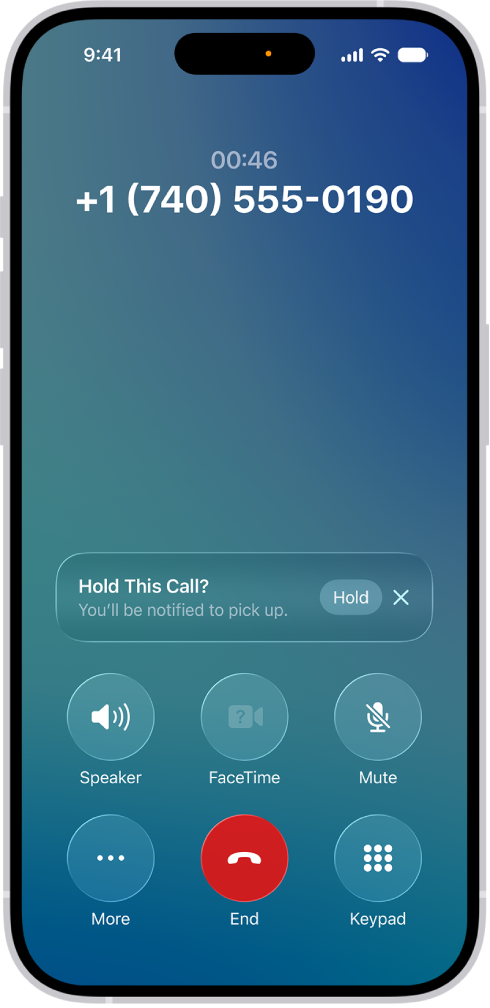
You can set up call waiting on iPhone if you have cellular service through a GSM network, and if your cellular service is through a CDMA network, your carrier has information about setting up call waiting. Without it, incoming calls go directly to voicemail while you’re on a call.
On models with Dual SIM, it works only for calls on the same line, except when the other line has Wi-Fi Calling on and a data connection is available.
- Start the Settings app on your iPhone.
- Tap Apps, then tap Phone.
- Tap Call Waiting, then turn on Call Waiting.
With call waiting turned off, incoming calls go straight to voicemail during a call. On an iPhone with Dual SIM, call waiting covers only incoming calls on the same line. The exception is when Wi-Fi Calling is turned on for the other line and a data connection is available.