How to add more homes with iPhone

You can add another home in the Home app on iPhone, such as a small office, and switch between your homes at any time.

By Stacey Butler - Senior Staff Writer
0 Min Read

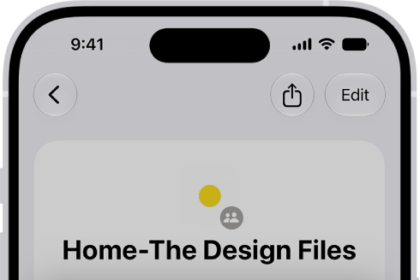
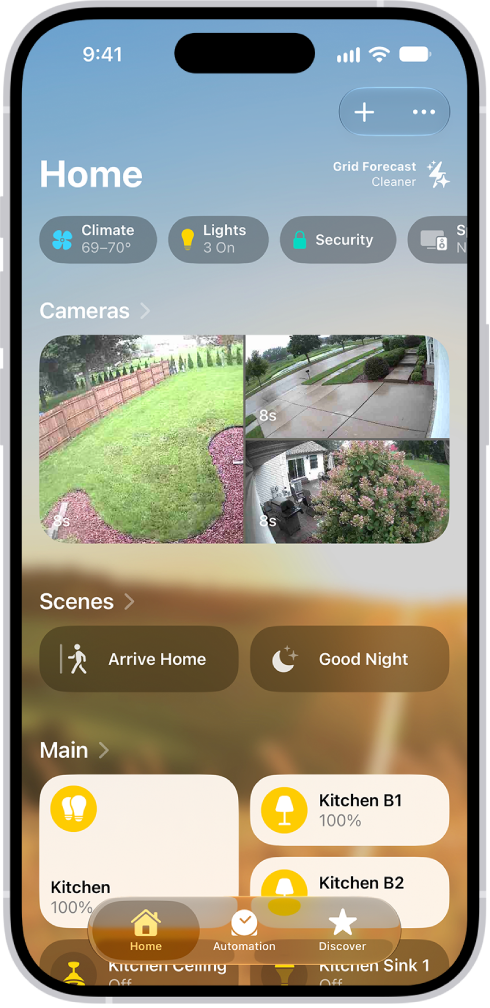
In the Home app on your iPhone, you can add more than one physical space—a home and a small office, for example. When you add a new home, you name the home and choose its wallpaper. You can switch to another home, too.

  1. Start the Home app on your iPhone.
  2. Tap the Add button and then tap Add New Home.
  3. Name the home, choose its wallpaper, then tap Save.
  4. To switch to another home, tap the More button and tap the home you want.

TAGGED:
Senior Staff Writer
Follow:
Stacey is a senior staff writer at GeeksChalk and has been writing about Apple for nearly a decade. She covers all things Apple for GeeksChalk, including iPhones, iPads and Mac. Based in Honolulu, Hawaii, Stacey is often found hiking precarious landscapes or tinkering with a camera.
Leave a Comment