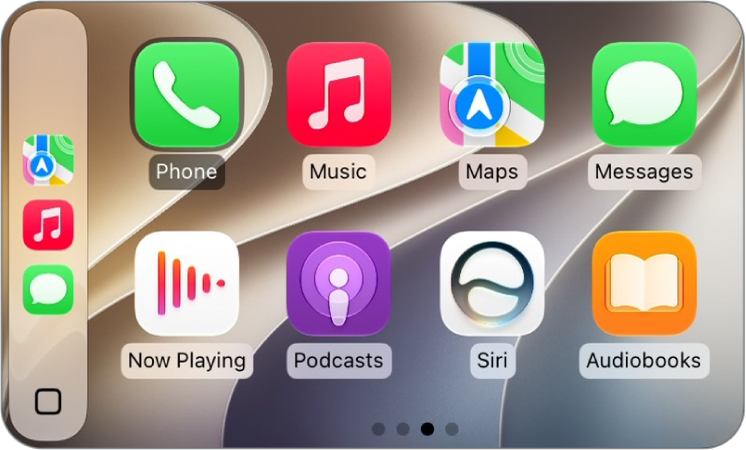
When you’re not driving, you can play videos from your iPhone on your CarPlay display. CarPlay video apps work in vehicles that support the video-in-car feature.
You can also use AirPlay to play video or audio from your iPhone on your CarPlay display, then disconnect AirPlay when you’re done.
WARNING: For important information about avoiding distractions that could lead to dangerous situations, see Important safety information for iPhone.
Use AirPlay to play video or audio on your CarPlay display
- Connect iPhone to CarPlay.
- When you’re not driving, play a video on your iPhone from a supported CarPlay video app or any app that supports AirPlay.
- Tap the AirPlay button, then select your CarPlay display.
Note: If your vehicle indicates that video playback is not available, you’ll hear audio only instead.
Disconnect AirPlay from your CarPlay display
- When you’re not driving, open the app on your iPhone that’s playing the video you’re viewing on your CarPlay display.
- Tap the AirPlay button and then deselect your CarPlay display.