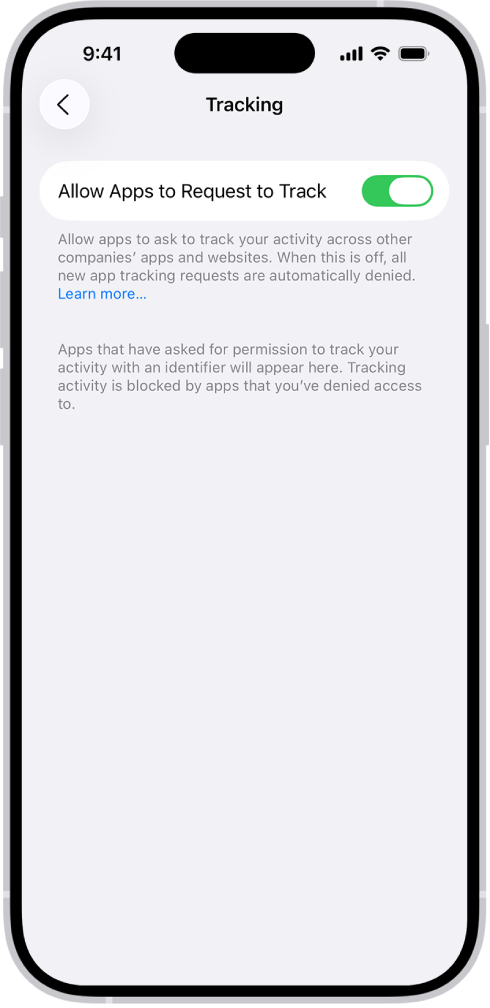
All apps are required to ask your permission before tracking you or your iPhone across websites or apps owned by other companies for advertising or to share your information with data brokers. After you grant or deny permission to an app, you can change permission later.
You can also stop all apps from requesting permission, so they can’t even ask. The list in Tracking settings shows every app that has requested permission to track you.
Review or change an app’s permission to track you
- Open Settings, tap Privacy & Security, and then tap Tracking.
The list shows the apps that requested permission to track you. You can turn permission on or off for any app on the list.
- To stop all apps from asking permission to track you, turn off Allow Apps to Request to Track (at the top of the screen).
For more information about app tracking, tap “Learn more” near the top of the screen.