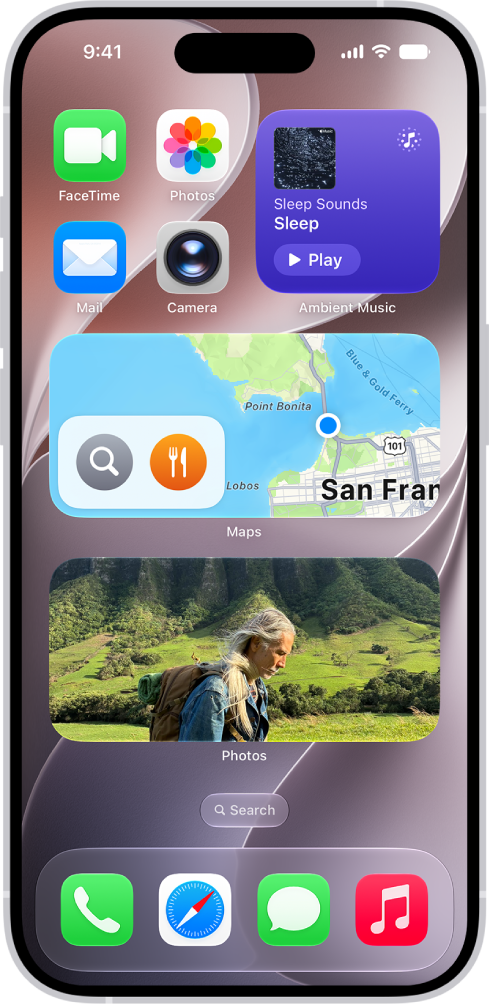
Widgets show you current information from your favorite apps at a glance. On iPhone, you can add a Mail widget and choose which mailbox it shows on your Home Screen, from recent unread emails to new emails from your VIPs or any other mailbox.
Add a Mail widget to your Home Screen
- Go to the Home Screen and then find the Home Screen page where you want to add the widget.
- Touch and hold the background until the apps begin to jiggle, tap the Edit button, and then tap Add Widget.
- Scroll or search to find Mail, tap it, and then swipe through the size and style options.
- When you see the size you want, tap Add Widget.
- While the apps are still jiggling, move the widget where you want it. Then tap the Done button.
Choose which mailbox the Mail widget shows
You can tap the mailbox shown in the widget, then choose a different mailbox so the messages in that mailbox are displayed in the widget. You can also change it from the widget’s options:
- Touch and hold the widget.
- Tap Edit Widget and then choose options.
- Tap Done.