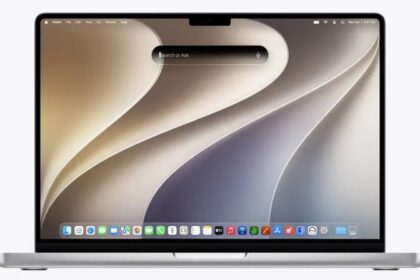
In this step-by-step guide, we’ll walk you through 5 easy ways to change your Mac’s wallpaper, so you can breathe some new life into your computer’s aesthetics. You can use your own photos or select from Apple’s stock wallpaper collection.
1. Set Mac’s wallpaper from Finder
- Open a Finder folder, such as Downloads, Documents, Pictures, or Desktop, and locate the wallpaper file.
- Right-click or hold the Control key and click over the image file, and select Set Desktop Picture. Depending on how many Services items you have turned on, this command may sit inside the Services submenu of the shortcut menu instead of at the top level.
2. Use the Photos app to change Mac’s wallpaper
- Open the Photos app on your Mac and select the image you want to use.
- Click the Share button in the Photos toolbar and choose Set Wallpaper.
3. Use drag and drop to set a wallpaper
- Open System Settings on your Mac and click Wallpaper in the sidebar. You may need to scroll down.
- Drag an image from your desktop or a Finder folder and drop it onto the thumbnail at the top of Wallpaper settings to set that picture as the new wallpaper.
4. Set Mac’s wallpaper when in Safari
- Visit the web page that has the image you want to use as your Mac’s background.
- Control-click (right-click) the image in the Safari window, then choose Use Image as Desktop Wallpaper.
5. Pick a wallpaper for your Mac from System Settings
- Go to System Settings and click Wallpaper in the sidebar. In addition to that, you can right-click on the desktop and choose Change Wallpaper.
- Use the Show All button next to a heading to see all wallpapers of its category and click the desired option to immediately set it as your Mac’s desktop background.
Dynamic Wallpapers: These images change their appearance through the day to match your location. The behavior depends on what you pick in the pop-up menu next to the current wallpaper thumbnail. Choose Dynamic and the picture gradually brightens and darkens based on the time of day for your current location. Choose Automatic and it switches from light to dark at sunset, but only when Appearance is set to Auto in System Settings > Appearance — if Appearance is set to Light or Dark, the wallpaper simply stays light or dark. If you select Light (Still) or Dark (Still), the desktop shows a static version of the picture that will not shift at all.
- If your Mac’s Location Services is turned off, the Dynamic Wallpaper will change based on your computer’s time zone and Date & Time settings.
- You’ll see a Down arrow next to the name of some wallpapers. Click that wallpaper and it will download and then be used. Further down the line, you can right-click on the downloaded wallpaper (without selecting it first, because that will set it as the current wallpaper) and choose Remove Download to free space on your Mac.
Landscape, Cityscape, Underwater, and Earth aerials: These aerial images animate as you lock or unlock your Mac. By default, the aerial wallpaper you select is also used as your screen saver.
Shuffle Aerials: These still images change at an interval you set.
Pictures: These still images show creative pictures you can use as your wallpaper.
Colors: Pick a solid color as your Mac desktop wallpaper. You can select one of the swatches or click the Add button and pick from millions of colors.
Add Photo: Scroll down to Your Photos, click the Add Photo button, then click Choose from Photos to pick an image from your Photos library, Choose File to pick an image file from the Finder, or Choose Folder to add a whole folder of images.
Is the desktop wallpaper blurry?
Any stock wallpaper you select in System Settings will always be crisp and of high quality. However, if you use a small, low-resolution, or low-quality picture as the desktop wallpaper, it will appear blurry or pixelated. Ensure your image is of high resolution, at a minimum of 1920 x 1080 pixels or higher.
Can’t set an image as your Mac’s wallpaper?
- Make sure the image you’re trying to set as the wallpaper is in JPEG, PNG, HEIC, or TIFF format.
- Wait a few seconds, as some older Macs may take a while for the new wallpaper to appear.
- Restart your Mac.
Do you use multiple Desktop Spaces?
If you use multiple desktop spaces, you’ll have to change the wallpaper of each space separately. Simply go to that space and follow the above methods to set a wallpaper. You can also turn on Show on all Spaces in Wallpaper settings to use the same wallpaper on every desktop space and display.
On some older Macs, even after changing the wallpaper, it may not appear on the desktop unless you switch to another Space and then switch back to it.
See also: The 10 Best Wallpaper Apps for iPhone