On iPhone, you can import contacts from a SIM card, vCard, or from a directory. Importing from a SIM card works on GSM models, and a vCard arrives as a .vcf attachment in an email or message. You can also add a contact from a directory, like a GAL, CardDAV, or LDAP directory, right in the Contacts app.
Import contacts from a SIM card (GSM)
- Open the Settings app on your iPhone.
- Tap Apps, then tap Contacts.
- Tap Import SIM Contacts.
Import contacts from a vCard
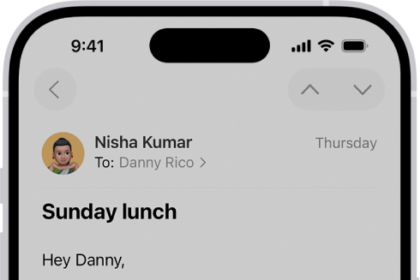
Tap a .vcf attachment in an email or message.
Add a contact from a directory
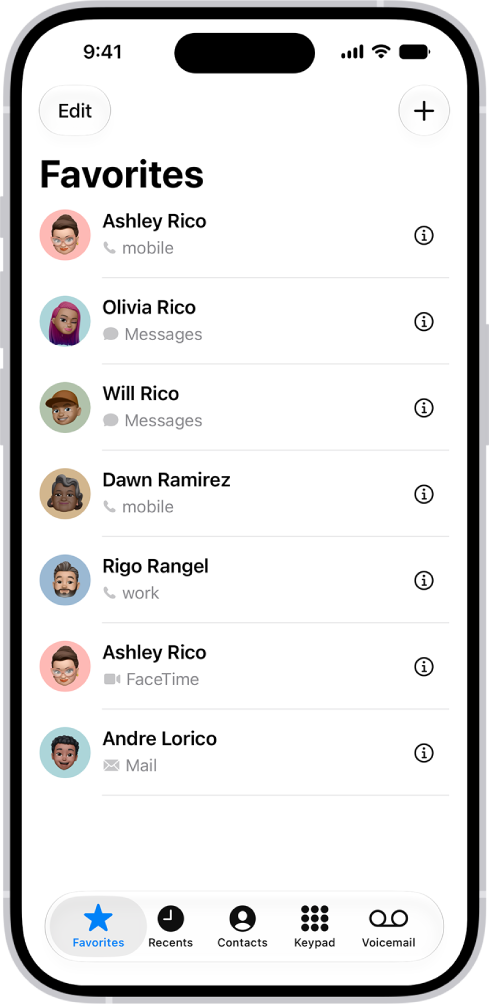
- Open the Contacts app on your iPhone.
- Tap the Lists button and tap the GAL, CardDAV, or LDAP directory you want to search.
- Enter your search.
- Tap the person’s name to save their information to your contacts.