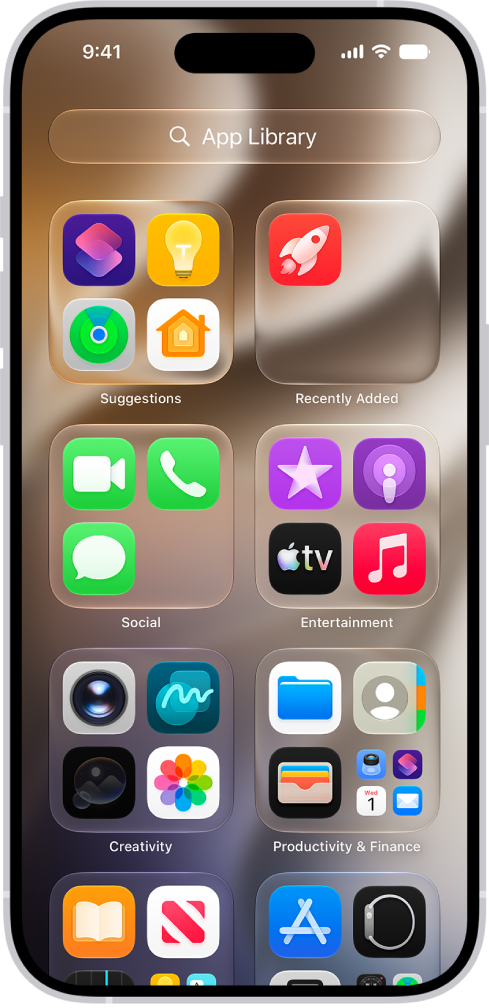
To add an app to your iPhone, you can download it from the App Store. When you download an app, you can choose to add it to both your Home Screen and App Library, or to App Library only.
An app that lands in App Library isn’t stuck there, either. You can easily move it to the Home Screen. App Library is the page that comes after all your Home Screen pages.
Choose where apps get downloaded
- Start the Settings app on your iPhone.
- Tap Home Screen & App Library.
- Choose Add to Home Screen or App Library Only.
Move an app from App Library to the Home Screen
If you downloaded an app to App Library, it’s easy to move it to the Home Screen.
- Swipe left past all your Home Screen pages to get to App Library.
- Touch and hold the background until the apps begin to jiggle.
- Touch and hold the app you want to move and drag it to the left.