You can change the password you use to sign in to a website or app on your iPhone. In the Passwords app, you can even upgrade to Sign in with Apple. That only works if the website or app allows it, though, and if you aren’t given the upgrade option, many accounts let iPhone automatically create a strong password.
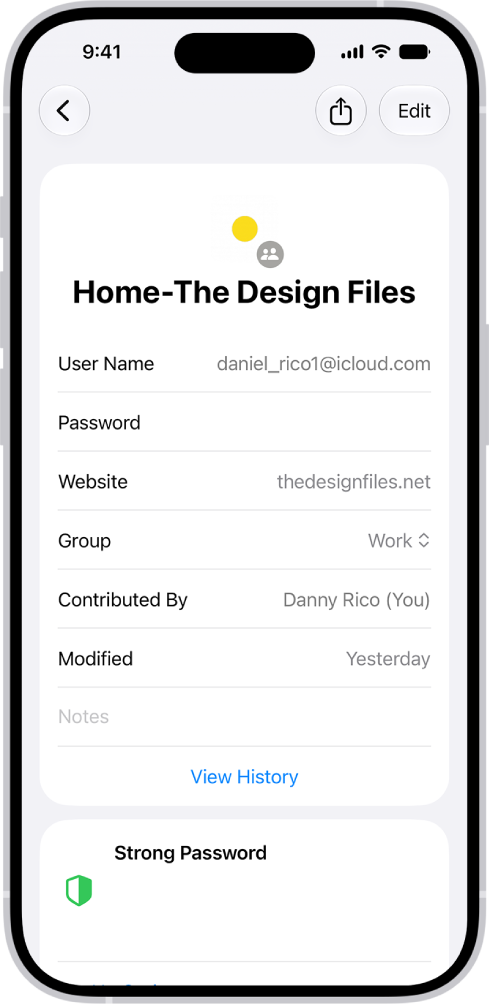
- Start the Passwords app on your iPhone.
- Tap All. Then locate the account for the website or app.
- Tap the account.
- Tap Edit, tap Change Password, and change your password on the website or in the app.
If the website or app allows you to upgrade to Sign in with Apple, you can take advantage of the security and convenience of that feature. If you aren’t given the upgrade option when you change your password, many accounts allow iPhone to automatically create a strong password that you don’t have to remember. Note: If you get a warning on your iPhone about a password for a website or app that’s no longer available, you can remove its account from your iPhone and iCloud Keychain. Go to the Passwords app on your iPhone, tap All, swipe left on the account, then tap Delete.