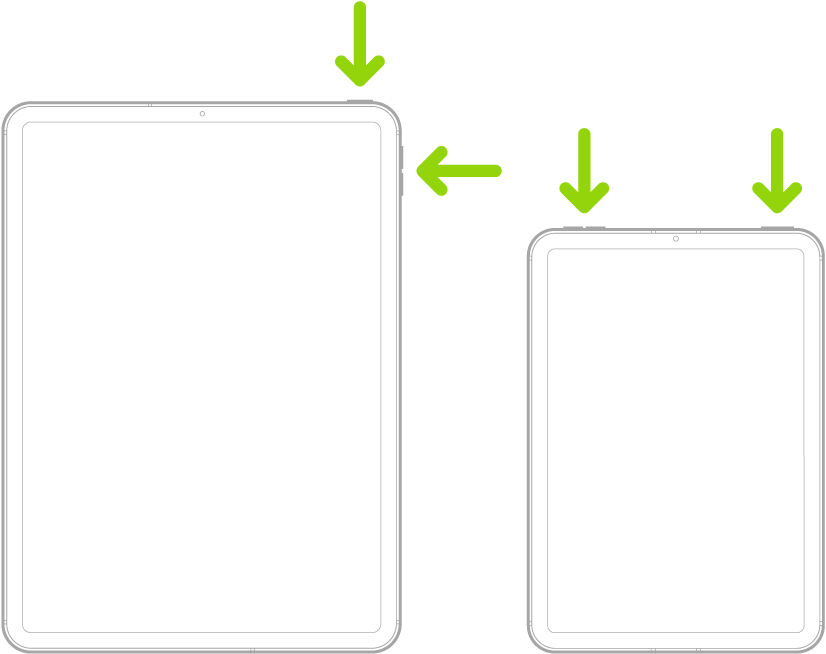
You can find your serial number, IMEI, and model information, including the name, iPadOS software version, model name, model number, and number of songs, videos, photos, and apps. You can also view cellular data usage, and see Legal & Regulatory information, like legal notices and license, warranty, and RF exposure information.
Find your serial number, IMEI, and model information
- Start the Settings app on your iPad.
- Tap General and tap About. The items you can view include:
- Name
- iPadOS software version
- Model Name
- Model Number. To the right of Model Number, the part number appears. To see the model number, tap the part number.
- Serial number
- Network (Wi-Fi + Cellular models)
- Number of songs, videos, photos, and apps
- Capacity and available storage space
- Carrier (Wi-Fi + Cellular models)
- Cellular Data Number (Wi-Fi + Cellular models)
- Wi-Fi and Bluetooth® addresses
- ICCID (Integrated Circuit Card Identifier, or Smart Card) for GSM networks (Wi-Fi + Cellular models)
- MEID (Mobile Equipment Identifier) for CDMA networks (Wi-Fi + Cellular models)
- Available SIM or SIMs (Wi-Fi + Cellular models)
Quick tip: To copy the serial number or other identifiers, touch and hold the one you want until Copy appears.
To see Legal & Regulatory information (including legal notices and license, warranty, and RF exposure information) and regulatory marks, go to the Settings app, tap General, then tap Legal & Regulatory.
View cellular data usage
- Start the Settings app on your iPad.
- Tap Cellular Data.
For more on cellular data settings, read our guide, View or change cellular data settings on iPad (Wi-Fi + Cellular models).
View or turn off diagnostic information
To help Apple improve products and services, iPad sends diagnostic and usage data based on the settings you turn on. This data, Apple says, is anonymous, but may include location information.
- Start the Settings app on your iPad.
- Tap Privacy & Security and tap Analytics & Improvements.
See also