On iPad, Siri AI (Beta) is your conversational AI assistant with entirely new capabilities, including personal context understanding, onscreen awareness, and broad world knowledge. With Siri AI, you also have Visual Intelligence, which lets you search, ask questions, and take action based on content in your screenshots, and a dedicated Siri app that brings all your conversations in one place.
Siri AI can find exactly what you’re looking for across your mail, photos, calendar, and messages, answer questions about any topic, and help you get more done in your apps.
Siri AI is available in beta on iPadOS 27 or later on an Apple Intelligence-enabled iPad mini (A17 Pro) or iPad model with M1 or later set to a supported language. Available in English to start. Siri AI will not initially be available in the EU on iPadOS. Usage limits may apply.*
Turn on Siri AI
- Open the Settings app on a supported iPad.
- Tap Siri and then do one of the following:
- If Siri is off: Tap Turn on Siri and then tap Try Siri AI (Beta).
- If Siri is on: Tap Try Siri AI (Beta).
- Follow the onscreen instructions.

Find what you need
Siri AI can search your photos, mail, messages, calendar, and more to find exactly what you’re looking for. Ask Siri to find a photo from years ago, a recommendation from a family member, or details about your friend’s flight itinerary from your email or calendar.
Siri AI: Activate Siri, then say something like, “Find photos from my trip to Lisbon” or “What time should I leave to pick up Antonio?”

Get more done
Siri AI uses onscreen awareness and an understanding of your personal context to help you get more done. Have Siri plan a menu for an event, say, or add ingredients from a recipe to your shopping list. It can take action in more apps, and even suggest what you might want to do next.
Siri AI: Activate Siri, then say something like, “Plan a menu for my watch party on Saturday.” Swipe down on the Siri response to see the full menu and make follow-up requests, like “Send this to the fantasy league group chat.”
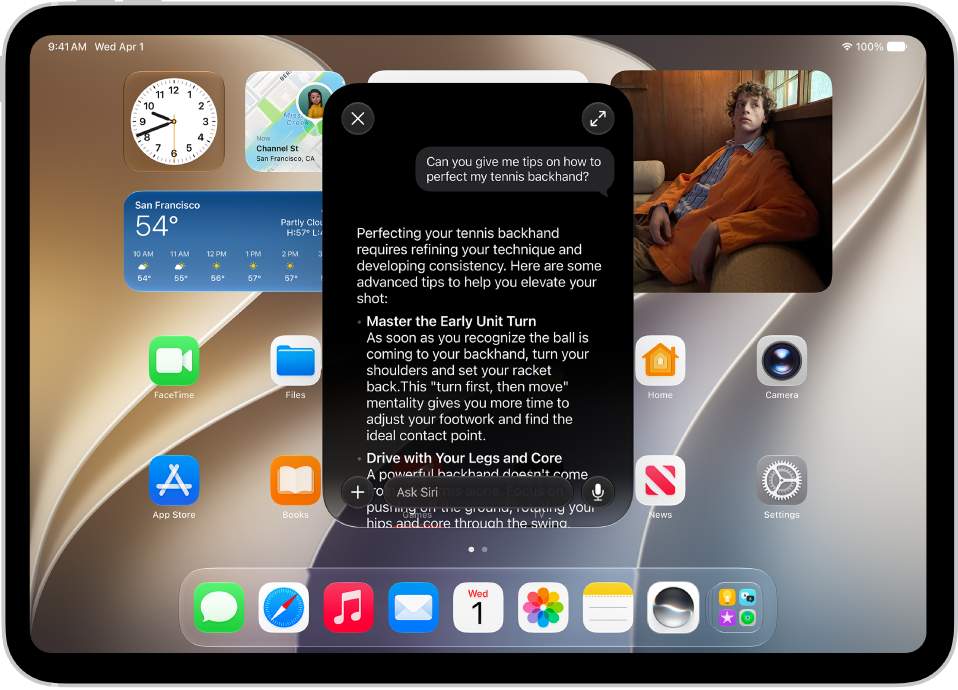
Ask about any topic
Siri AI has broad world knowledge, which is combined with your personal context to give you detailed, up-to-date, and relevant insights to your questions. Ask about virtually any topic—from finding the perfect weekend activity to do with family to details about the world around you.
Siri AI: Activate Siri, then say something like, “Give me some tips on how to improve my tennis backhand” or “When will cherry blossoms reach peak bloom this year?”

Learn about what’s on your screen
If there’s an image, a PDF, or other content on your iPad screen, you can ask Siri about it to get answers, search, or take action. Take a screenshot, and Siri uses Visual Intelligence so you can quickly search for similar images, ask questions, or take action based on what’s in the frame.
Siri AI: Quickly press and release the side button and the volume up button at the same time to take a screenshot, then tap the Ask button to ask a question, the Search button to search, or an action that appears—for example, Look Up Nutrition.
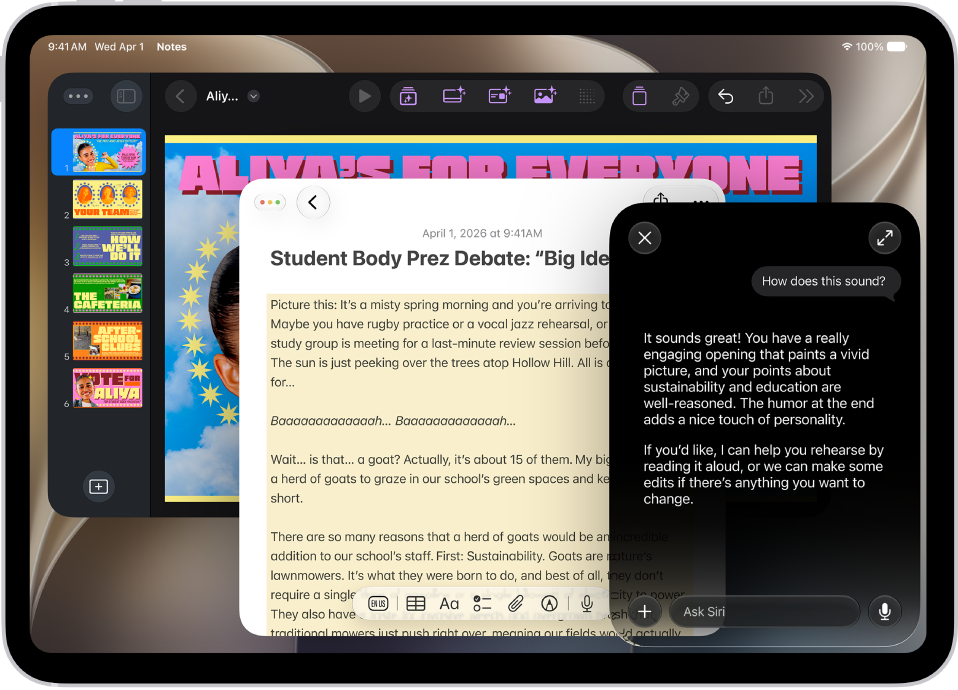
Write with Siri
Siri AI can generate a draft from scratch, summarize information, and provide feedback on what you’ve written—just describe what you want. For example, ask Siri to proofread a note or to write an itinerary for an upcoming trip.
Siri AI: Activate Siri, then say something like, “How’s this sound?” or “Write a day-by-day itinerary for a 3-day trip to New York.” Swipe down on the Siri response to continue to revise or ask follow-up questions.
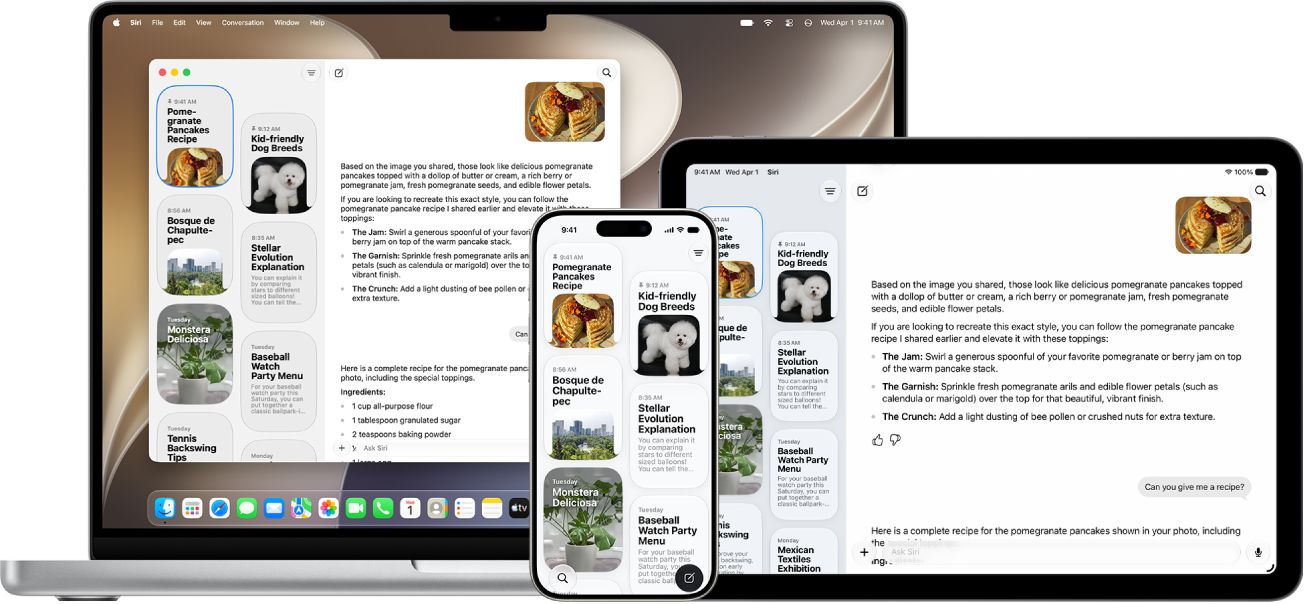
Keep the conversation going
When you open the Siri app, all your conversations are in one place, so it’s easy to pick up where you left off or start new conversations.
Siri AI: Go to the Siri app on your iPad, then select a conversation or tap the new conversation button to start a new one.
Want to learn more about Siri AI?
- Learn how to use Siri AI to take action, get answers, ask questions, and search based on what’s on your iPad screen. See Learn about what’s on your screen.
- Check out Write with Siri to find out how to use Siri AI to write, improve, and summarize text.
- To learn more about the dedicated Siri app, like how to start a new conversation, pick up where you left off, or more, see Use the Siri app.
- With Siri AI on supported iPad models, you can use Siri Expressive Voices,** which allow you to pick a voice, then customize its expressiveness and pace until Siri sounds just right. See Change Siri’s voice.
Siri is designed to protect your information, and you can choose what you share.
*Apple Intelligence is available with Siri and device language set to Chinese (Simplified), Chinese (Traditional), Danish, Dutch, English, French, German, Italian, Japanese, Korean, Norwegian, Portuguese, Spanish, Swedish, Turkish, or Vietnamese. Some features may not be available in all regions or languages. Some devices may not be available in all regions. Siri AI is available in beta in iOS 27, iPadOS 27, macOS 27, watchOS 27, and visionOS 27 and requires an Apple Intelligence–enabled device set to a supported language. Available in English to start. Siri AI will not be initially available in the EU on iOS, iPadOS, and watchOS. Certain Apple Intelligence features that rely on server-side models are subject to daily usage limits, including but not limited to Siri AI, Intelligent Photo Editing Tools, Image Playground, and AFM 3 Cloud models in Shortcuts. Daily limits may vary by feature, request complexity, system demand, system policies, and other factors. Expanded access to such features will be available for a fee in the future. Use of these features is subject to the Apple Intelligence Terms and Conditions.
**Siri Expressive Voices are available with Siri AI on iPad models with M4 or later with at least 12 GB of unified memory.