How to export or compress PDFs and images in Preview on iPad

You can export or compress PDFs and images in Preview on iPad as HEIC, JPEG, PDF, PNG, or TIFF files.

By Kevin Shaw - Editor
0 Min Read

On iPad, you can export a PDF or an image as an HEIC, JPEG, PDF, PNG, or TIFF file in the Preview app. You can compress the file, too. You can also manage PDFs and images, add, delete, rotate, move, or crop PDF pages, and edit an image in Preview.

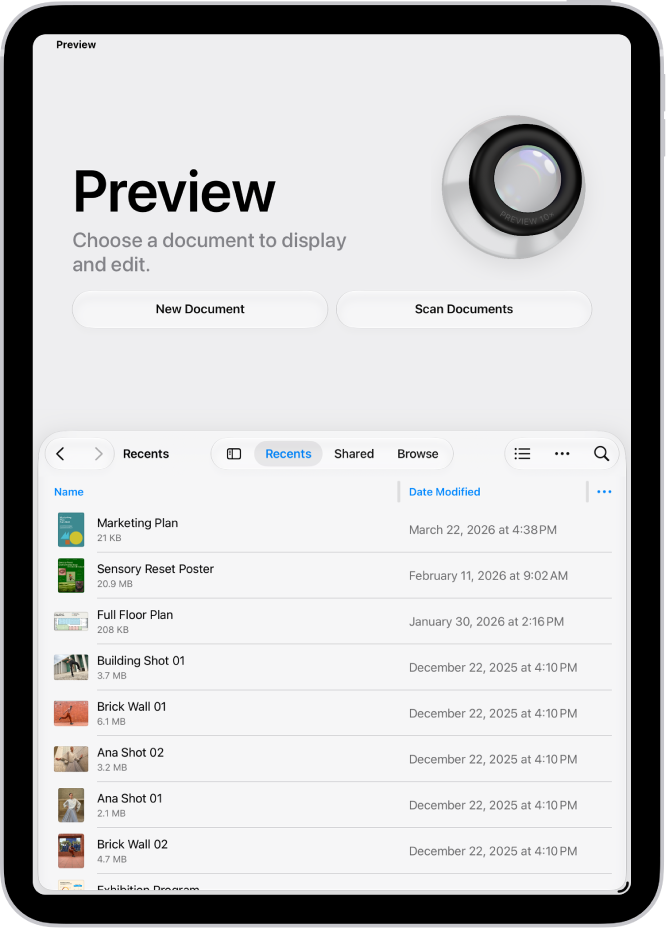
  1. Go to the Preview app on your iPad.
  2. Open a PDF or image.
  3. Tap the Actions Menu button next to the filename. Then tap Export.
  4. Select a file format.

    Available formats are HEIC, JPEG, PDF, PNG, and TIFF.

  5. Optionally, use the slider to adjust the file size.

See also
TAGGED:
Editor
Follow:
Kevin Shaw is a seasoned tech journalist based in Los Angeles with a penchant for all things Apple. He started writing about Apple products in 2007 and it's been a love affair ever since. He has spent over a decade testing and writing about iPhones, iPads, Macs, and other Apple products. In his spare time, he likes nothing more than catching up with the latest news and sports podcasts on the beach.
Leave a Comment