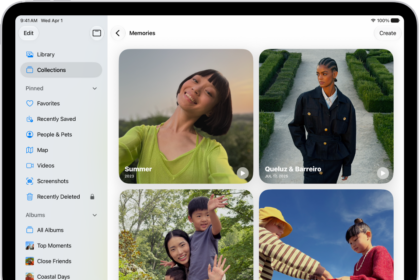
On iPhone, in many apps, you can zoom in or out on specific items. For example, you can look closer in Photos or expand webpage columns in Safari. You can also use the Zoom feature to magnify the screen no matter what you’re doing.
You can magnify the entire screen (Full Screen Zoom) or magnify only part of the screen with a resizable lens (Window Zoom). Zoom can also follow your selections, the text insertion point, and your typing. And you can use Zoom together with VoiceOver.
Set up Zoom
- Open Settings, tap Accessibility, tap Zoom, and turn on Zoom.
- Adjust any of the following:
- Follow Focus: Track your selections, the text insertion point, and your typing.
- Smart Typing: Switch to Window Zoom when a keyboard appears.
- Keyboard Shortcuts: Control Zoom using shortcuts on an external keyboard.
- Zoom Controller: Turn the controller on, set controller actions, and adjust the color and opacity.
- Zoom Region: Choose Full Screen Zoom or Window Zoom.
- Zoom Filter: Choose None, Inverted, Grayscale, Grayscale Inverted, or Low Light.
- Maximum Zoom Level: Drag the slider to adjust the level.
- If you use iPhone with a pointer device, you can also set the following below Pointer Control:
- Zoom Pan: Choose Continuous, Centered, or Edges to set how the screen image moves with the pointer.
- Adjust Size with Zoom: Allow the pointer to scale with zoom.
- To add Zoom to Accessibility Shortcut, open Settings, tap Accessibility and tap Accessibility Shortcut. Tap Zoom.
Use Zoom
- Double-tap the screen with three fingers or use Accessibility Shortcut to turn on Zoom.
- To see more of the screen, do any of the following:
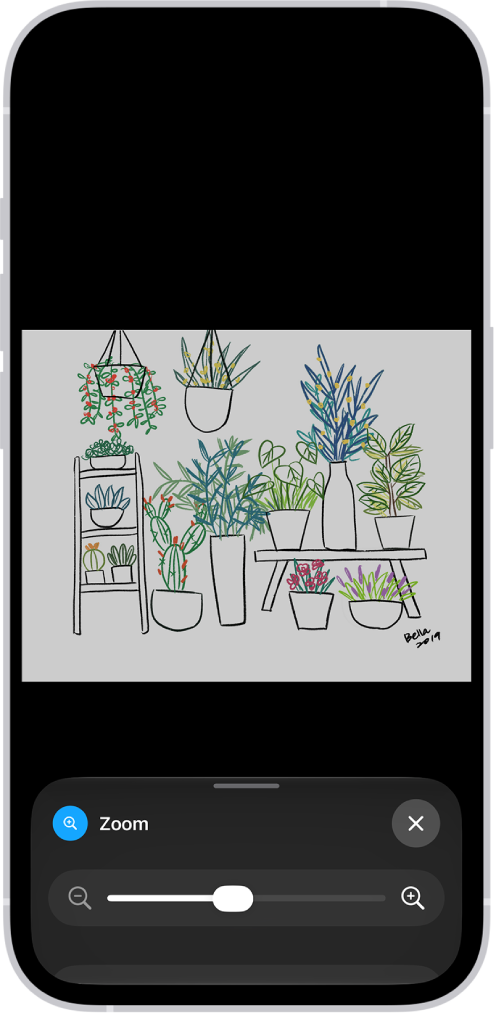
- Adjust the magnification: Double-tap the screen with three fingers (without lifting your fingers after the second tap). Then drag up or down. Or triple-tap with three fingers. Then drag the Zoom Level slider.
- Move the Zoom lens: (Window Zoom) Drag the handle at the bottom of the Zoom lens.
- Pan to another area: (Full Screen Zoom) Drag the screen with three fingers.
- To adjust the settings with the Zoom menu, triple-tap with three fingers and then adjust any of the following:
- Choose Region: Choose Full Screen Zoom or Window Zoom.
- Resize Lens: (Window Zoom) Tap Resize Lens and then drag any of the round handles that appear.
- Choose Filter: Choose Inverted, Grayscale, Grayscale Inverted, or Low Light.
- Show Controller: Show the Zoom Controller.
- To use the Zoom Controller, do any of the following:
- Show the Zoom menu: Tap the controller.
- Zoom in or out: Double-tap the controller.
- Pan: When zoomed in, drag the controller.
When you use Zoom with Magic Keyboard, the Zoom region follows the insertion point and keeps it in the center of the screen.
To turn off Zoom, double-tap the screen with three fingers or use Accessibility Shortcut.