On iPad, in the Translate app, you can type or simply speak to see translated text in chat bubbles while talking to someone in a different language. In the face-to-face view, each person can see the conversation from their own side.
Conversations work for downloaded languages even without an internet connection, and words are translated as you type or speak. You can also play the audio translation, and with Auto Translate, iPad can tell when you start and stop speaking.
Translate an in-person conversation
You’ll see translated text bubbles from both sides of the conversation on iPad, and for downloaded languages, conversations still work without an internet connection or when using on-device translation.
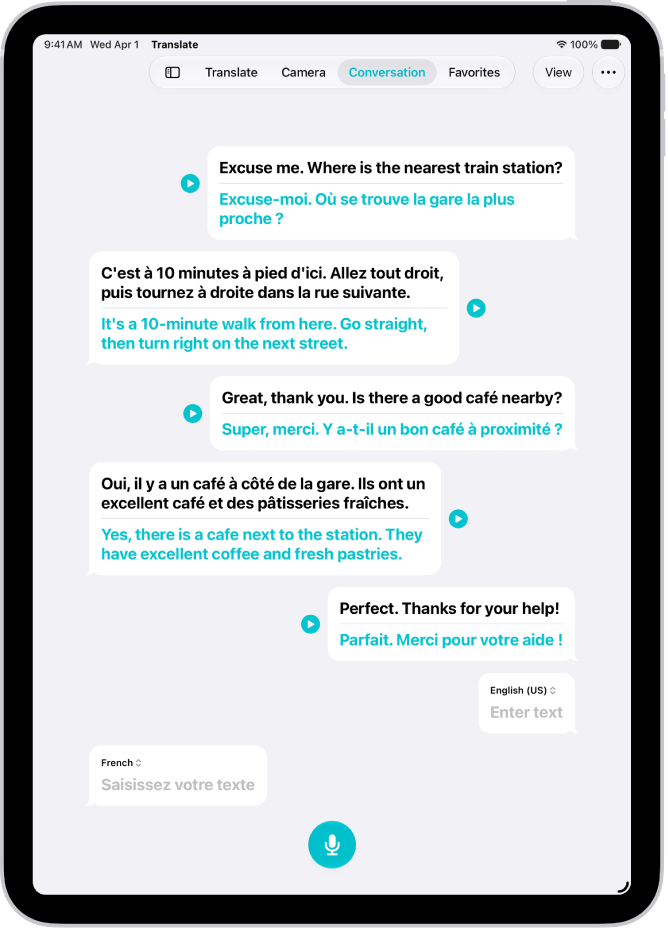
- Open the Translate app on your iPad.
- Tap Conversation.
- Do one of the following:
- Type: Tap “Enter text,” type a phrase (or paste text), then tap the Done button.
- Speak: Tap the Listen button and then say a phrase.
Note: Words are translated as you type or speak.
- To play the audio translation, tap the Play button. To adjust the playback speed, touch and hold the Play button, then choose a speed.
Quick tip: For added convenience, tap the More Options button and choose any of the following:
- Play translations: Automatically play the audio translations.
- Auto Translate: Translate the conversation without tapping the microphone button. iPad automatically detects when you start speaking and when you stop.
- Detect Language: The languages spoken are automatically detected.
Switch to the face-to-face conversation view
When chatting face-to-face, each person can see the conversation from their own side.
- Open the Translate app on your iPad.
- Tap View, then tap Face to Face.
See also