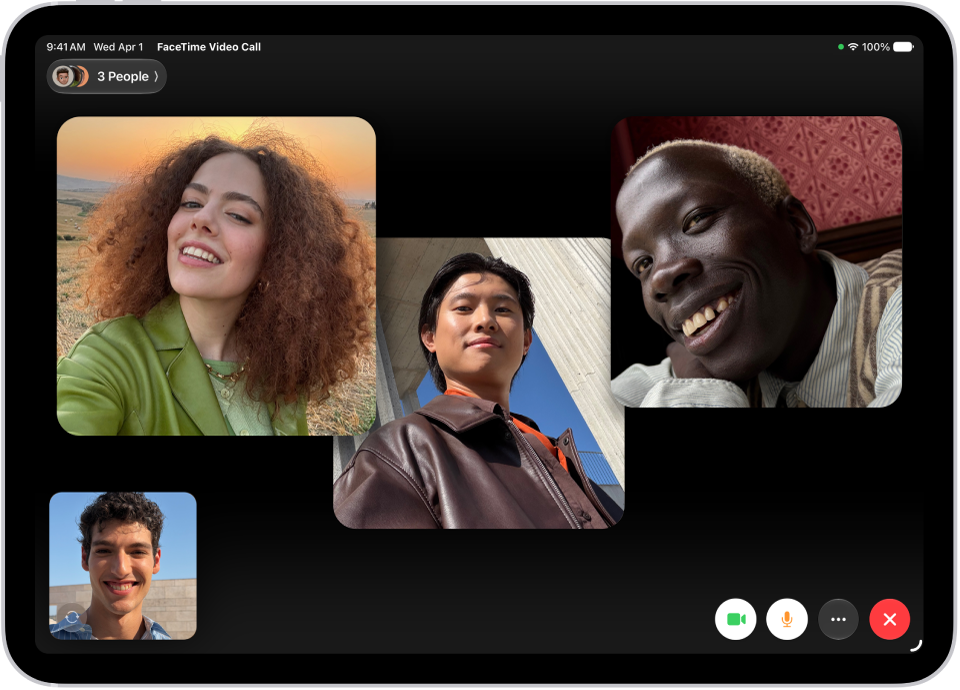
On iPad, with SharePlay in the FaceTime app, you can stream TV shows, movies, and music in sync with friends and family while on a FaceTime call. You can also play supported multiplayer games in Game Center with friends during a FaceTime call, and watch supported live sports events together.
If you’ve started watching a video together, you can move it to the big screen of Apple TV 4K. And when you listen to music together, anyone with access can see what’s next and add songs to a shared queue.
SharePlay can also be used in other apps during a FaceTime call. To see which apps are supported, tap the More button, tap SharePlay, then scroll through the apps.
Note: Apple TV (includes Friday Night Baseball, MLS, or both in some countries and regions, and Formula 1 in the U.S.), Apple TV channels, and some apps that support SharePlay require a subscription. To watch a movie, TV show, or live sports event together, every participant needs to have access to the content on their own device, through either a subscription or purchase. Each device must meet the minimum system requirements. SharePlay may not support the sharing of some movies, TV shows, or live sports events across different countries or regions. FaceTime, some FaceTime features, and other Apple services may not be available in all countries or regions.
Watch video together during a FaceTime call
When you’re on a FaceTime call, movies, TV shows, and supported live sports events play in sync for you and your friends and family.
- Start a call or a Group FaceTime call in the FaceTime app on your iPad.
- Tap the More button, tap SharePlay, and then tap an app below Listen and Play Together (for example, the Apple TV app).
Alternatively, you can go to the Home Screen, then open a video streaming app that supports SharePlay.
- Select a show, movie, or live sports event that you want to watch.
- Tap the Play button. Then select SharePlay (if it appears) to begin watching with everyone on the call. (Others on the call may have to tap Join SharePlay to see the video.)
For everyone on the call who has access to the content, the video starts playing at the same time. People who don’t have access are asked to get access (through a subscription, a transaction, or a free trial, if available).
Each person watching the content can use the playback controls to play, pause, rewind or fast-forward. (Settings like closed captioning and volume are controlled separately by each person.)
With Picture in Picture, the video keeps playing while you use another app to order food or check your email. You can even jump into the Messages app to discuss the video by text when you don’t want interruptions to the movie or TV show’s sound.
Invite friends to watch video together from a supported app during a FaceTime call
If your iPad meets the minimum system requirements, you can start a FaceTime call from the Apple TV app or another supported video app while browsing or watching video content, and use SharePlay to share it in sync with others. Everyone on the call needs the same type of access to the content, like a subscription or purchase, on their own device.
- In the Apple TV app (or other supported video app), find a show, movie, or live sports event that you want to share.
- Tap the item to see its details and tap the Share button. Tap SharePlay.
- In the To field, enter the contacts you want to share with. Tap FaceTime.
- When the FaceTime call connects, tap Start or Play to begin using SharePlay.
The recipients tap Open to begin viewing.
Note: If the content requires a subscription, people who aren’t subscribers can subscribe before watching.
Once playback starts, you can stream the video to Apple TV 4K, too. See Send what you’re watching in SharePlay to Apple TV 4K, below.
Send what you’re watching in SharePlay to Apple TV 4K
You can send a video you’ve already started watching together on iPad to Apple TV 4K and enjoy it on the big screen.
To send it from your iPad, do one of the following:
- In the streaming app, tap the AirPlay button, then choose Apple TV as the playback destination.
- Open Control Center, tap the AirPlay button, then choose Apple TV as the playback destination.
The video plays in sync on Apple TV 4K. Meanwhile, the conversation continues on your iPad.
Listen to music together during a FaceTime call
Listening to an album or favorite playlist together works on a FaceTime call, too. If someone on the call has access to the music on a device that meets the minimum system requirements, say through a subscription, a transaction, or a free trial, they can see what’s next, listen along, add songs to a shared queue, and more.
- Start a call in the FaceTime app on your iPad.
- Tap the More button, tap SharePlay, and tap an app below Listen and Play Together.
Alternatively, you can go to the Home Screen, then open a music streaming app that supports SharePlay (for example, the Music app).
- Select the music you want to listen to and then tap the Play button to begin listening to the music together. (Others on the call may have to tap Join SharePlay to hear the music.)
For everyone on the call who has access to the content, the music starts playing at the same time. People who don’t have access are asked to get access (through a subscription, a transaction, or a free trial, if available).
Each person can use the music controls to pause, rewind, fast-forward, scrub to a different part of the song, or go to the next track. And anyone on the call can add songs to the shared queue.
Invite friends to listen to music together on FaceTime from a supported app
In the Music app or another supported music app, an iPad that meets the minimum system requirements can start a FaceTime call and share the music in sync with everyone on the call using SharePlay. With the music controls, each person can rewind, pause, fast-forward, or scrub to a different part of the song. The shared queue is open to anyone using SharePlay for adding songs. Everyone on the call needs access to the content, such as through a subscription.
- Go to the Music app (or other supported music app). Tap the music you want to share.
- Do one of the following:
- Tap the More button next to the music, tap the Share button, then tap SharePlay.
- Tap the More button at the top right, tap the Share button, then tap the SharePlay button.
- In the To field, enter the contacts you want to share with. Tap FaceTime.
- When the FaceTime call connects, tap Start.
To begin listening, recipients tap the song title at the top of the FaceTime controls, then tap Open. The music starts playing at the same time for everyone on the call who has access to the content.
Note: Every participant needs to have access to the content on their own device, either through a subscription or a purchase. People who don’t have access to the content you share are asked to get access.
Play games in Game Center with friends during a FaceTime call
To play supported multiplayer games on a FaceTime call, set up your Game Center profile in the Settings app, add friends, and find and download a supported multiplayer game for Game Center in the App Store.
During a FaceTime call, open the game, tap Start SharePlay, then follow the onscreen instructions.
To play games together, read our guide, Play with friends in the Apple Games app.
During the conversation, sharing your screen lets you show apps, webpages, and more. See our article, Share your screen in a FaceTime call.
SharePlay lets you work out with others using Apple Fitness+.
See also