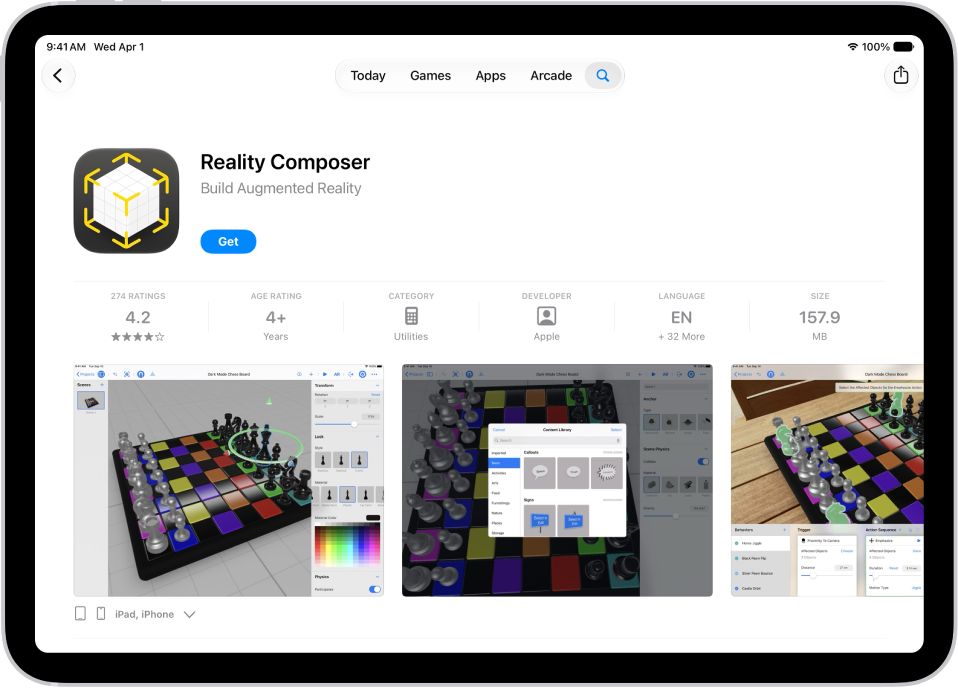
Apps installed by default on your iPad are updated whenever you update iPadOS. Apps that you download from the App Store app are automatically updated by default, but you can manually update an app.
You can also turn off automatic app updates, and update apps one at a time or all at once. Updated apps show up below Updated Recently. And you can get apps and change settings and restrictions in the App Store.
Turn off automatic app updates
- Start the Settings app on your iPad.
- Tap Apps and then tap App Store.
- Turn off App Updates.
Manually update apps
- Start the App Store app on your iPad.
- Tap the My Account button or your picture at the top right.
- Tap App Updates and then tap Update next to apps you want to update, or tap Update All.
After an app is updated, it appears in the list of apps below Updated Recently.
See also